Custom fields
Configuration
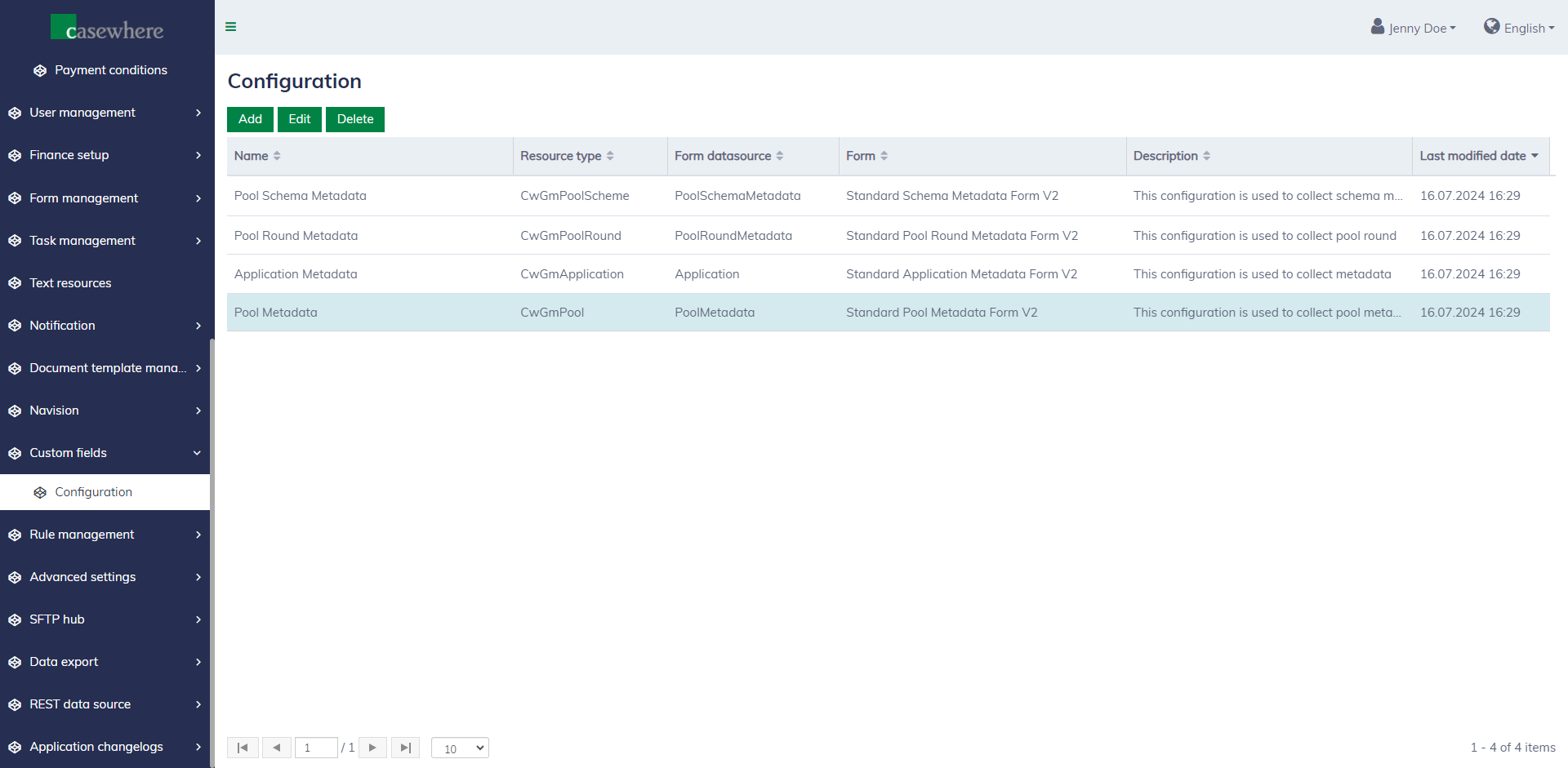
You can extend the system-defined data model and add more custom fields to store additional data for pool schemes, pools, pool rounds, and applications. Navigate to "Custom fields / Configuration" to set up custom fields for your solution.
The custom-field editor looks as follows.
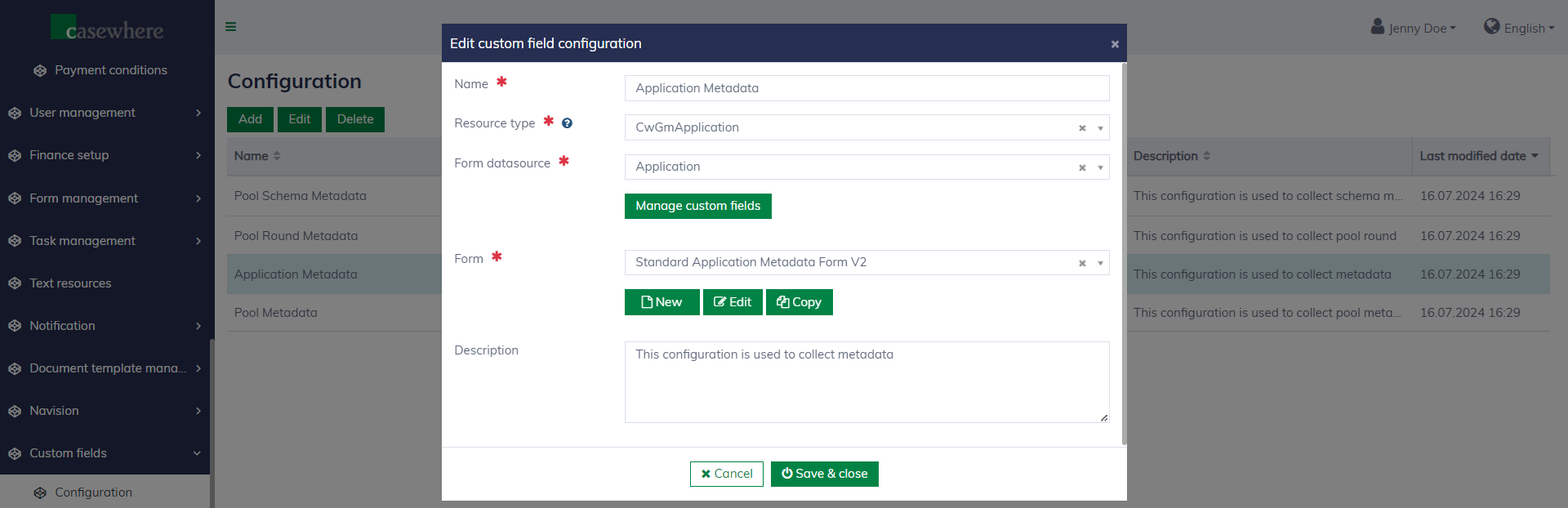
Basically, you need to specify the resource type, such as CwGmApplication, which represents the application data entity, and then select the form template designed for inputting data for the custom fields.
Demo
In this demo, we will guide you on how to add a new Remark field for the application data entity.
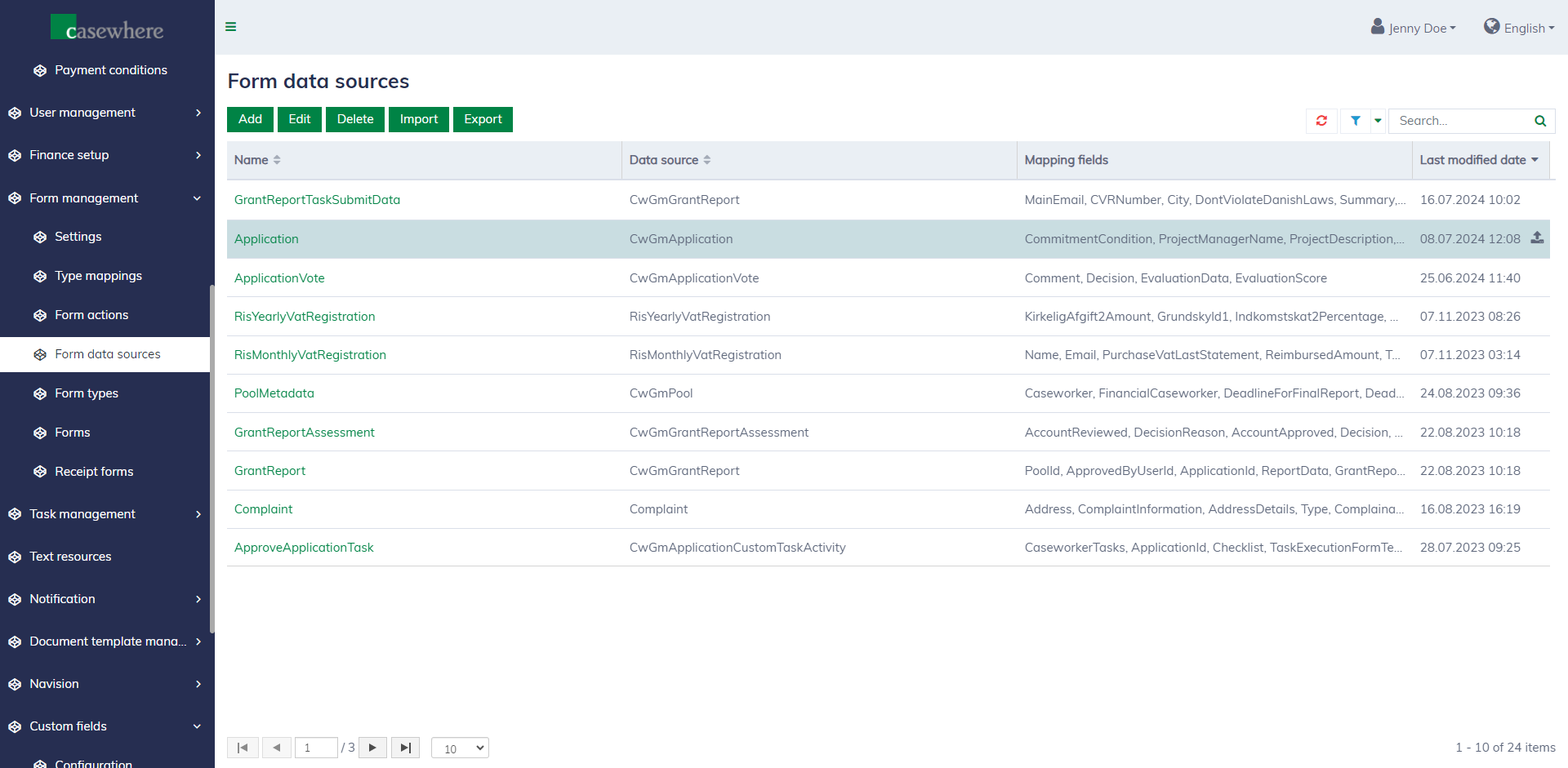
Firstly, navigate to the form data source under "Form management / Form data sources" and edit the "Application" data source.
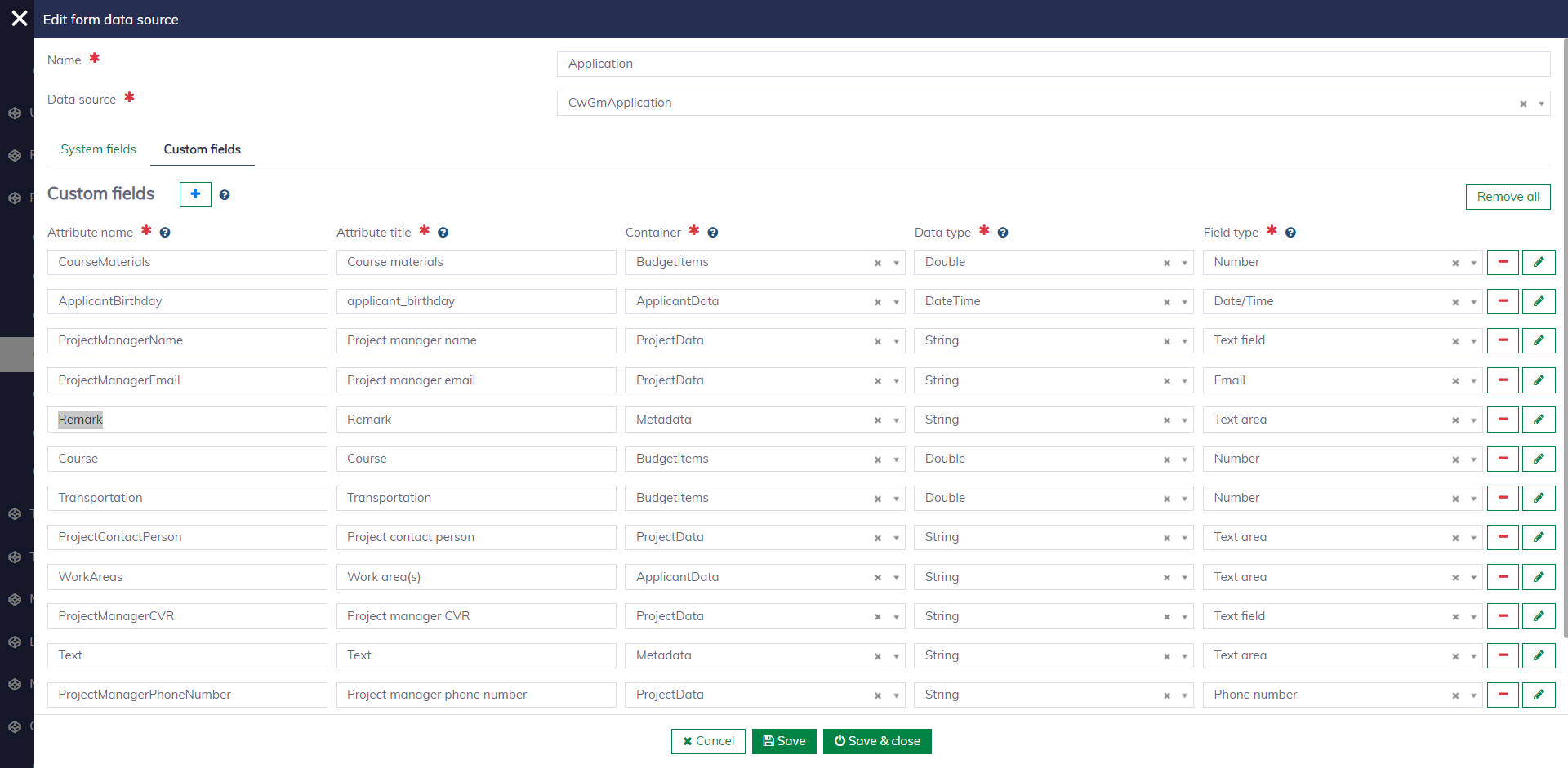
In the data source editor, navigate to the "Custom fields" tab and add a new field, Remark.
- Attribute name: The name of the field in the database.
- Attribute title: To be displayed to the end users.
- Container: Choose
Metadata. - Data type: Choose
String. - Field type: Choose
Text area.
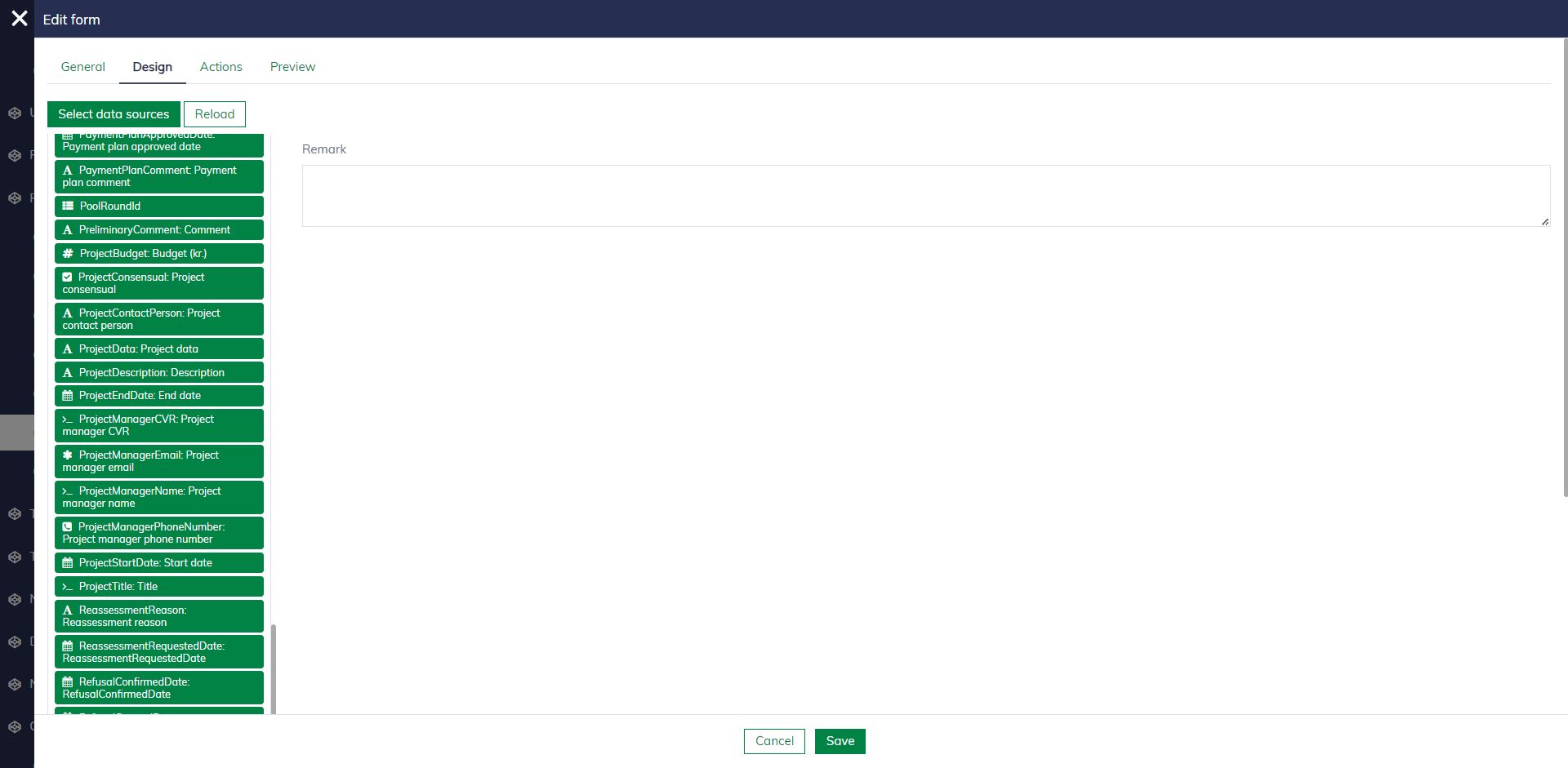
Follow the above configuration guideline to add a new form template and configure it for the resource type CwGmApplication. After that, you can start to edit the form template. Here, you simply drag and drop the Remark field into the form.
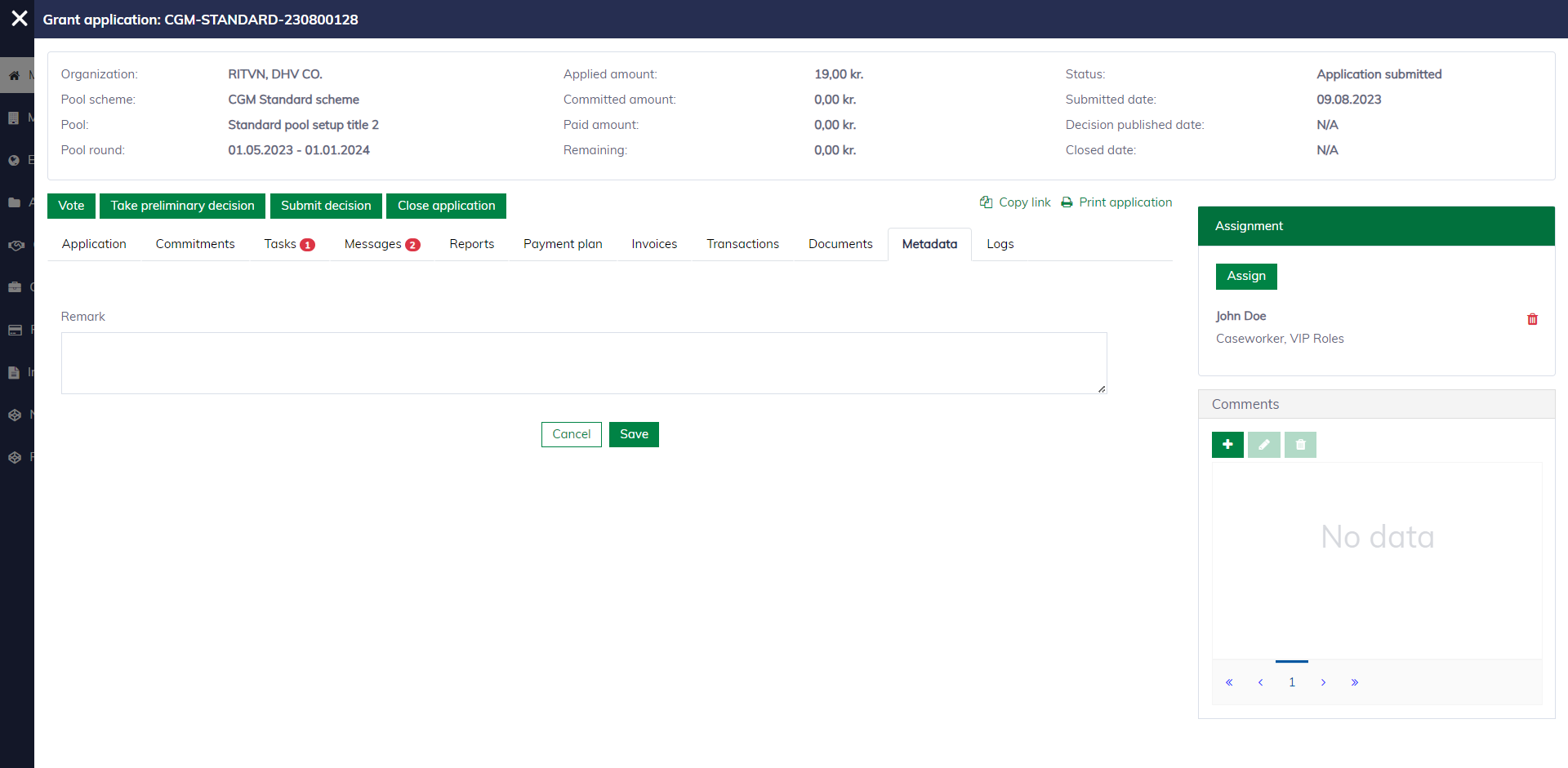
After publishing the form template, you can see the form appears in the "Metadata" tab in the application dialog.