Internal users
An administrator user in your organization can:
Manage internal roles
Manage internal organizations
Manage internal users
Approve self-created users
View administration logs
Internal roles
A role refers to a predefined set of permissions assigned to users within the system. The purpose of roles is to streamline and simplify the process of managing user permissions by grouping various permissions into a single entity that can be assigned to multiple users.
Configuration
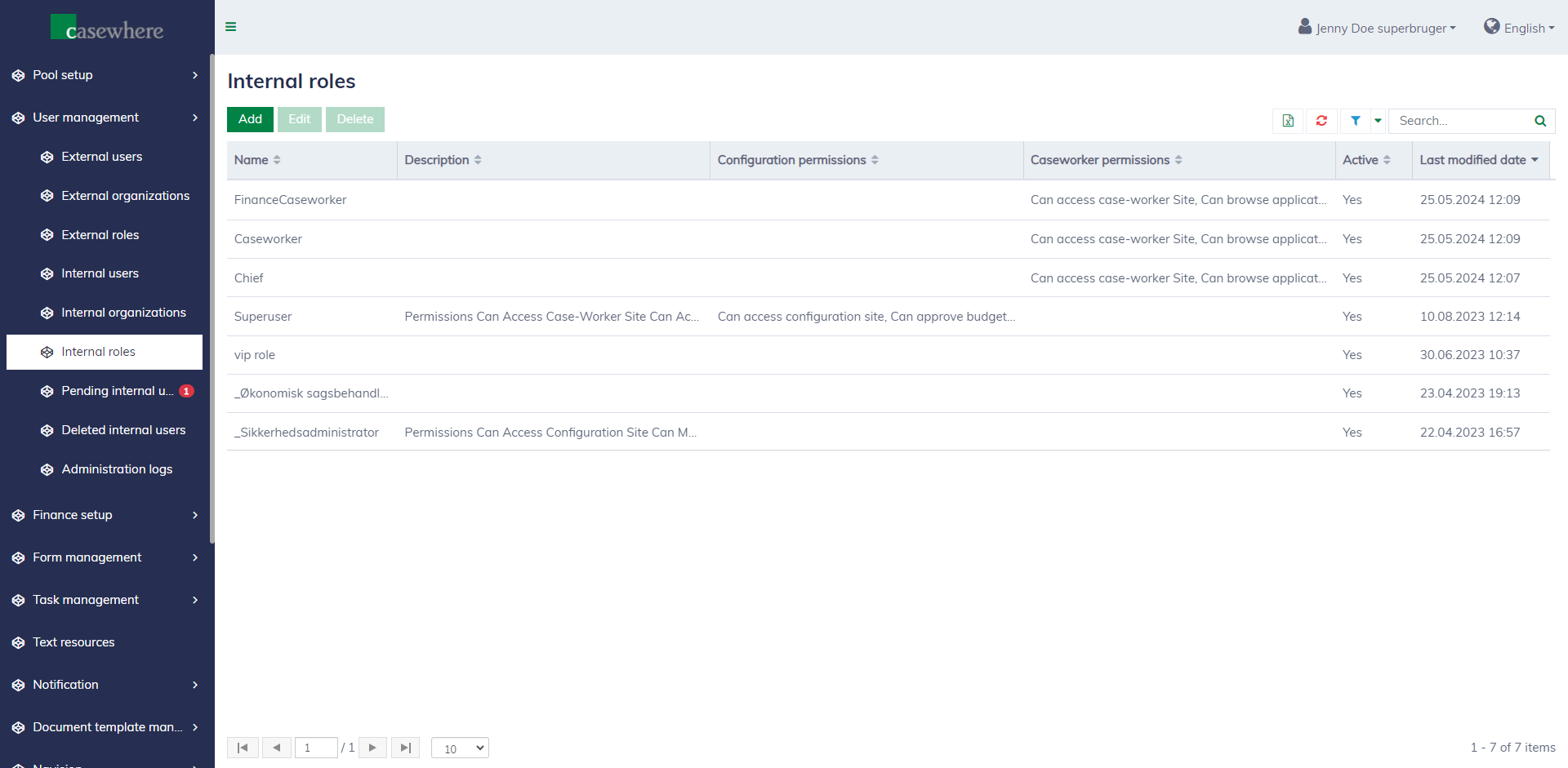
You can navigate to "User management \ Internal roles" to manage internal roles. Here, you can create new roles and edit or delete existing roles.
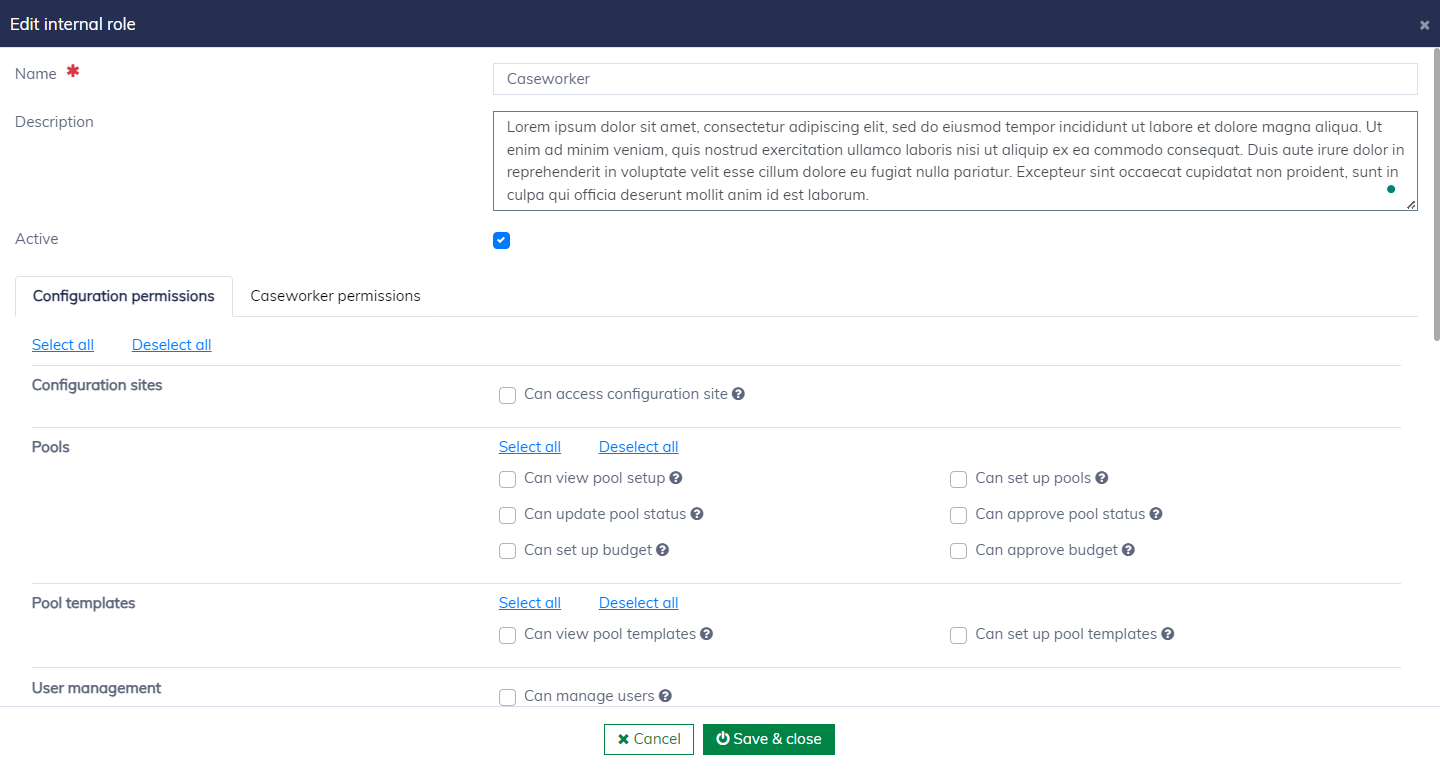
The role editor looks as follows:
It is not possible to delete a role that is currently in use, for example, if it is assigned to a user.
Role information
The following fields describe a role:
| Field name | Mandatory | Description |
|---|---|---|
| Name | Yes | The role name must be unique |
| Description | No | To provide additional information |
| Active | No | Only active roles can be assigned to users |
| Configuration permissions | No | A list of permissions related to functionalities in the configuration site |
| Caseworker permissions | No | A list of permissions related to functionalities in the caseworker site |
Hint: The help icon next to the checkbox label can provide further explanation of the permission.
Internal organizations
The system allows the organization-level management of pools and users. This is useful when multiple pools are managed by different user groups.
Configuration
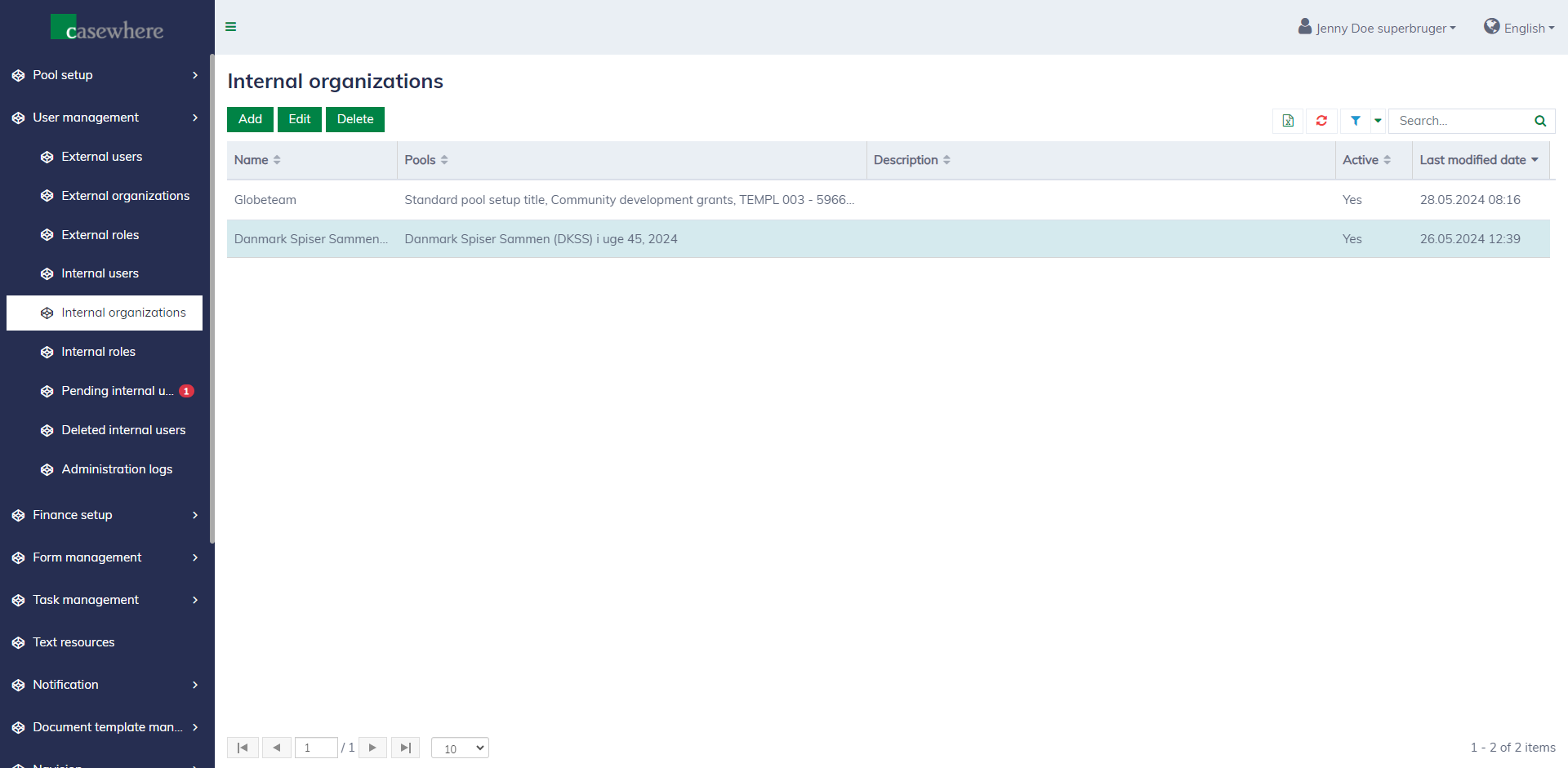
You can navigate to "User management \ Internal organizations" to manage internal organizations. Here, you can create new organizations and edit or delete existing organizations.
The organization editor looks as follows:
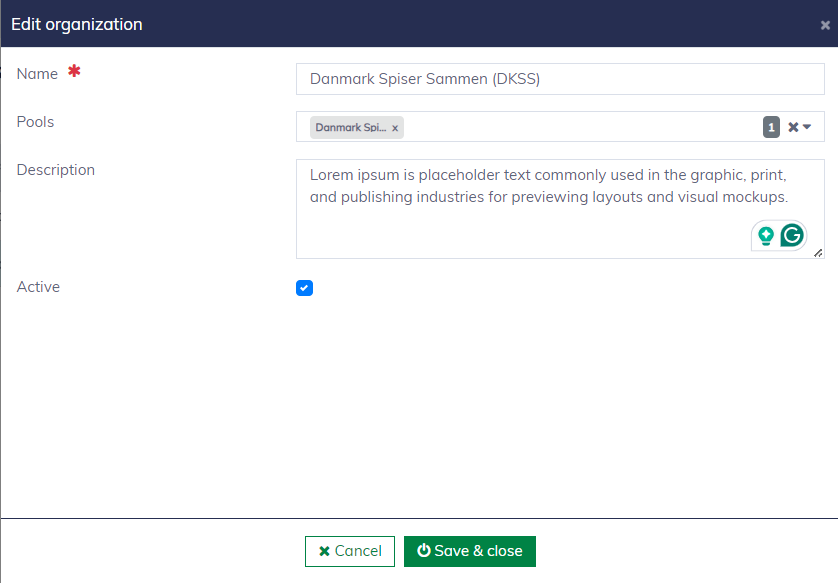
It is not possible to delete an organization that is currently in use, for example, if it has users.
Organization information
The following fields describe an organization:
| Field name | Mandatory | Description |
|---|---|---|
| Name | Yes | The organization name is mandatory and must be unique |
| Description | No | To provide additional information |
| Active | No | Only active organizations are accessible to users |
| Pools | No | A list of pools applicable to the organization |
Internal users
Users can only access pools assigned to their organizations. Their roles determine the functionalities accessible to them.
Configuration
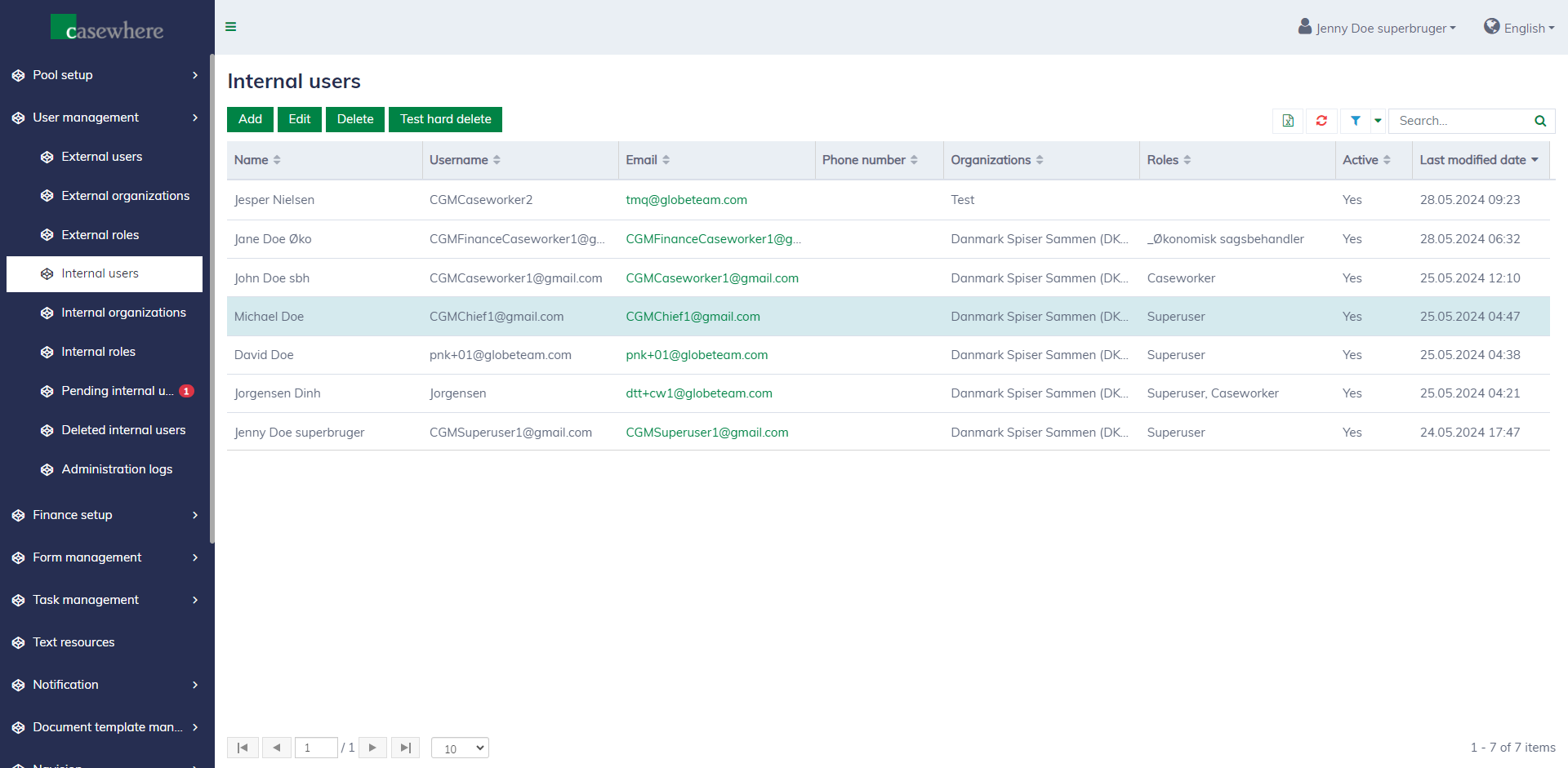
You can navigate to "User management \ Internal users" to manage internal users. Here, you can create new users and edit or delete existing users.
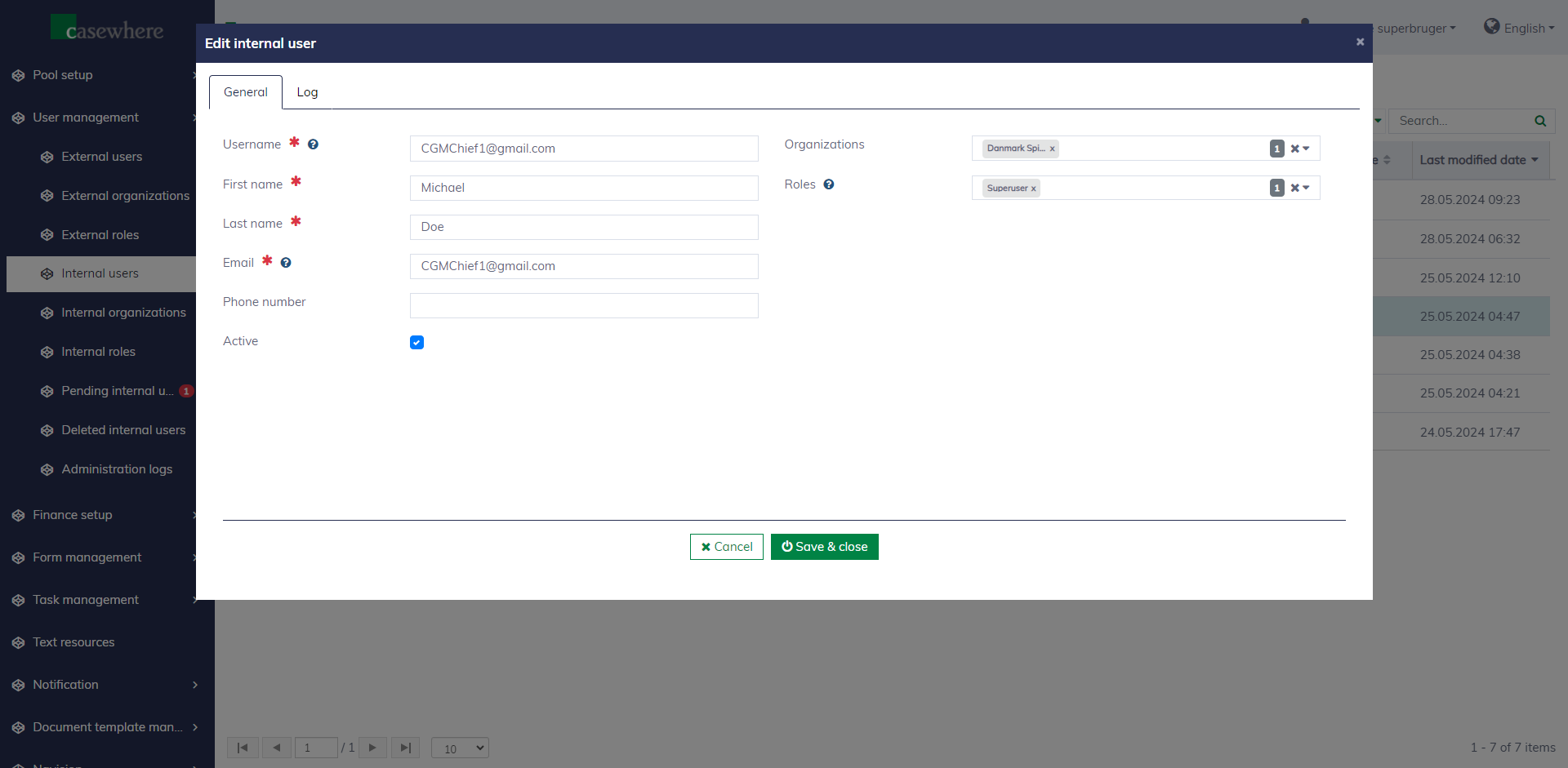
The user editor looks as follows:
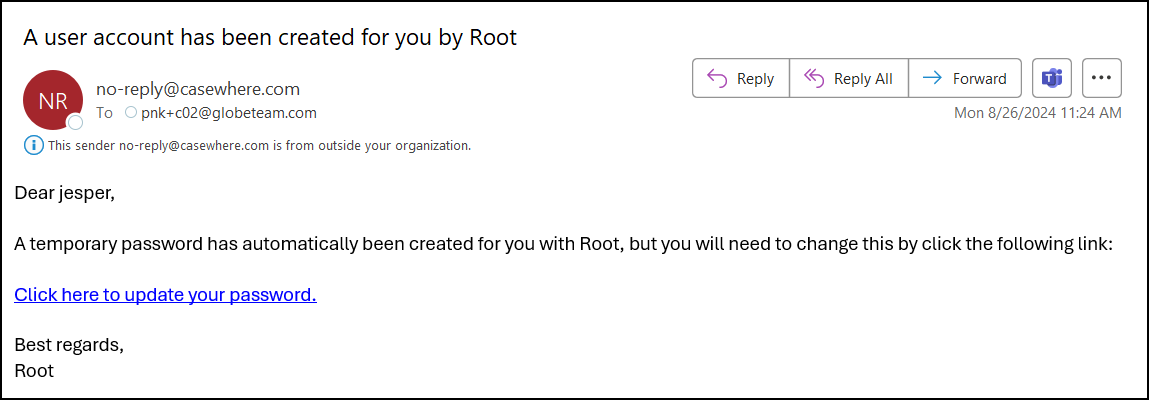
Typically, new users will receive an email containing a link to set their password.
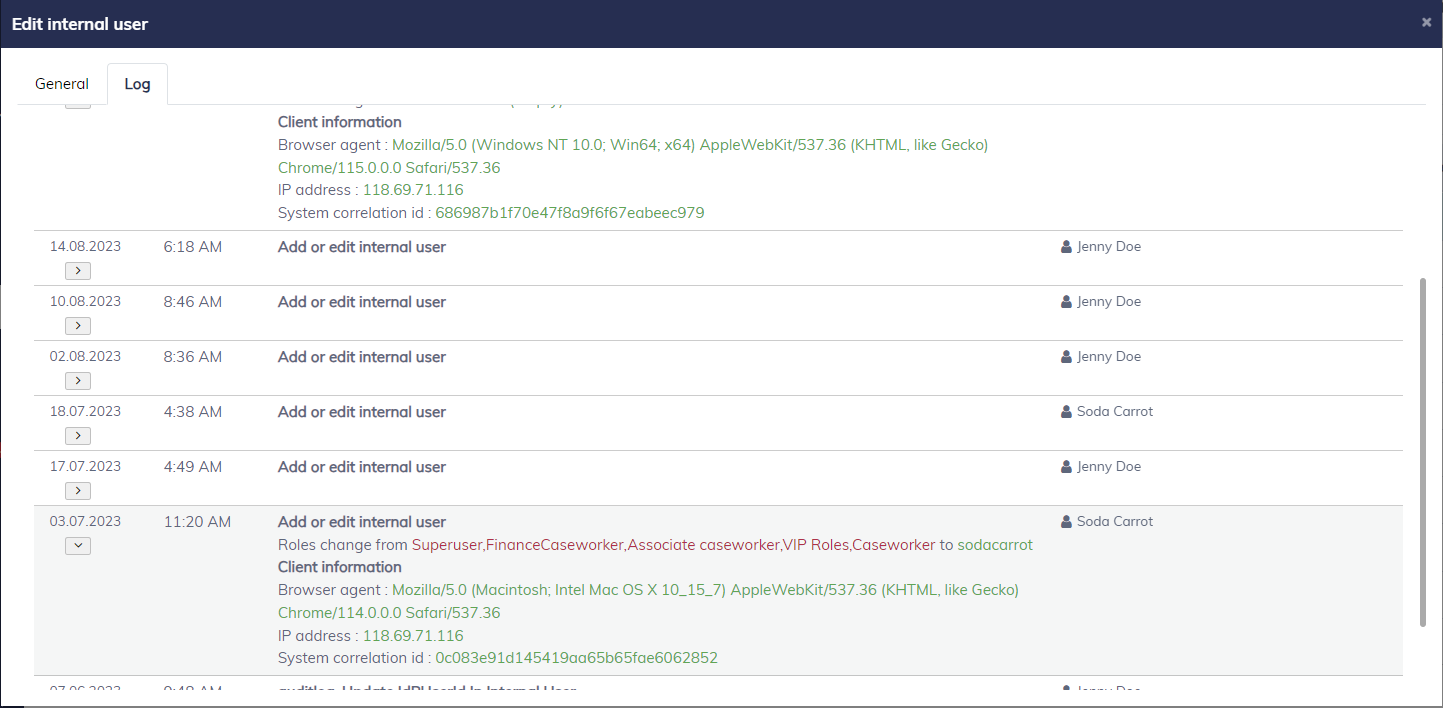
You can navigate to "Log" to view the change history:
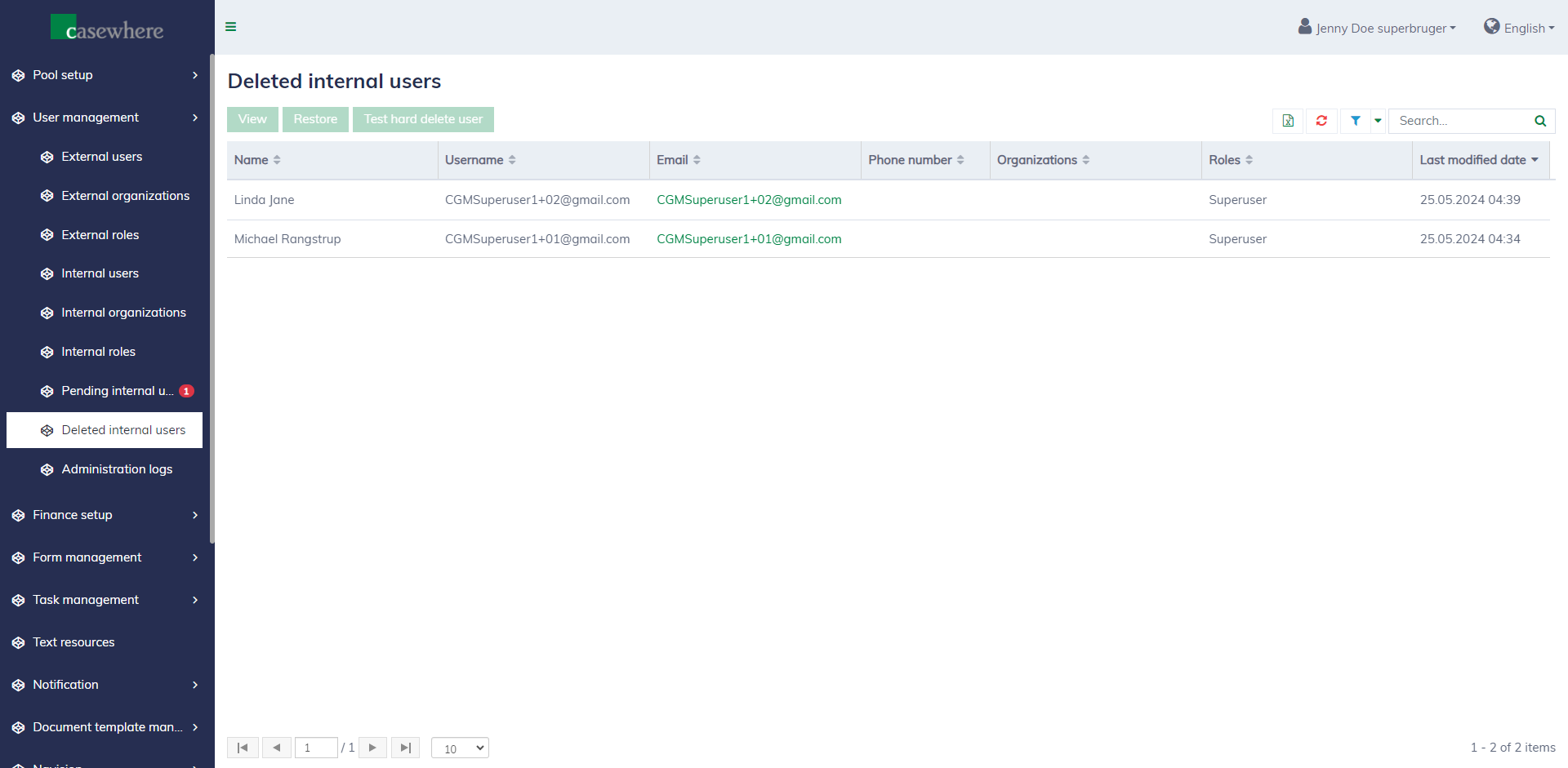
Users cannot be permanently removed from the system to maintain a record of activity. Instead, there is a separate list to manage all users marked as deleted.
User information
The following fields describe a user:
| Field name | Mandatory | Description |
|---|---|---|
| Username | Yes | Users log in using their usernames. The field must be unique |
| First name | Yes | The first name is mandatory |
| Last name | Yes | The last name is mandatory |
| Yes | The email address is mandatory | |
| Phone number | No | The phone number is optional |
| Active | No | Only active users are allowed to access the system |
| Organizations | No | A user can be assigned to multiple organizations |
| Roles | No | A user can have multiple roles |
Self-created users
Users who log in through external identity providers like Azure AD will be created in the system at their first login. However, they won't be able to access the system until their accounts are approved.
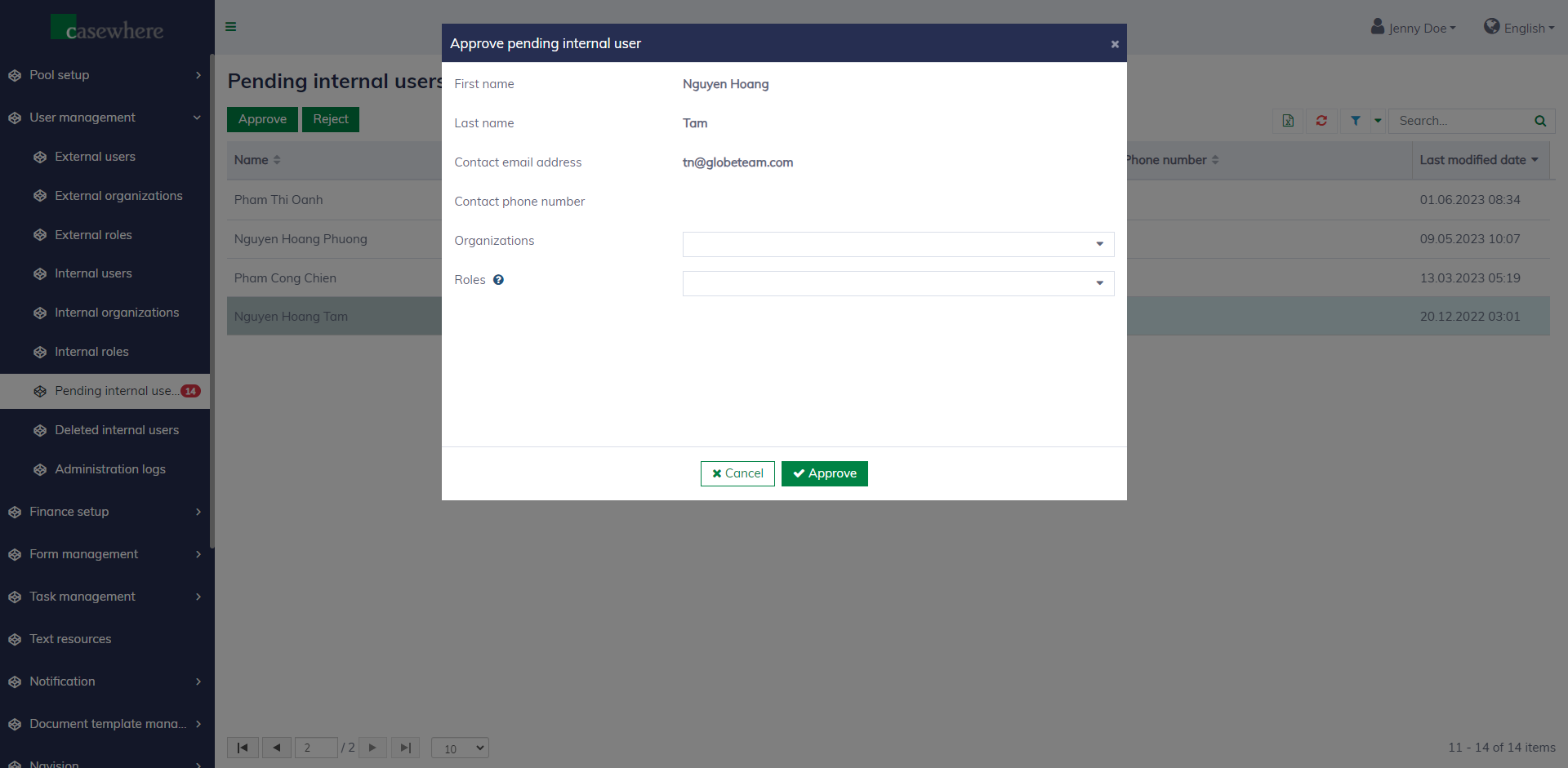
You can access the page "User management / Pending internal users" to manage pending approval users. When approving a user, you can assign them to relevant organizations and roles.
Administration log
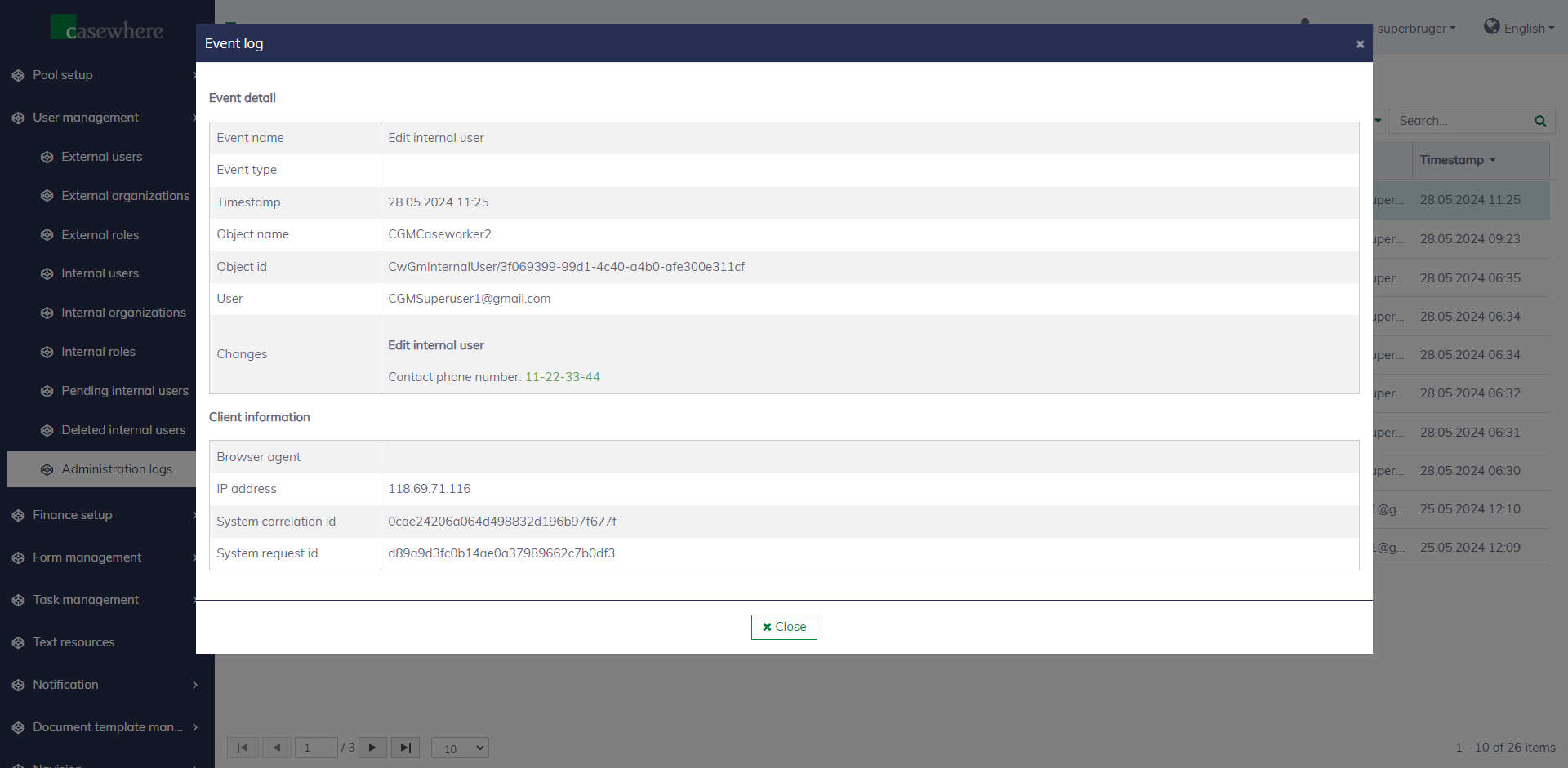
You can review all changes regarding users, organizations and roles on the "User management / Administration log" page.
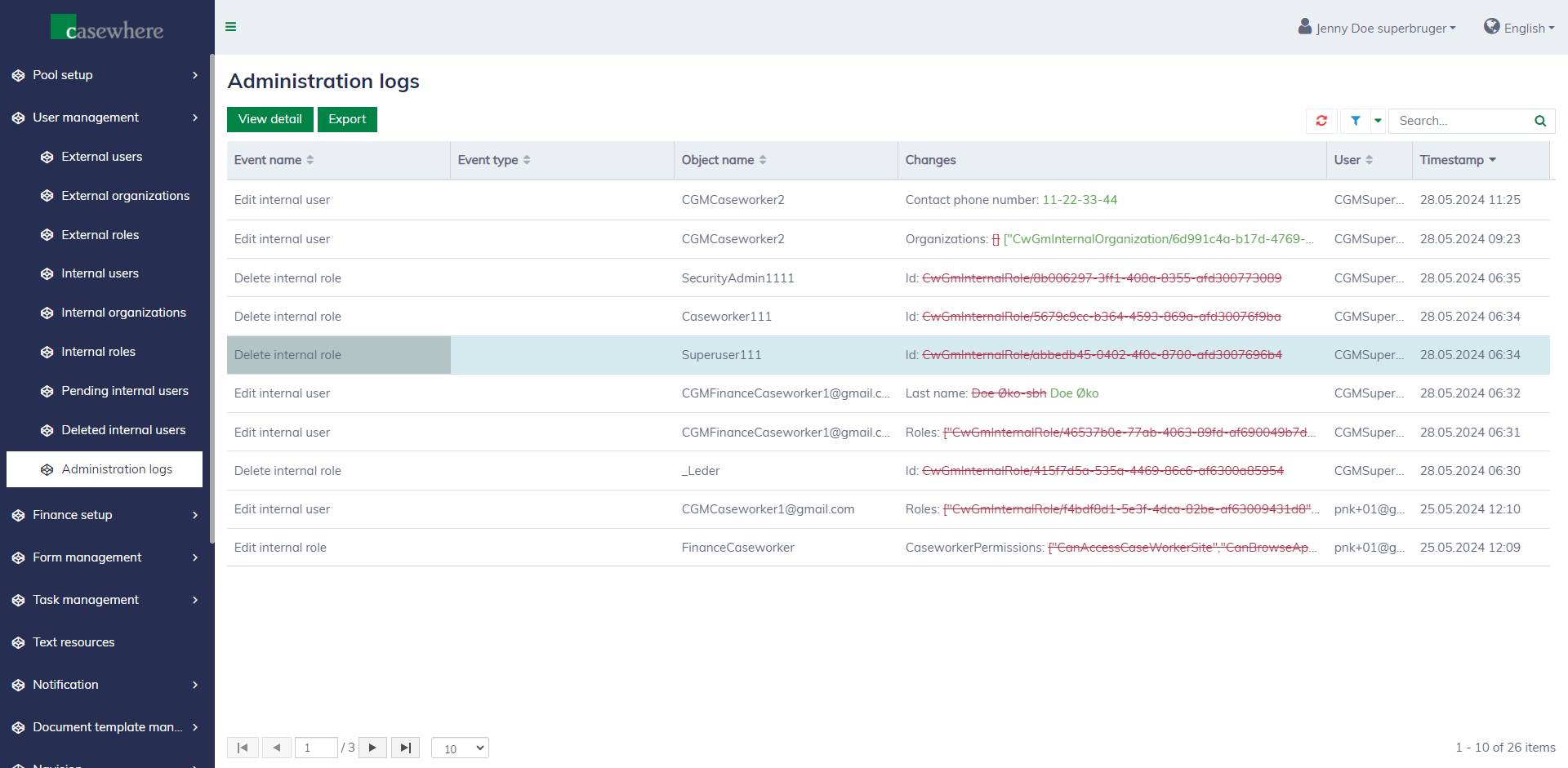
It is possible to see who made the change, what was changed, where the change occurred, and when it happened.