Application management
This article details how application management can be done in the application portal.
Application lists
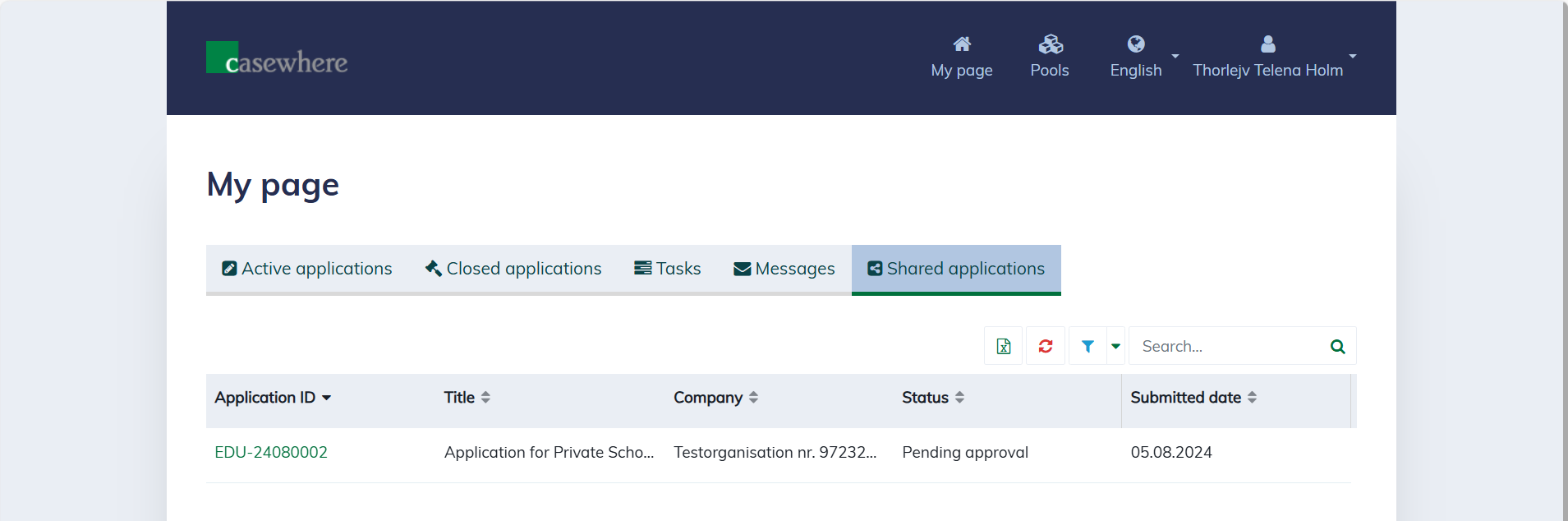
On "My page", you can manage all applications submitted by you or where you are a stakeholder or project member. The solution organizes these into different lists to simplify management:
- Active Applications: These are applications submitted by you or your organization that are still active, meaning there are still obligations either from you or the pools.
- Closed Applications: These include applications submitted by you or your organization that have been closed, whether they were rejected, canceled, or fully disbursed, with all obligations fulfilled.
- Shared Applications: These are applications from other organizations where you are a project member or stakeholder. You may take on different roles in different projects.
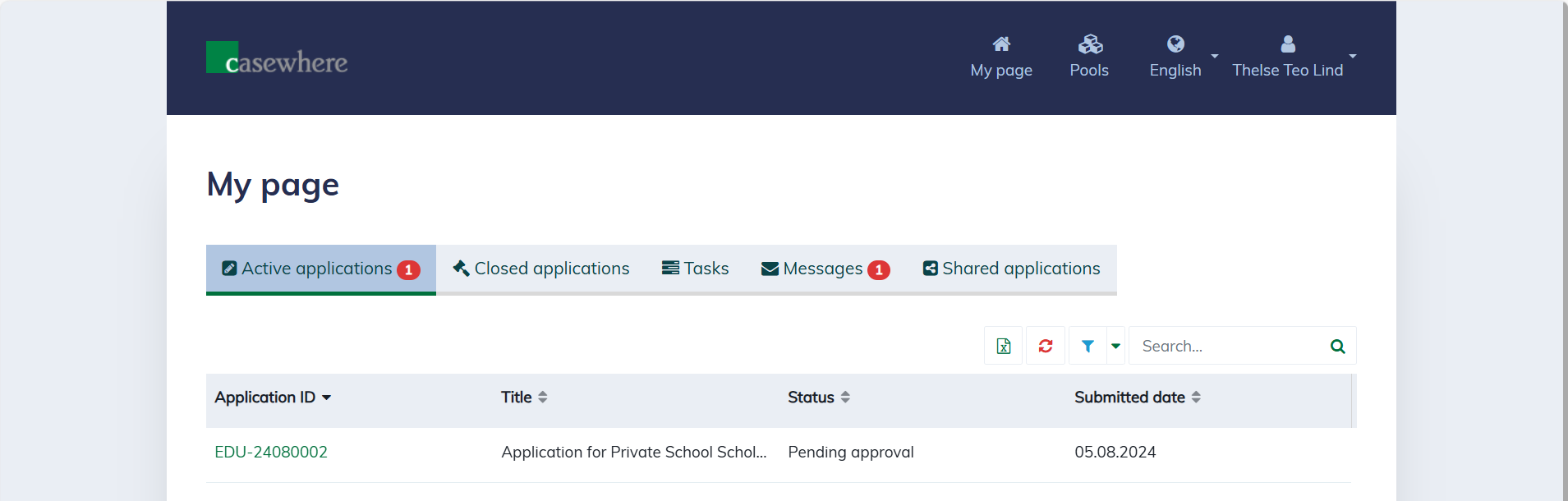
All application lists support search, filter, sort, and export.
Application dialog
You can click on the application ID to open the application dialog and access all the application information.
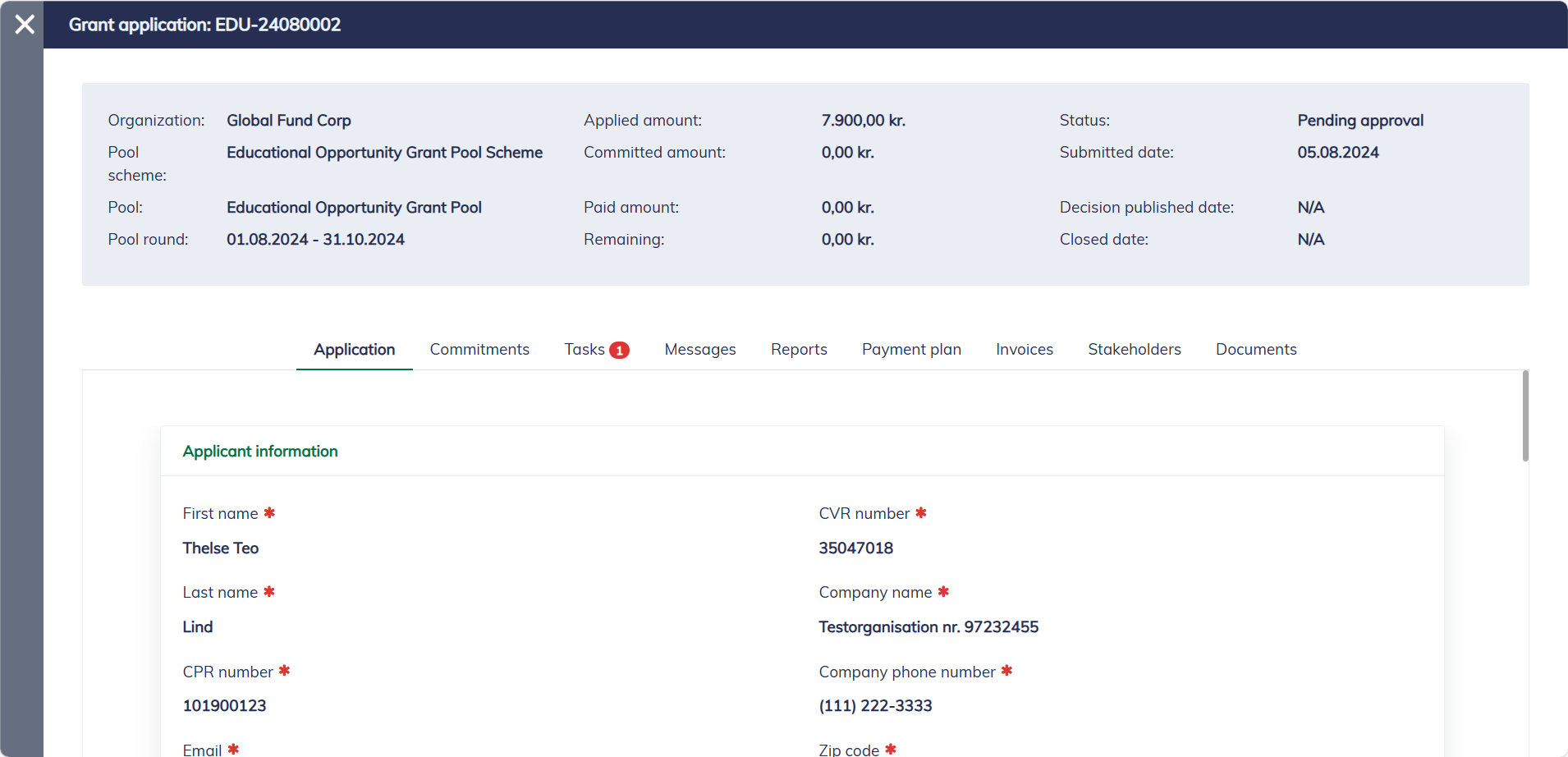
The top panel highlights the most important information organized in three columns:
- Organization: The organization manages the pool.
- Pool scheme: The scheme under which the pool operates.
- Pool: The pool targeted by the application.
- Pool round: The pool round applied for the application.
- Applied amount: The total requested amount.
- Committed amount: The amount funded by the pool.
- Paid amount: The amount actually disbursed to the applicant.
- Remaining amount: The amount available in the fund and disbursable.
- Status: The status of the application. Below are the possible statuses:
- Draft: The application is still under construction.
- Pending approval: The application has been submitted and is awaiting approval.
- Grant approved: The application has been approved and the fund has been allocated.
- Grant refused: The application has been refused.
- Closed: The application is closed, indicating that all obligations have been fulfilled.
- Submitted date: The date the application is submitted to the pool.
- Decision published date: The date the decision is sent to the applicant, determining the final result of the application and whether it is approved and funded or refused.
- Closed date: The date the application is closed.
The application dialog organizes information into subareas, each has a separate tab:
Application: The submitted data.
Commitments: A list of fund commitments given to the application. An approved application must have a primary commitment and potentially have some additional commitments.
Tasks: A list of tasks assigned to the applicant. Each task represents work that needs to be completed, such as submitting a report, answering a question, uploading documents, and more.
Messages: A list of messages sent to the applicant. You can also send messages from here.
Reports: A list of reports created by the applicant.
Payment plan: An approved application must have an available payment plan. Here, you can monitor the status of payments, including when and how they are executed.
Invoices: Invoices are needed when the applicant needs to repay the pool. Here, you can monitor the status of invoices, including when and how they are executed.
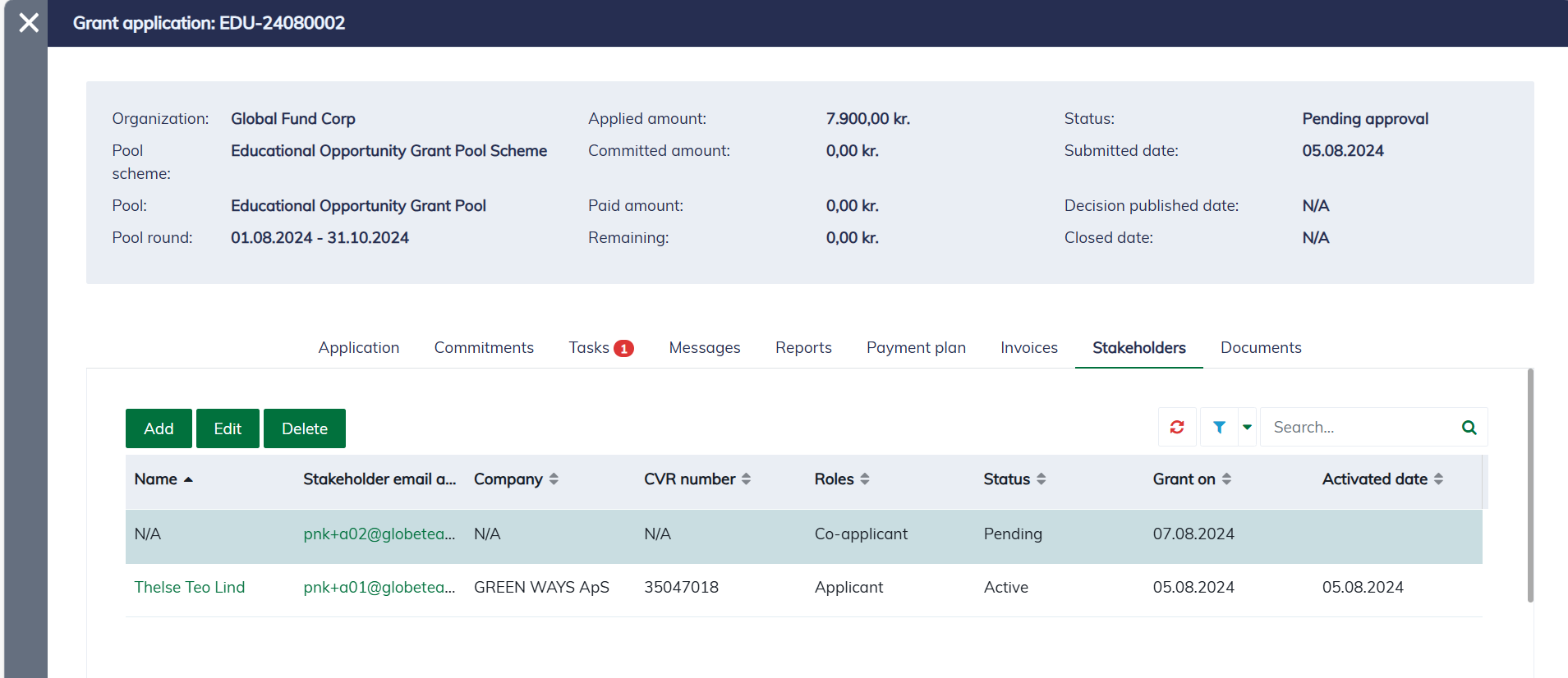
Stakeholders: As the application's owner, you can invite other users to join your project. Different users can take on different roles.
Documents: A list of all documents related to the application.
Shared applications
As the application's owner, you can invite other users to join your project. Different users can take on different roles.
Invite users
To invite a user to your project, navigate to the "Stakeholders" tab, click "Add", and fill in the information:
| Field name | Mandatory | Description |
|---|---|---|
| Stakeholder email address | Yes | The invitation will be sent to the provided email address. |
| Roles | Yes | The roles the stakeholder will assume when joining the project. |
| Can receive notification | No | If checked, the stakeholder can receive notifications related to the project. |
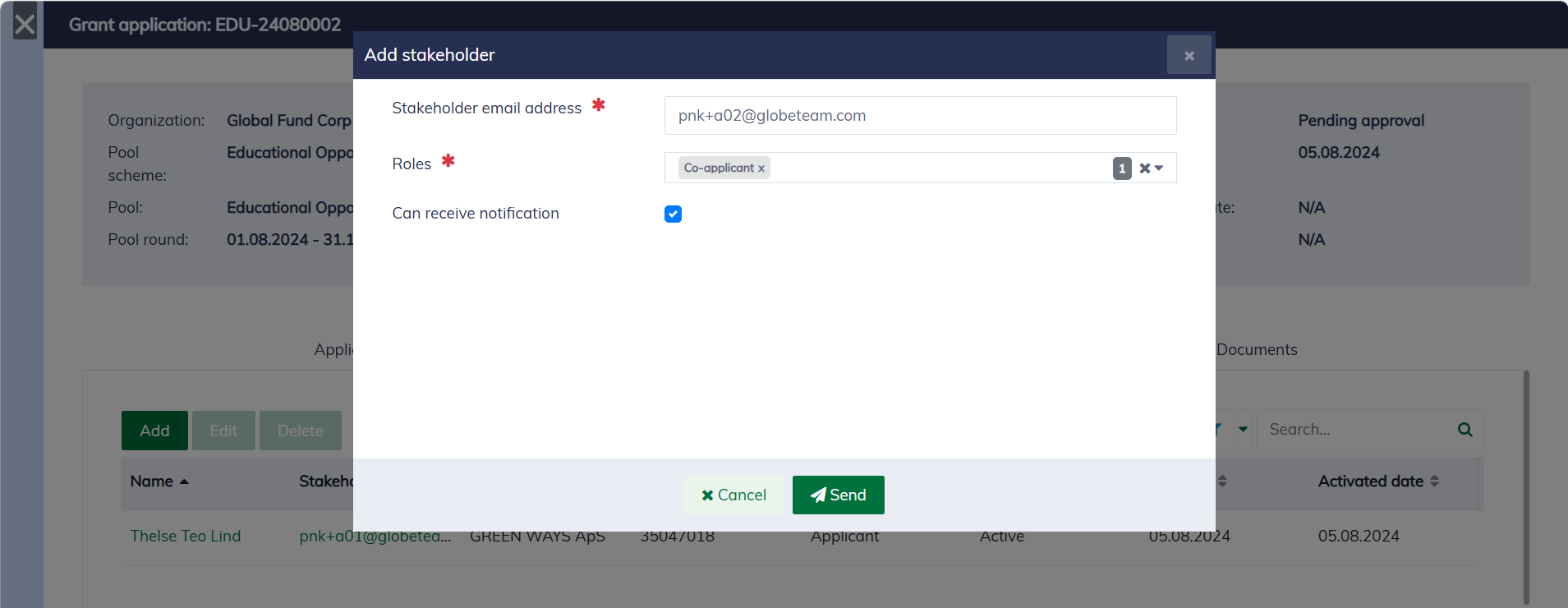
After you click "Send", the system will generate an invitation link and send it to the provided email. You will also see a "Pending" stakeholder appear in the list.
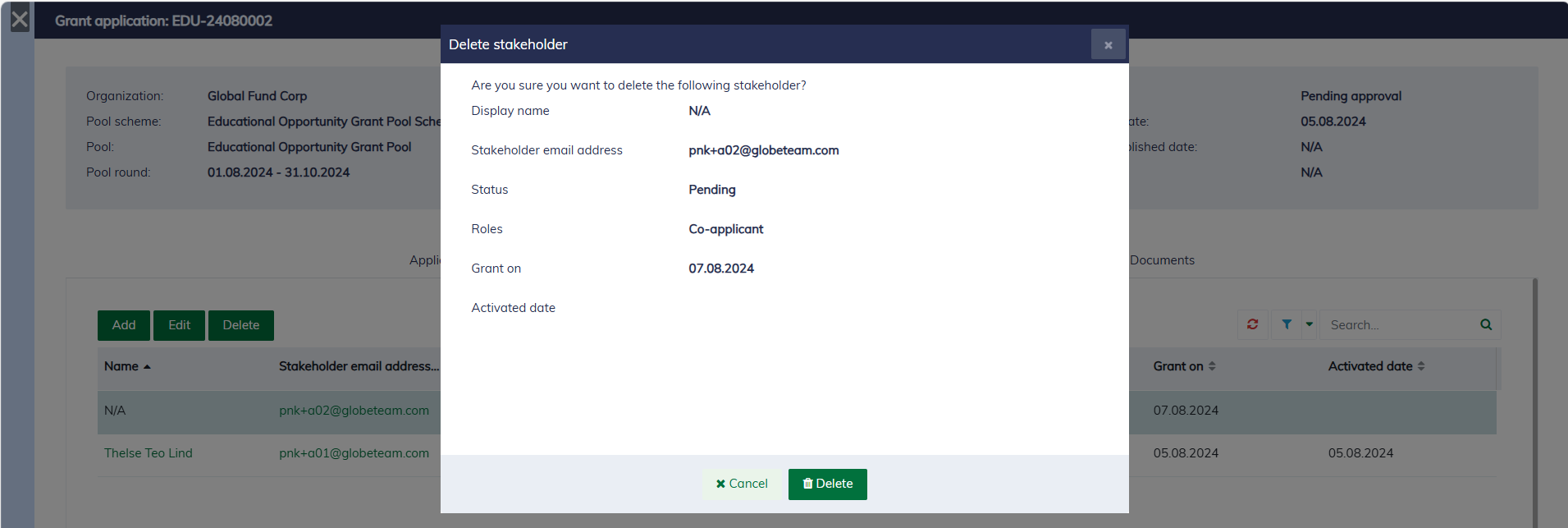
As the application's owner, you can delete all stakeholders in your project except yourself.
Accept invitations
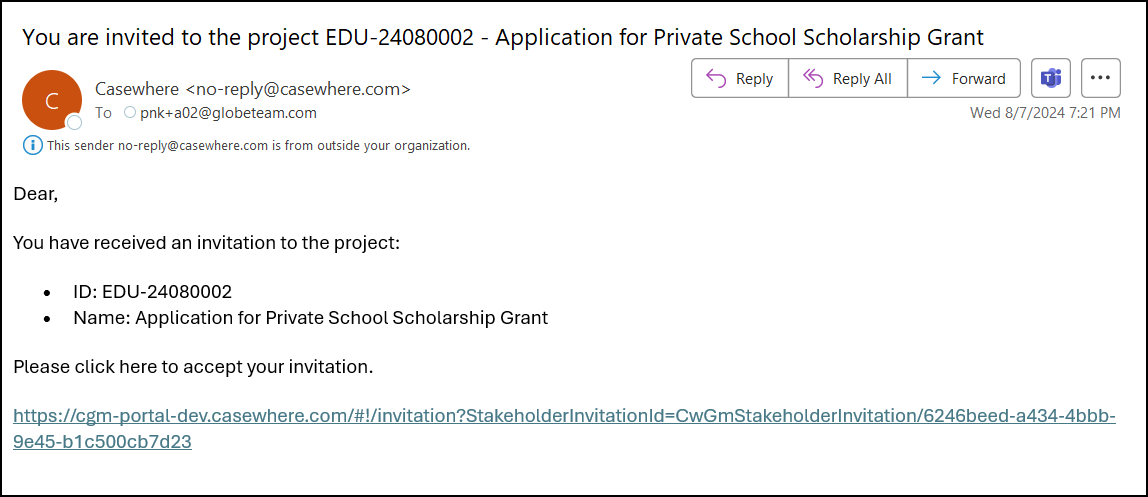
The stakeholder should receive an email with the invitation link below. Please note that the invitation link might expire after a specific period, such as 7 days, but this duration depends on the organization's policies.
The invited stakeholder can follow the link to accept the invitation. The system will prompt the stakeholder to log in and confirm their acceptance.
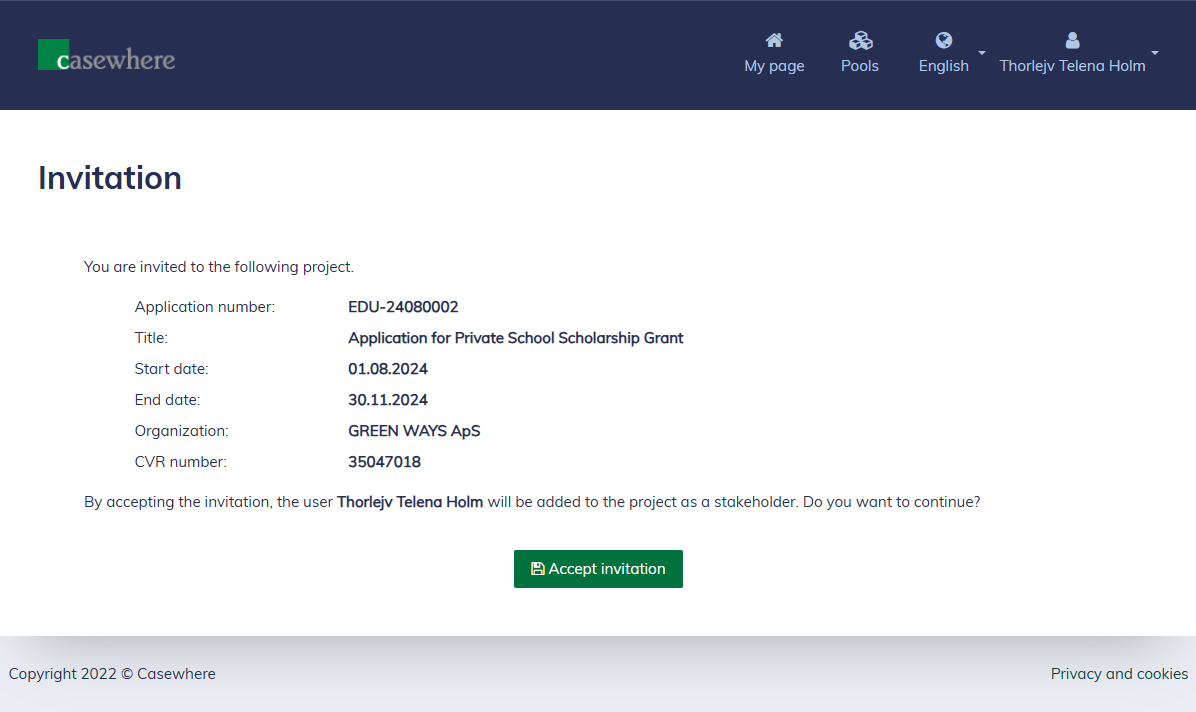
Once the stakeholder accepts the invitation, he can access the application on his "My page" under the tab "Shared applications".
Send messages
In the application dialog, navigate to the "Messages" tab to view the list of messages sent to or received from you and your organization.
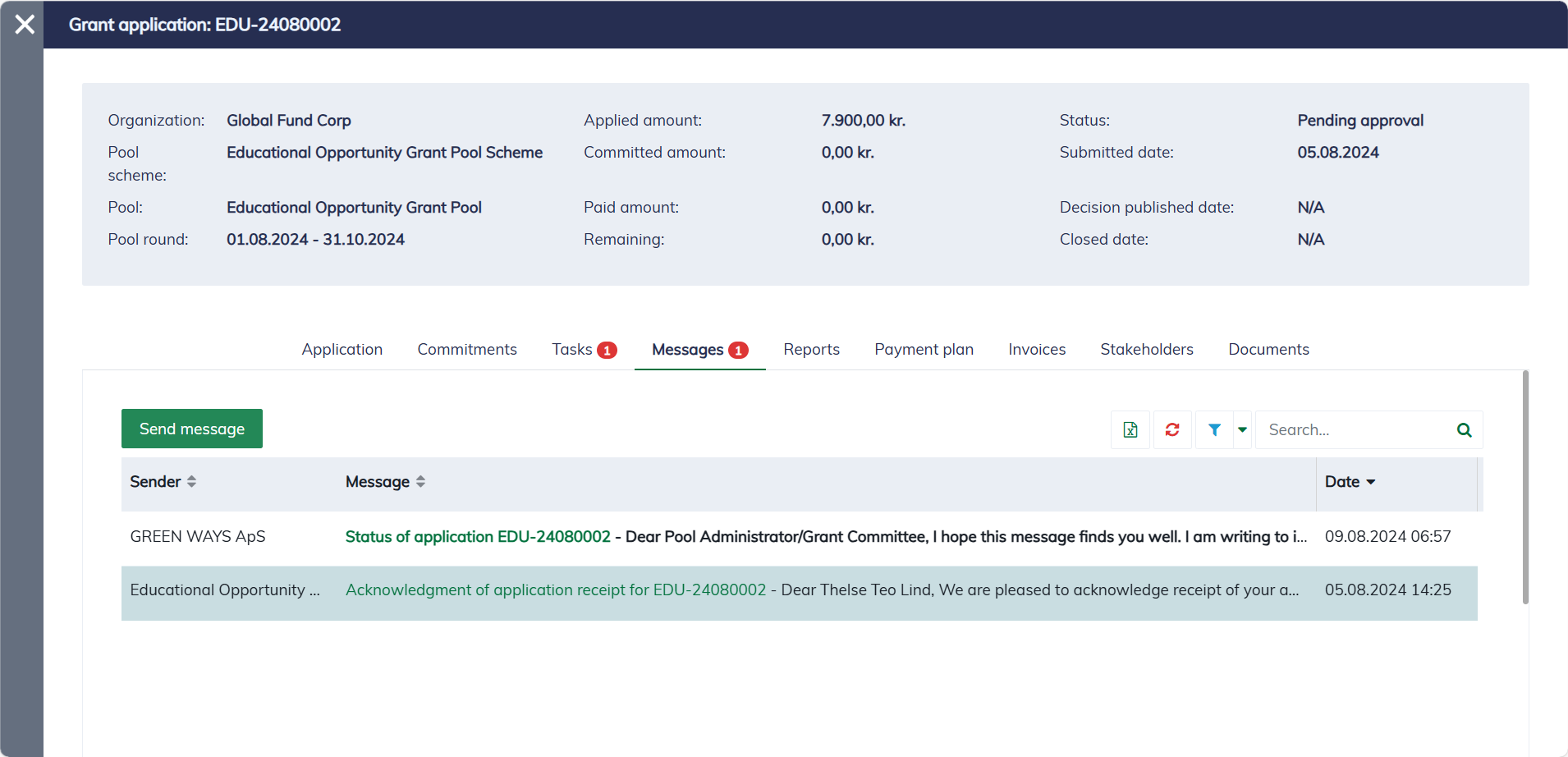
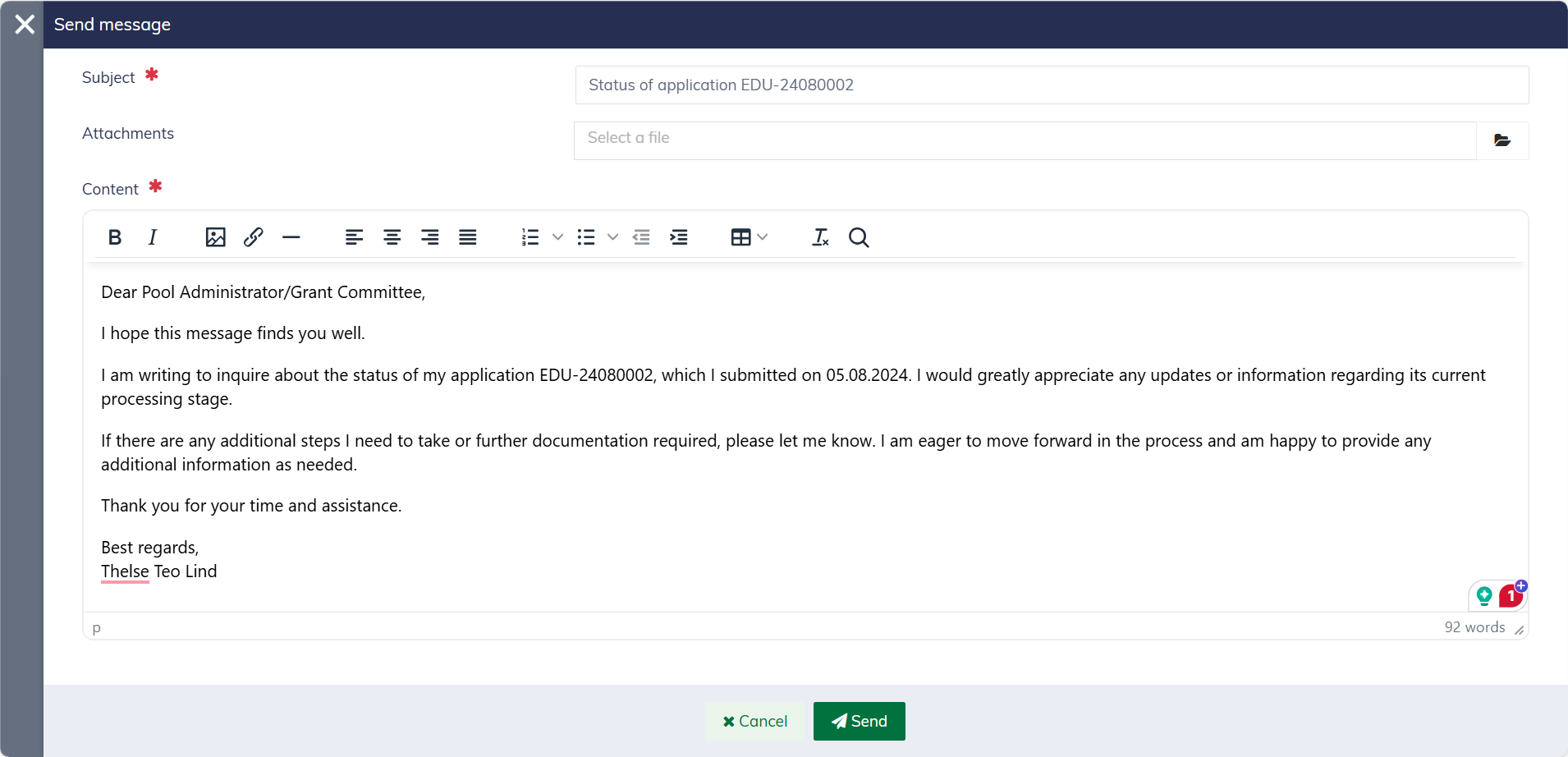
Here, you can click the "Send Message" button to compose and send messages to the pool. The message editor will appear as follows: