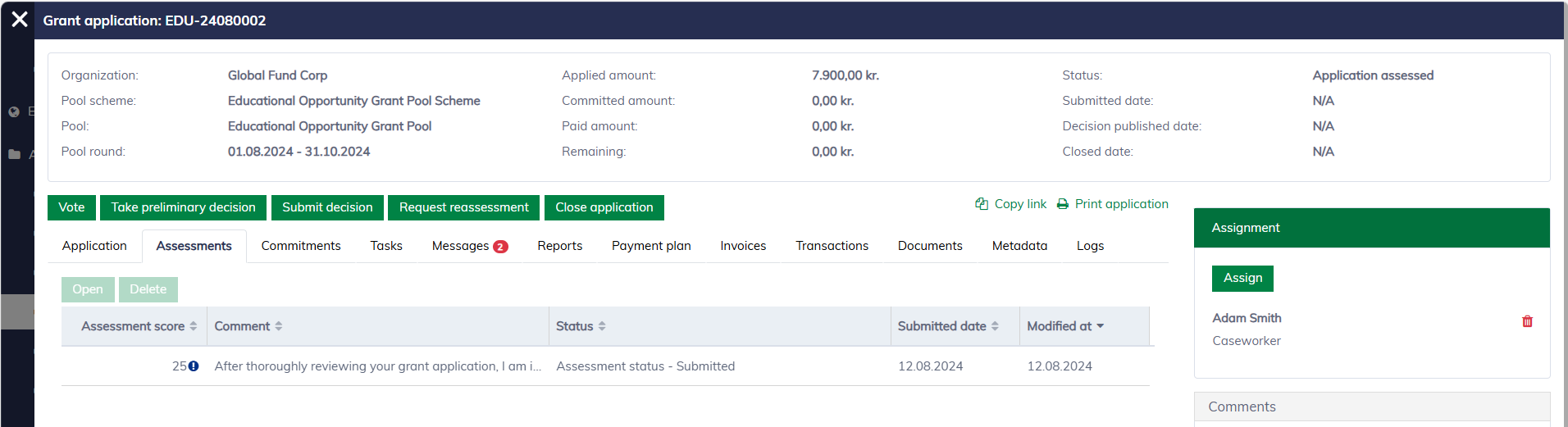
Assess applications
An application may undergo one or multiple assessments before reaching the decision stage. The assessment feature can be enabled or disabled based on your business needs.
Browse applications for assessment
When the assessment feature is enabled, all submitted applications must be evaluated before decisions can be made on them. Navigate to "Applications / Applications under assessment" to access the list.
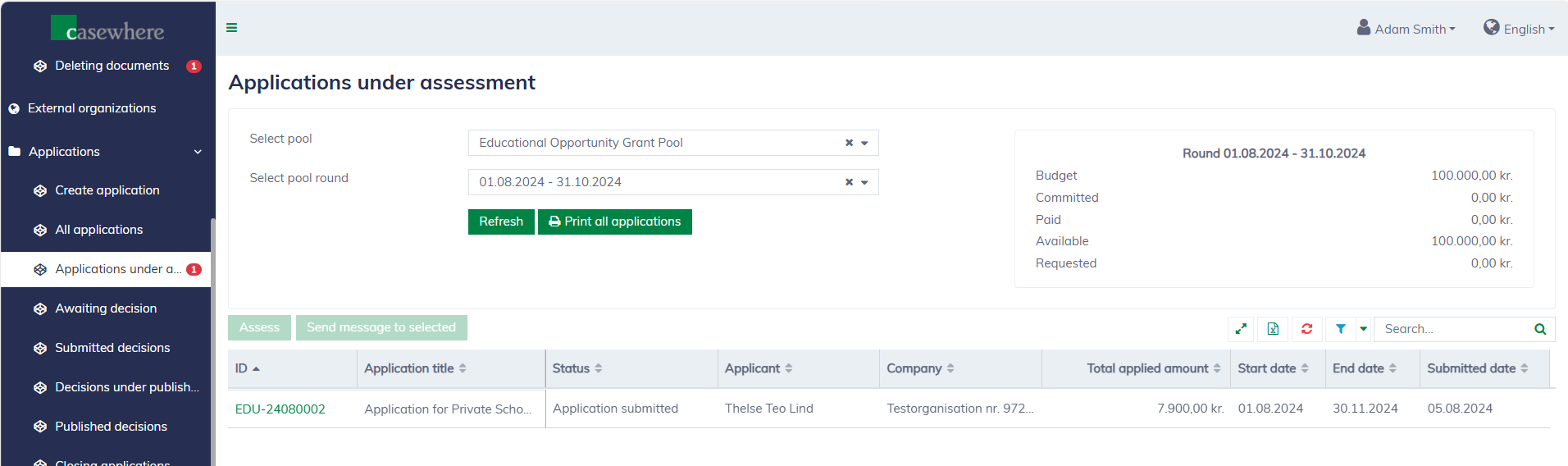
In this list, you can filter applications by their pools and pool rounds. As with any standard list, you can also filter, search, and sort by various criteria.
Please note that if the assessment feature is disabled, submitted applications will go straight to the "Awaiting decision" list.
Assess applications
Only caseworkers with specific permissions can assess applications. As a caseworker, you must complete a form to conduct application assessments. To begin, select an application from the "Applications under assessment" list and click "Assess". The assessment form will then be displayed, and it is configured within the pool, which may vary between pools.
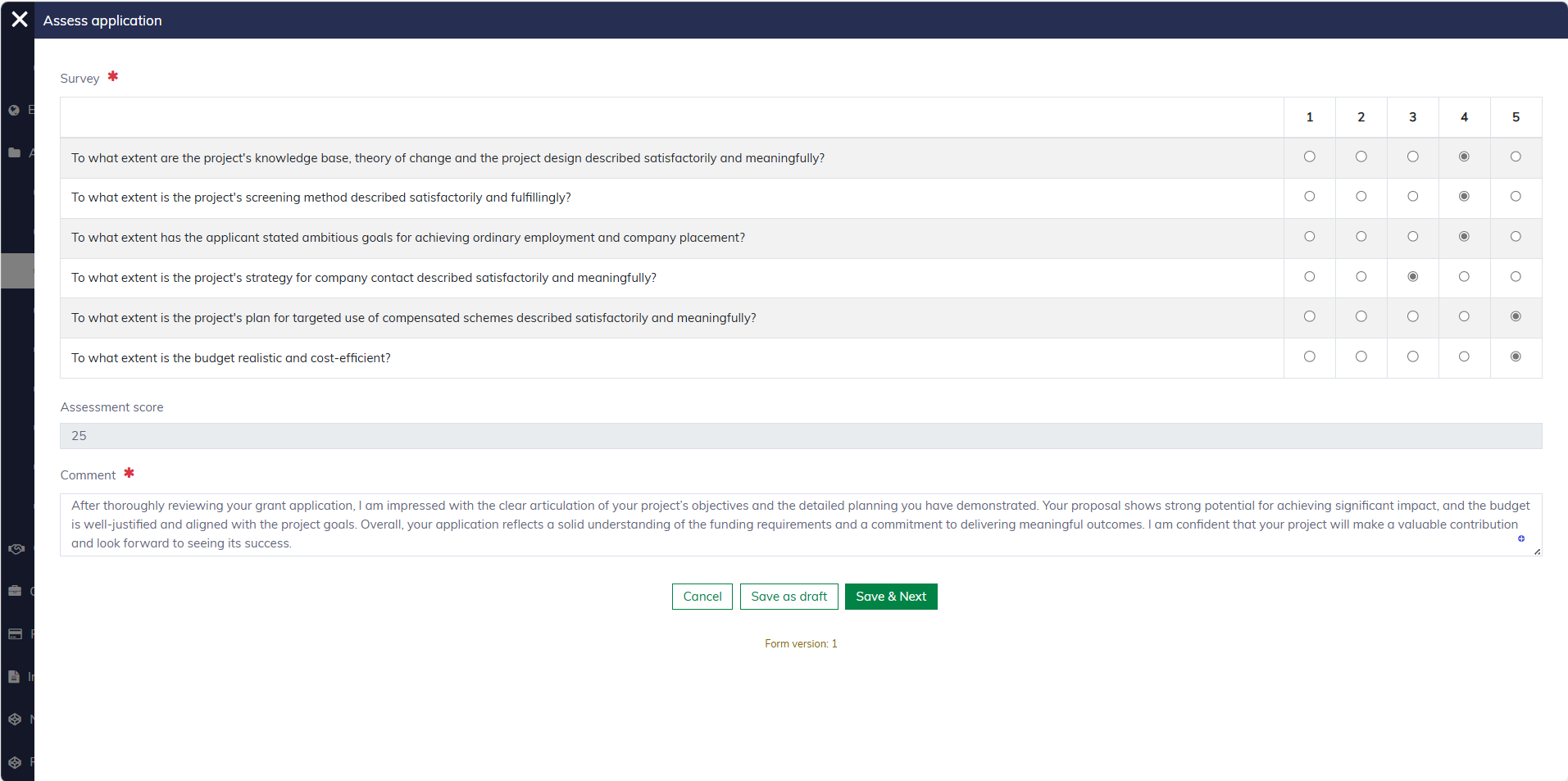
You can save a draft and return later to make edits. However, once an assessment is submitted, no further changes can be made. After the assessment, the application will be moved to the "Awaiting Decision" page.
Please note that you can also access the "Assess" button from your "My Page" or directly from the application dialog.
Reassess applications
While processing applications, caseworkers can request a reassessment, which will move the application back to the list "Applications under assessment". A comment is required when requesting reassessment.
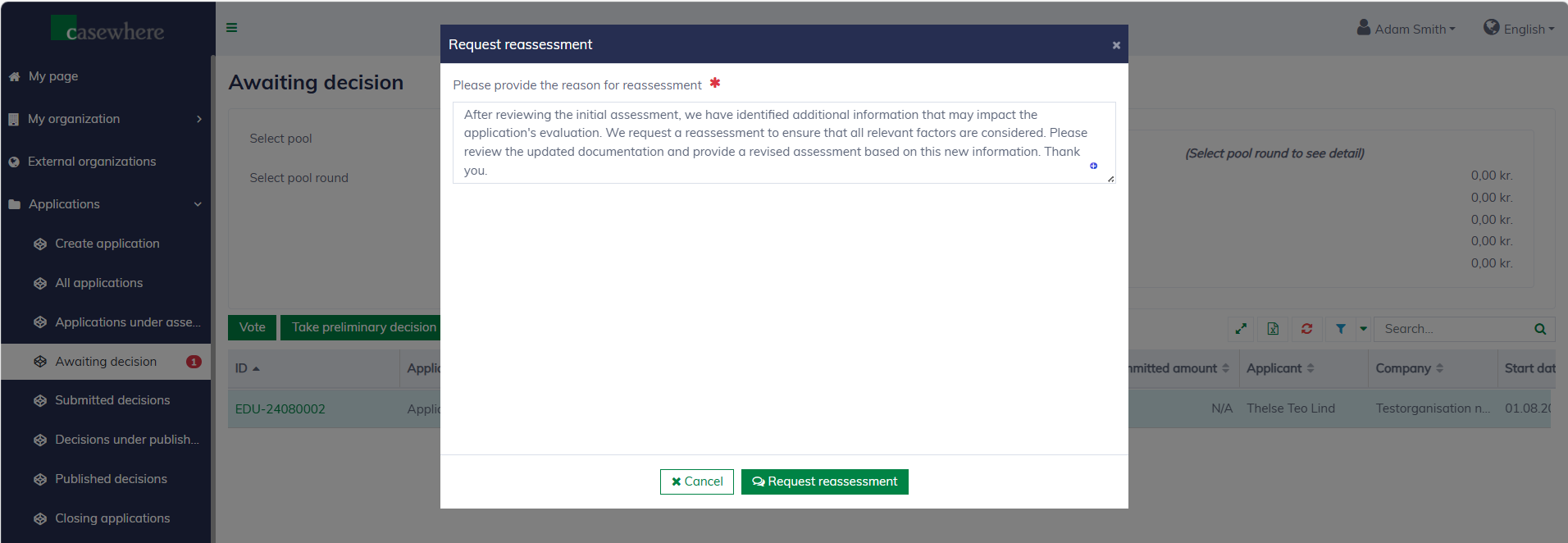
You can find the "Request reassessment" button in various application lists or directly within the application dialog. All assessments for an application can also be found under the "Assessments" tab.