Task management
A task represents work that needs to be completed to advance the application one step further in the process, such as assessing the application, requesting additional information from applicants, and more.
Task lists
As a caseworker, you can access your tasks from various locations in the system, depending on what is most convenient for you.
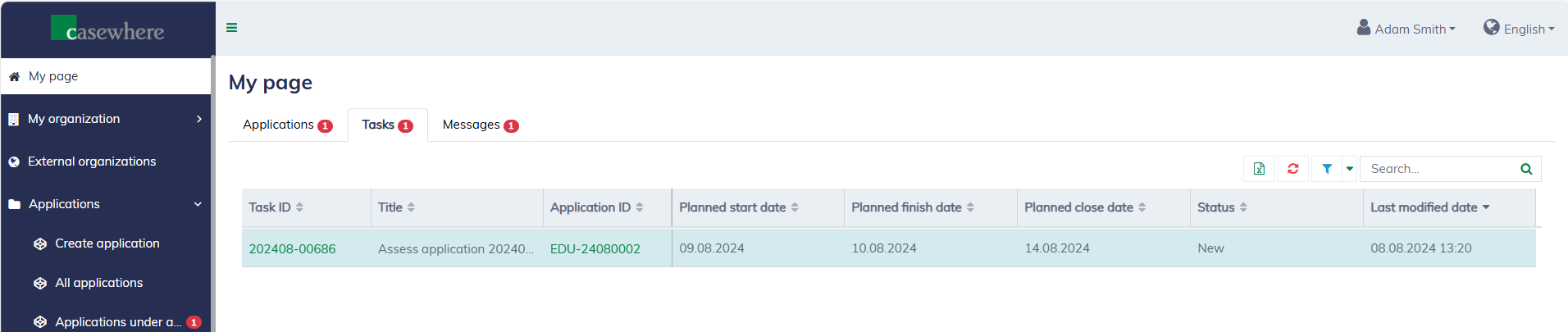
You can browse all tasks assigned to you across all applications from your personal page.
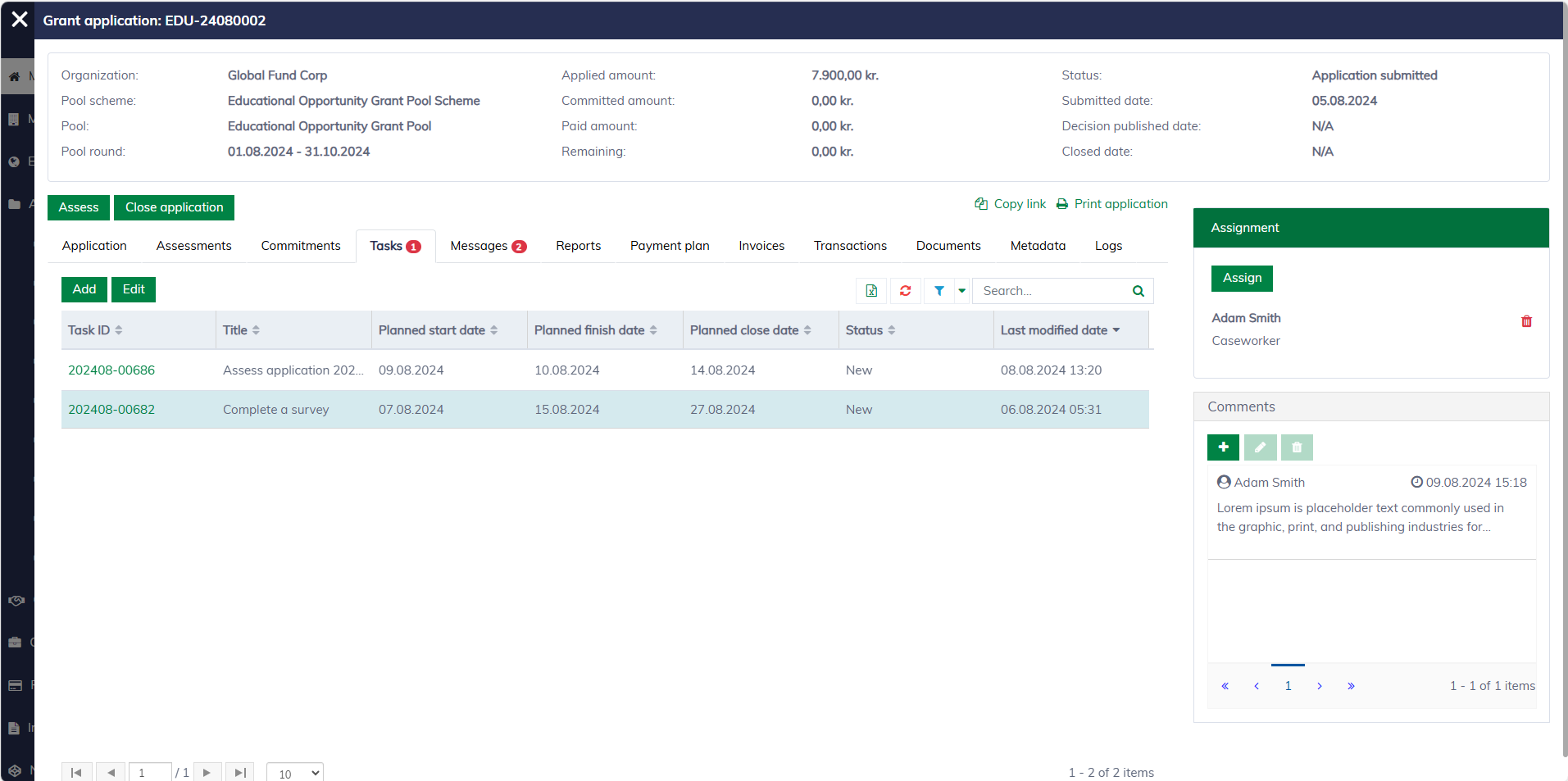
When working on a specific application, you can also access its task list within the application dialog.
Task dialog
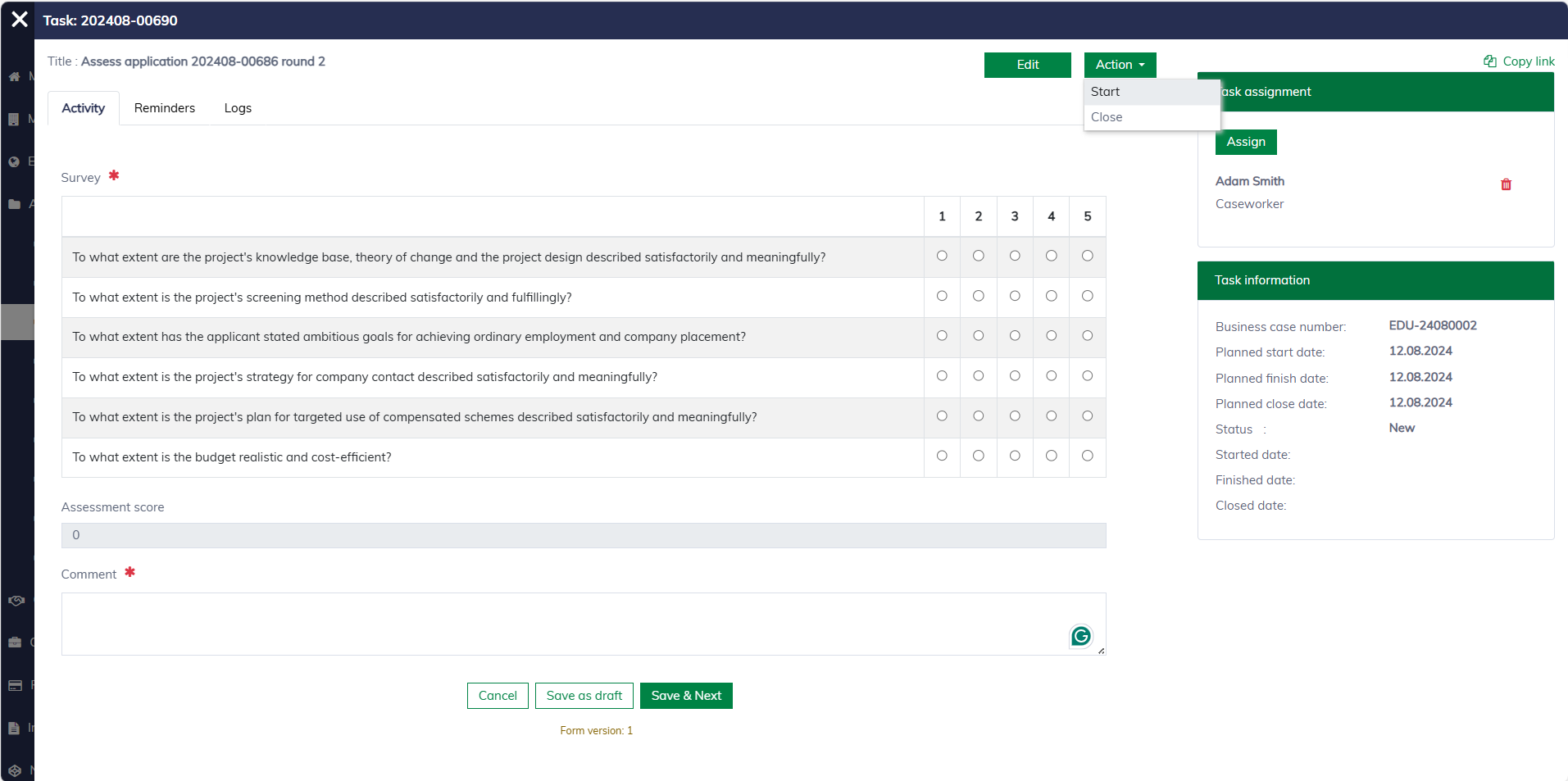
The task dialog appears as follows and is structured into a few sections:
- Activity: The main content of the task.
- Reminders: A list of reminders and their execution statuses.
- Logs: Activity log for historical purposes.
- Task assignment: To determine who is responsible for the task.
- Task information: Task status, planning vs. actual dates, and other information.
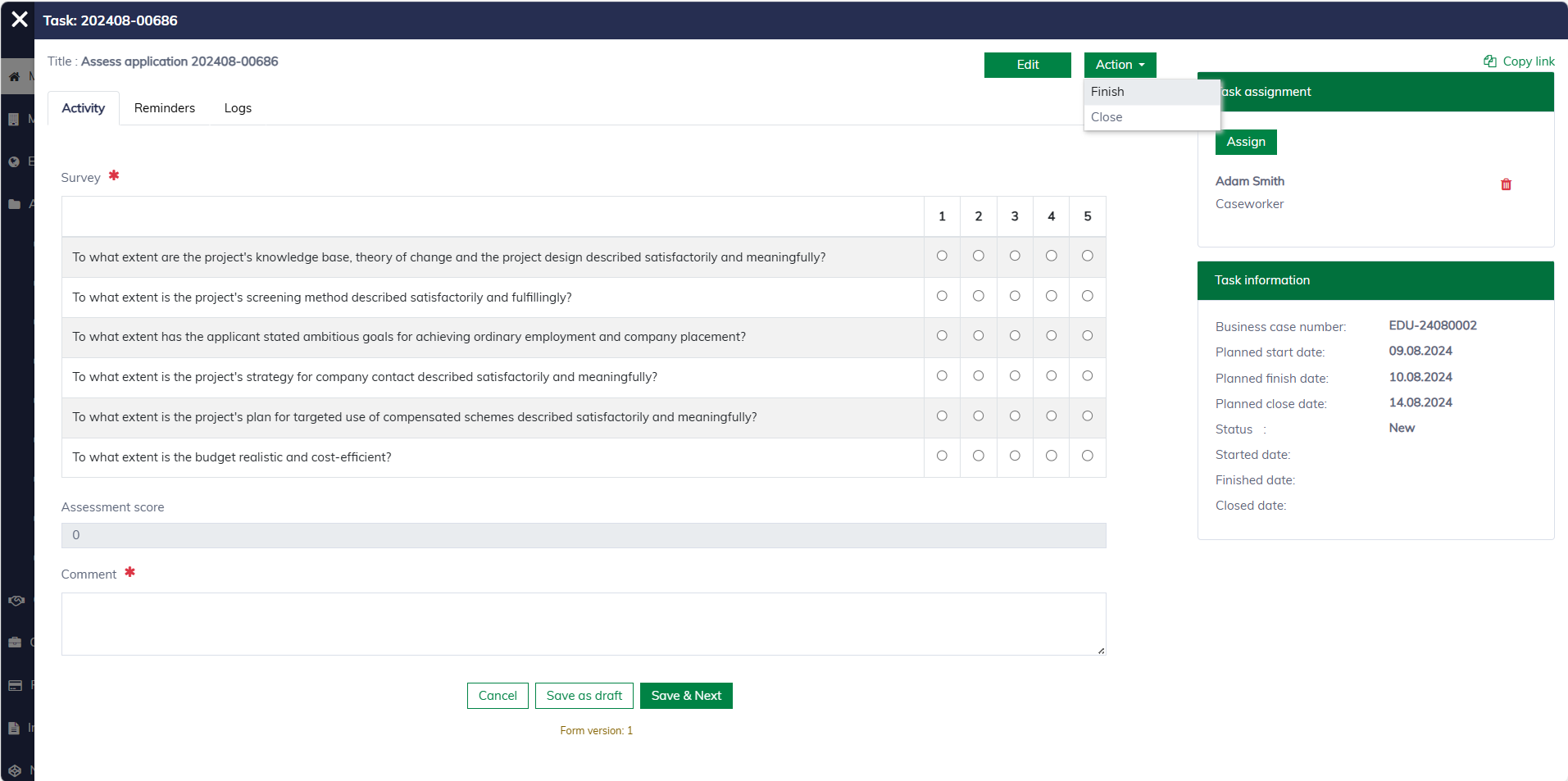
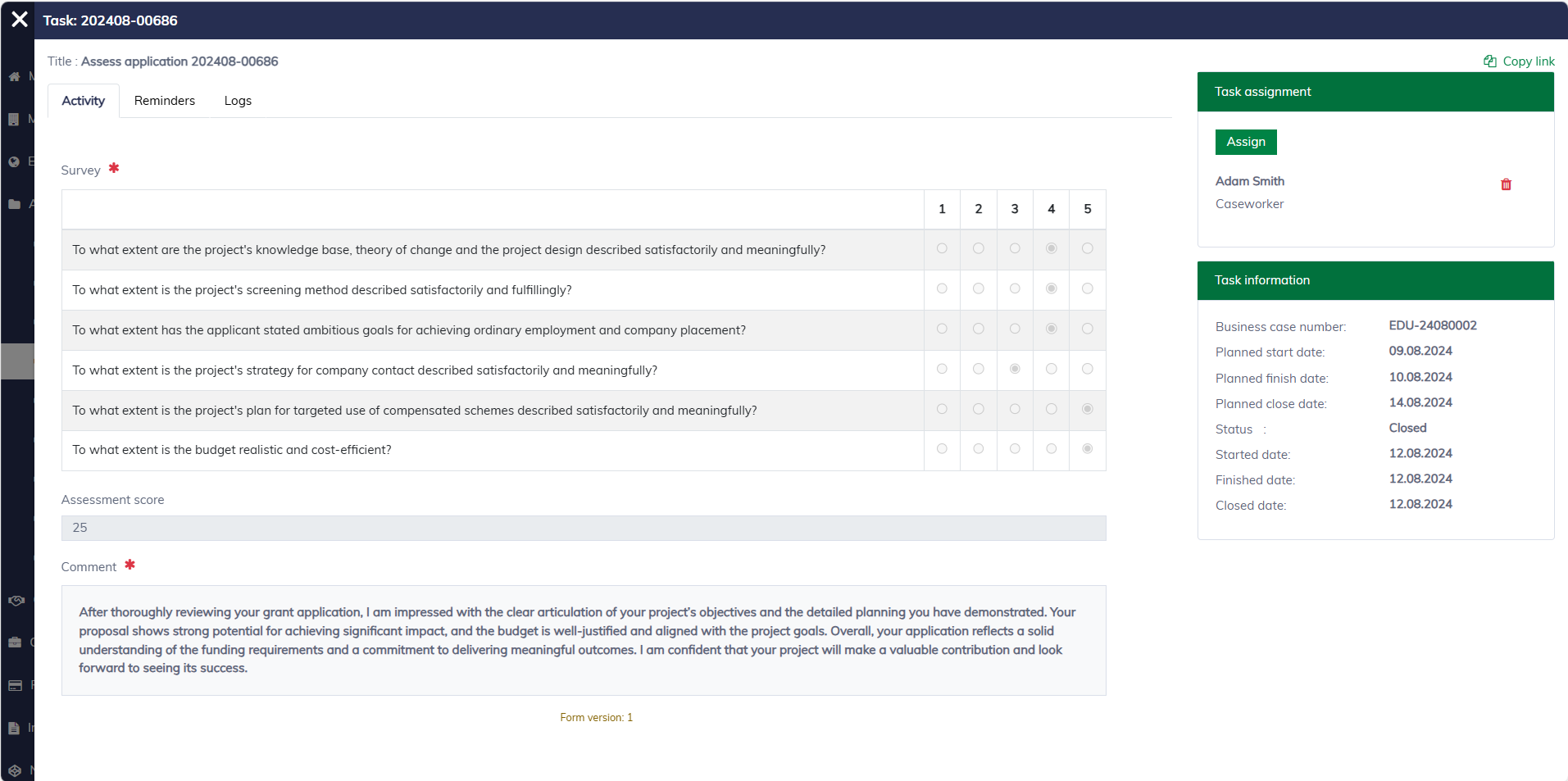
Certain tasks allow caseworkers to save drafts, return later to make edits and submit the final version. Once a task is submitted, it is locked and becomes read-only.
Task statuses and actions
A typical task might undergo the following statuses:
- New: The task is created and assigned.
- Started: This is an intermediate status indicating that the task has been started. It is usually done by selecting "Action / Start" in the task dialog.
- Finished: The task has been submitted for review and is no longer editable.
- Closed: Indicates that the task has been reviewed and approved. A task may also be closed if it is no longer needed.
- Reopened: The task is returned to the assignee for resubmission.
The following demo shows how you can start a task by selecting "Action / Start".
Reminders
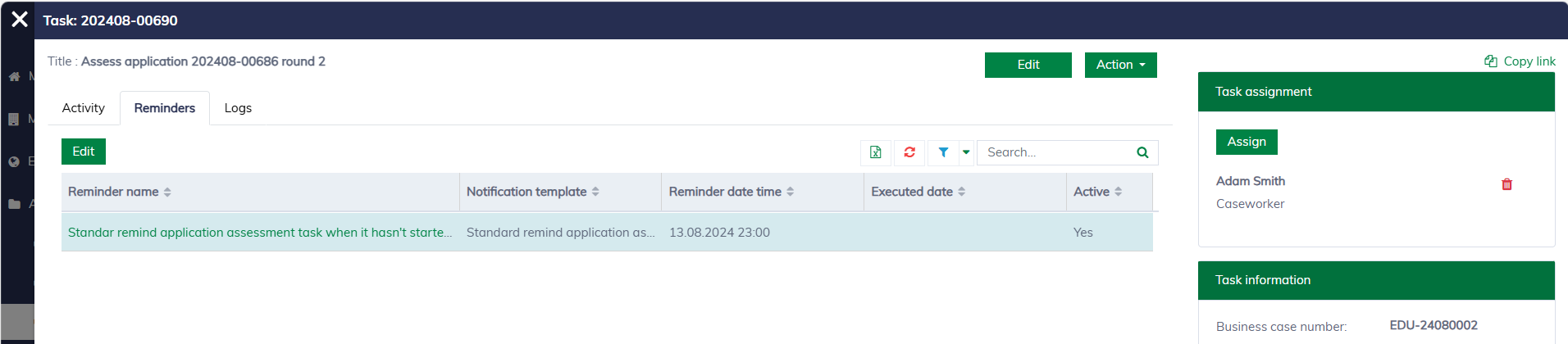
In the task dialog, navigate to the "Reminders" tab to see a list of available reminders for the task, along with their statuses, and execution dates, if any.
A reminder notification simply looks as follows. The email template is managed by the pool administrators.

Task assignments
The solution allows multiple caseworkers to be assigned to a task. In the "Assignment" section, click "Assign" and select the person to assign. All users in your organization will be available for selection.
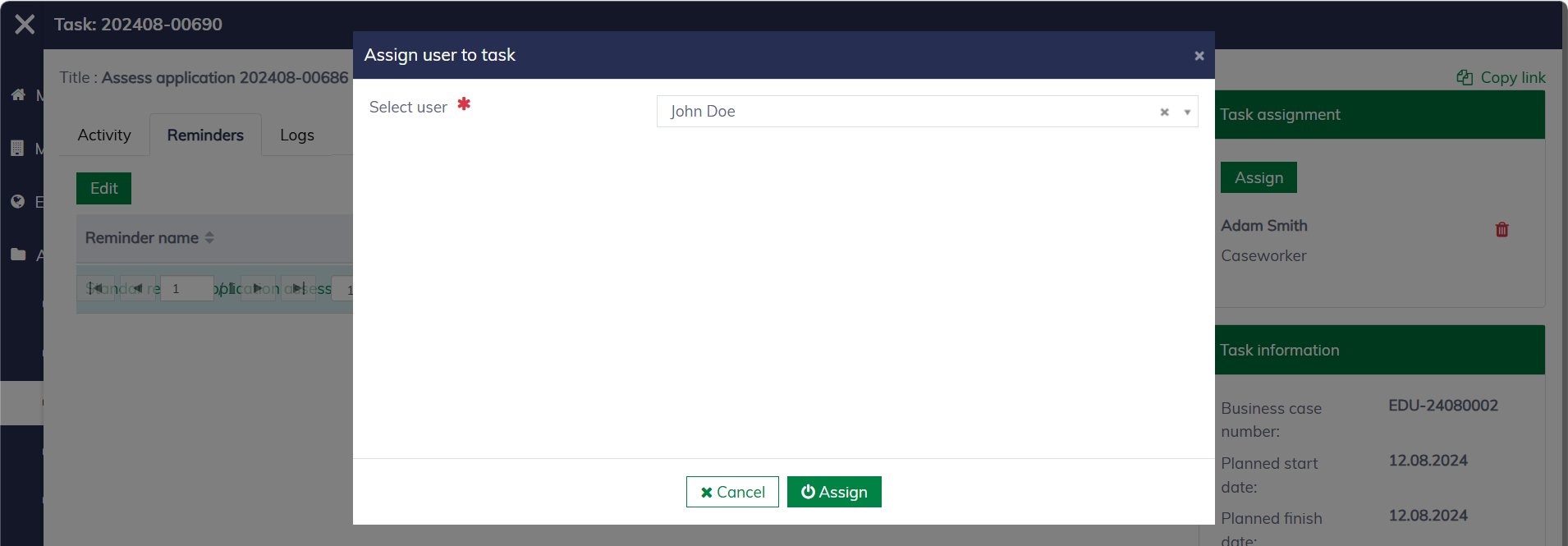
Please note that assignment is only available for "open" tasks. You cannot add or modify task assignments once the task is closed.