Receive invoice payments
The system supports both automatic and manual payments. Automatic payments can be processed through integrations like Navision, allowing the system to fetch payment status from an external source and automatically update the invoice status. Caseworkers also have the option to manually trigger workflows to receive payments and update invoice statuses accordingly.
Receivable invoices
All receivable invoices can be found under "Invoices / Receivable invoices".
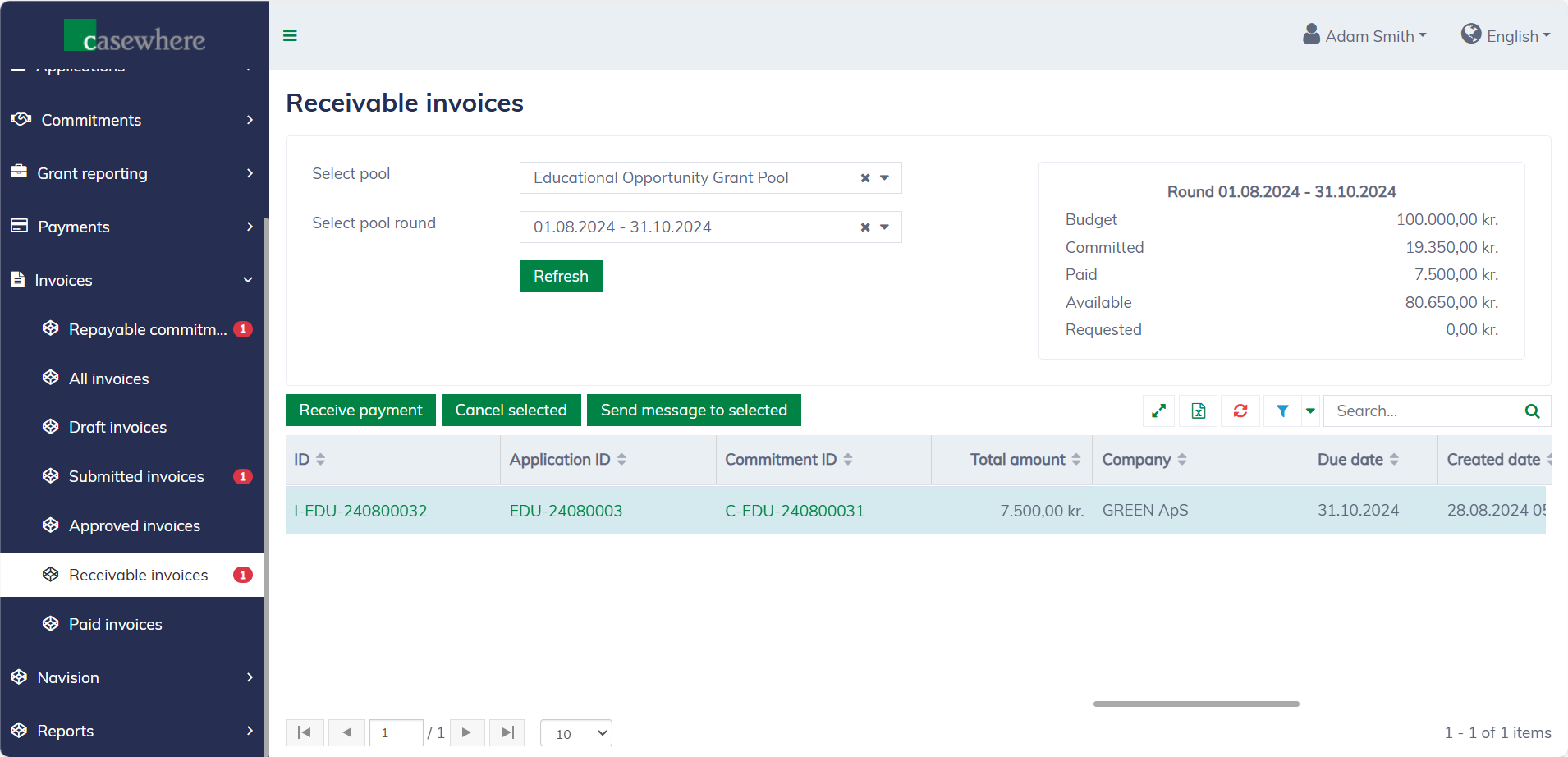
In this list, you can filter invoices by their pools and pool rounds. Like any standard list, you can also filter, search, and sort by various criteria.
Manual payment
To receive a payment, select an invoice and click "Receive Payment". The following interface will appear to process payments.
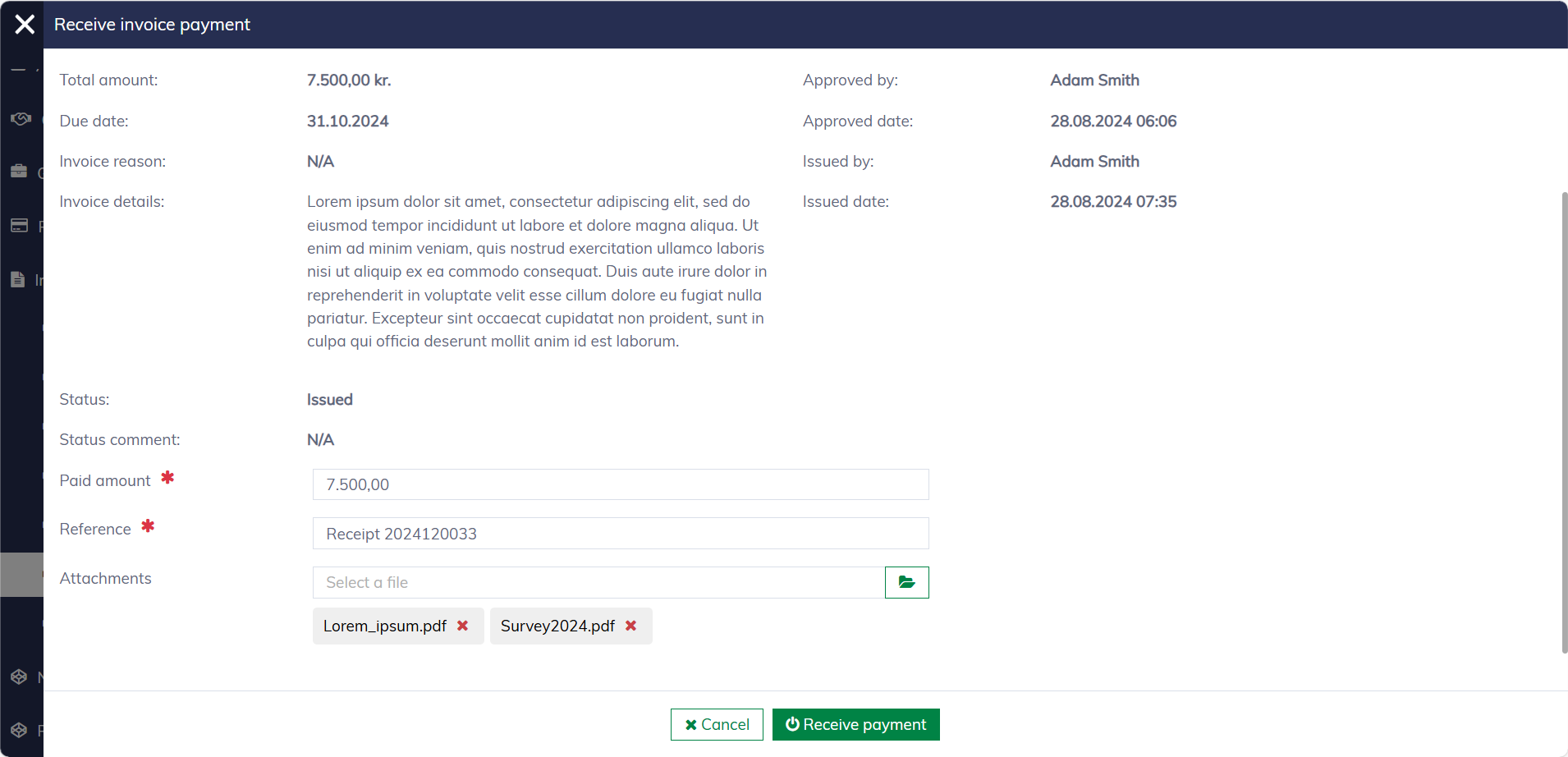
You must provide the actual received amount, a payment reference, and upload any necessary attachments here. Please note that only caseworkers with specific permissions can receive repayments.
After a payment is received, the system will move the invoice to "Paid invoices" and update the corresponding commitment's repayable amount. If a commitment is fully repaid, it will be removed from the "Repayable commitments" list.
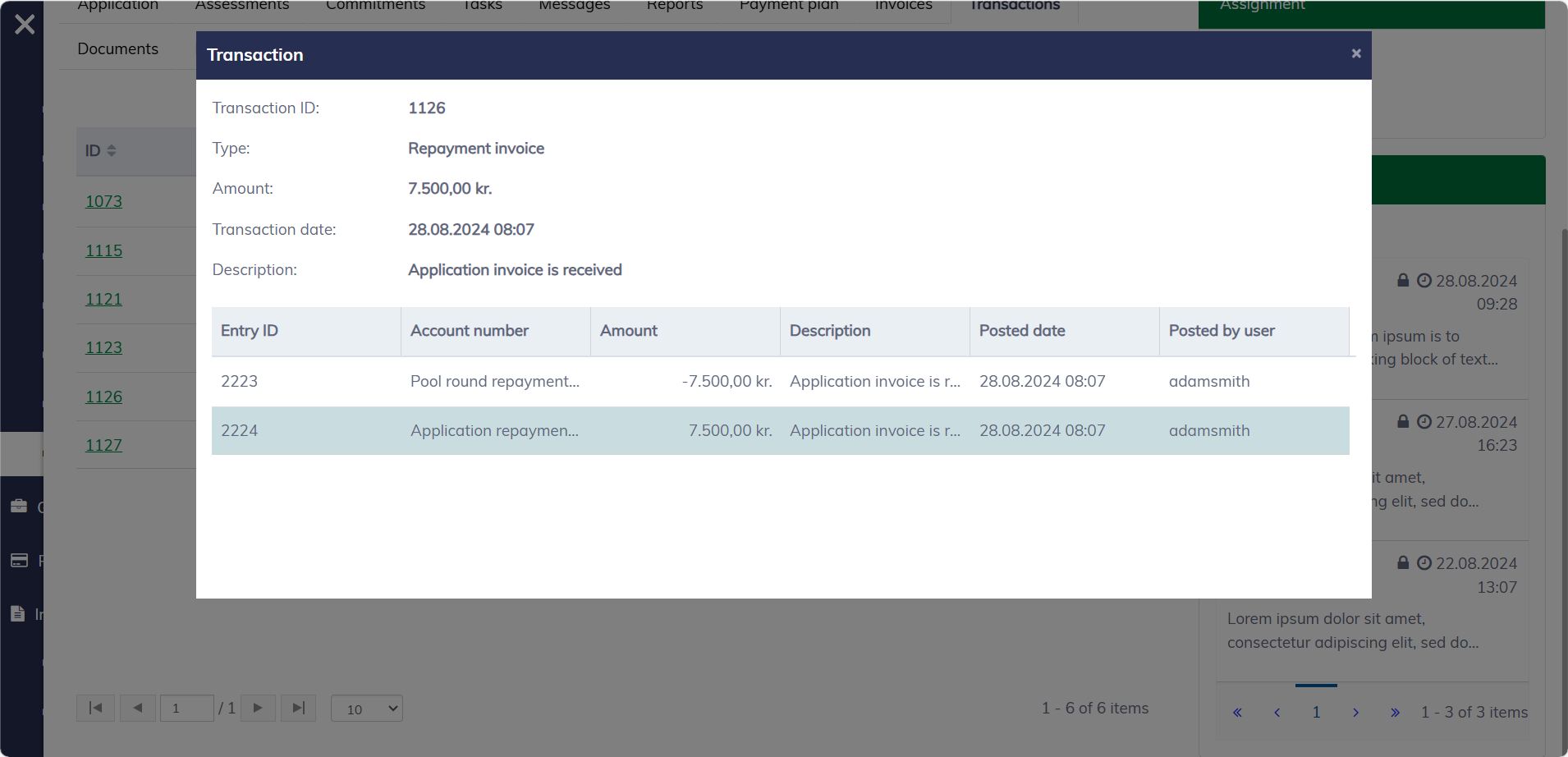
In the application or commitment dialog, navigate to the "Transactions" tab, and you can see a financial transaction indicating the repayment has been received.
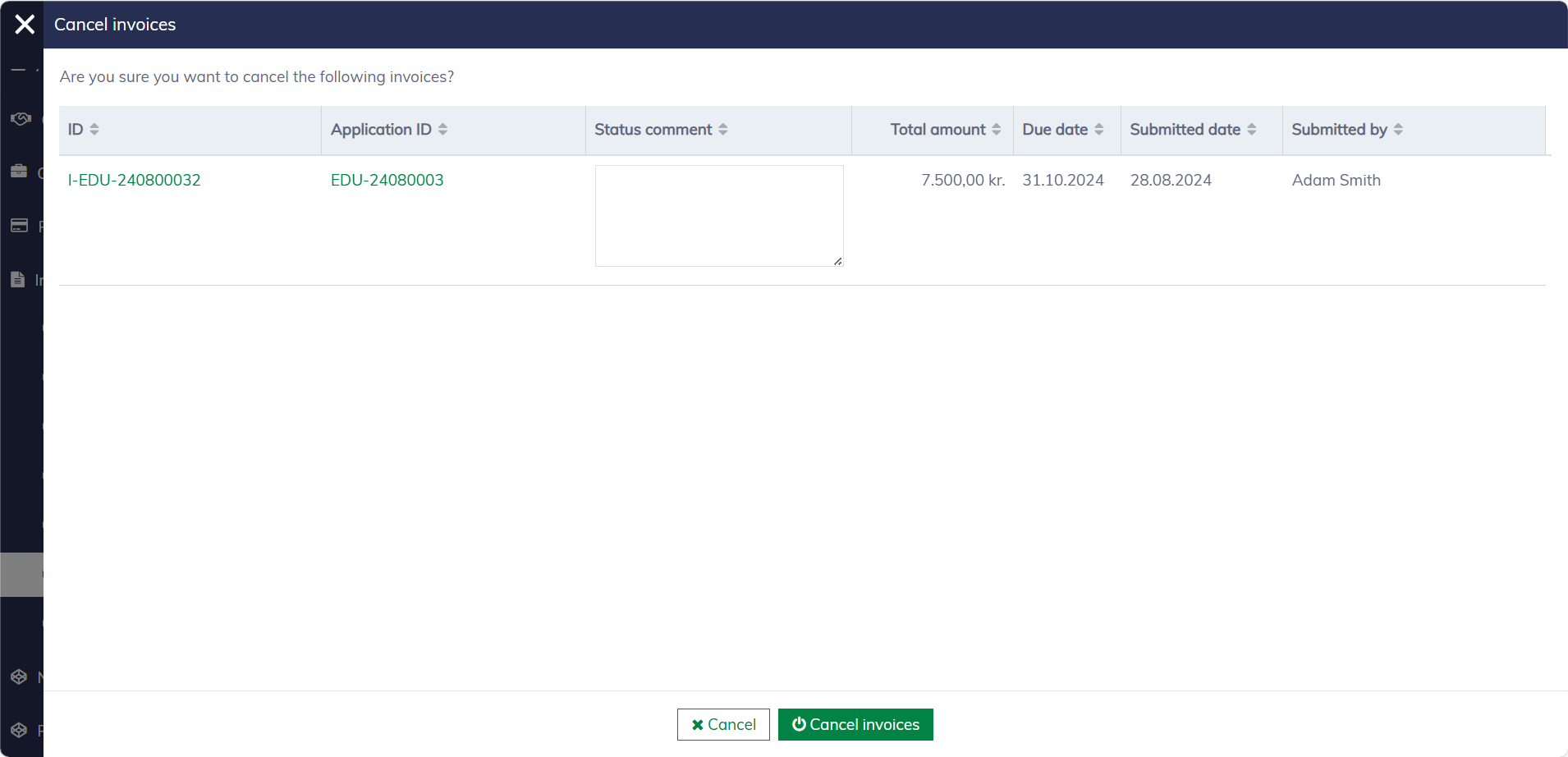
Cancel invoices
You can cancel one or multiple invoices. A comment is required when canceling invoices. Please note that only caseworkers with specific permissions can cancel invoices.