Screen reports
All submitted reports must undergo an approval process before they can be accepted. Many businesses require a screening stage where the reports are quickly reviewed, and all feedback will be documented to support the final assessment.
Not all types of reports require a screening stage. System administrators can decide which reports need screening and which can proceed directly to the assessment stage.
Browse reports
All submitted reports requiring a screening stage are under "Grant reporting / Screening reports". Here, you can screen the reports before advancing them to the next stage. Please note that only caseworkers with the appropriate permissions are authorized to screen reports.
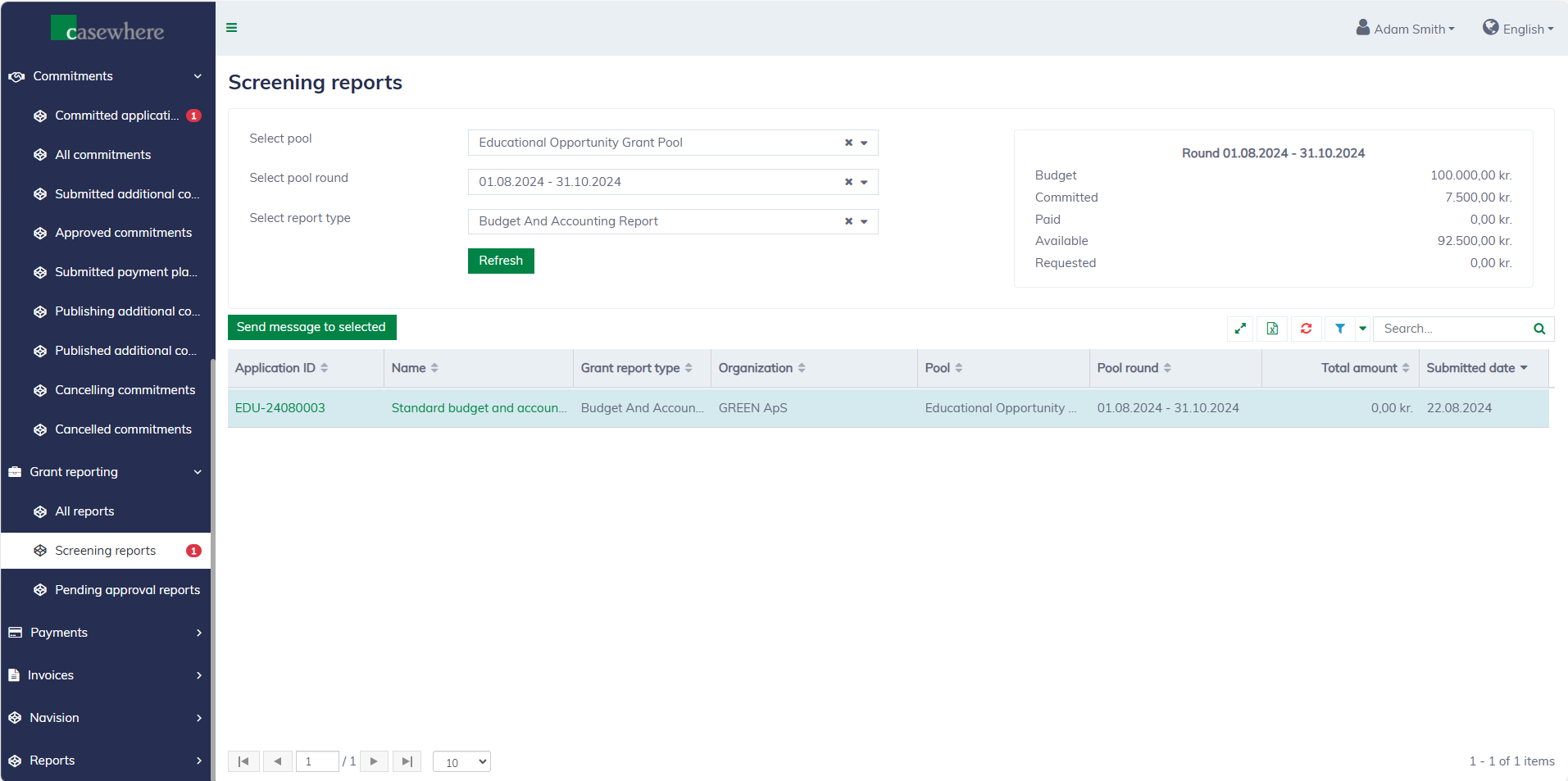
In this list, you can filter reports by their pools, pool rounds, and report types. Like any standard list, you can filter, search, and sort by various other criteria to streamline your review process.
Screening assessment
Open a report in the report list and observe that there will be a "Screen" button at the bottom of the report dialog.
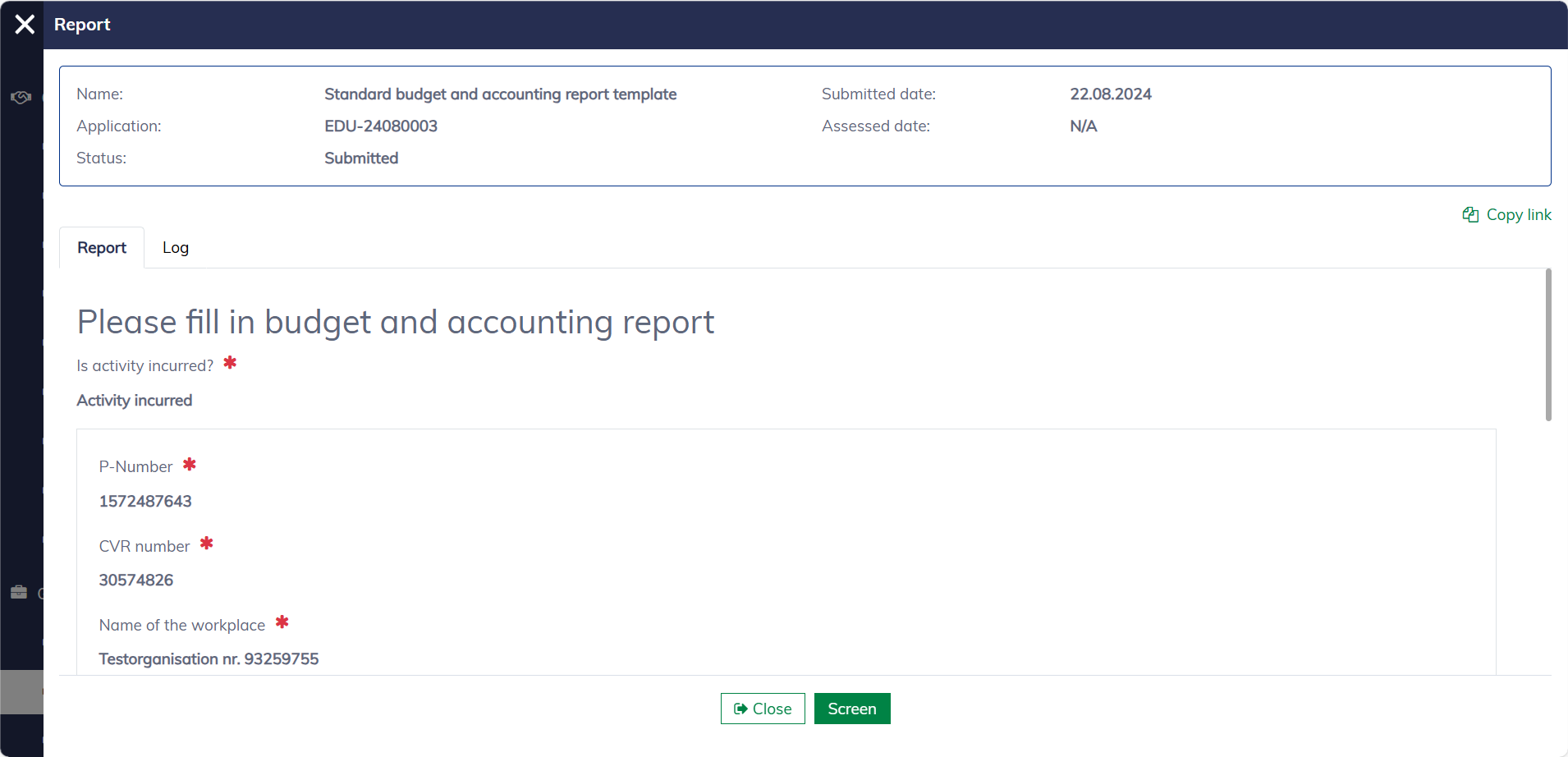
Click "Screen" to open a form where you can follow instructions to review the report and provide feedback. The report screening form might vary depending on the report template.
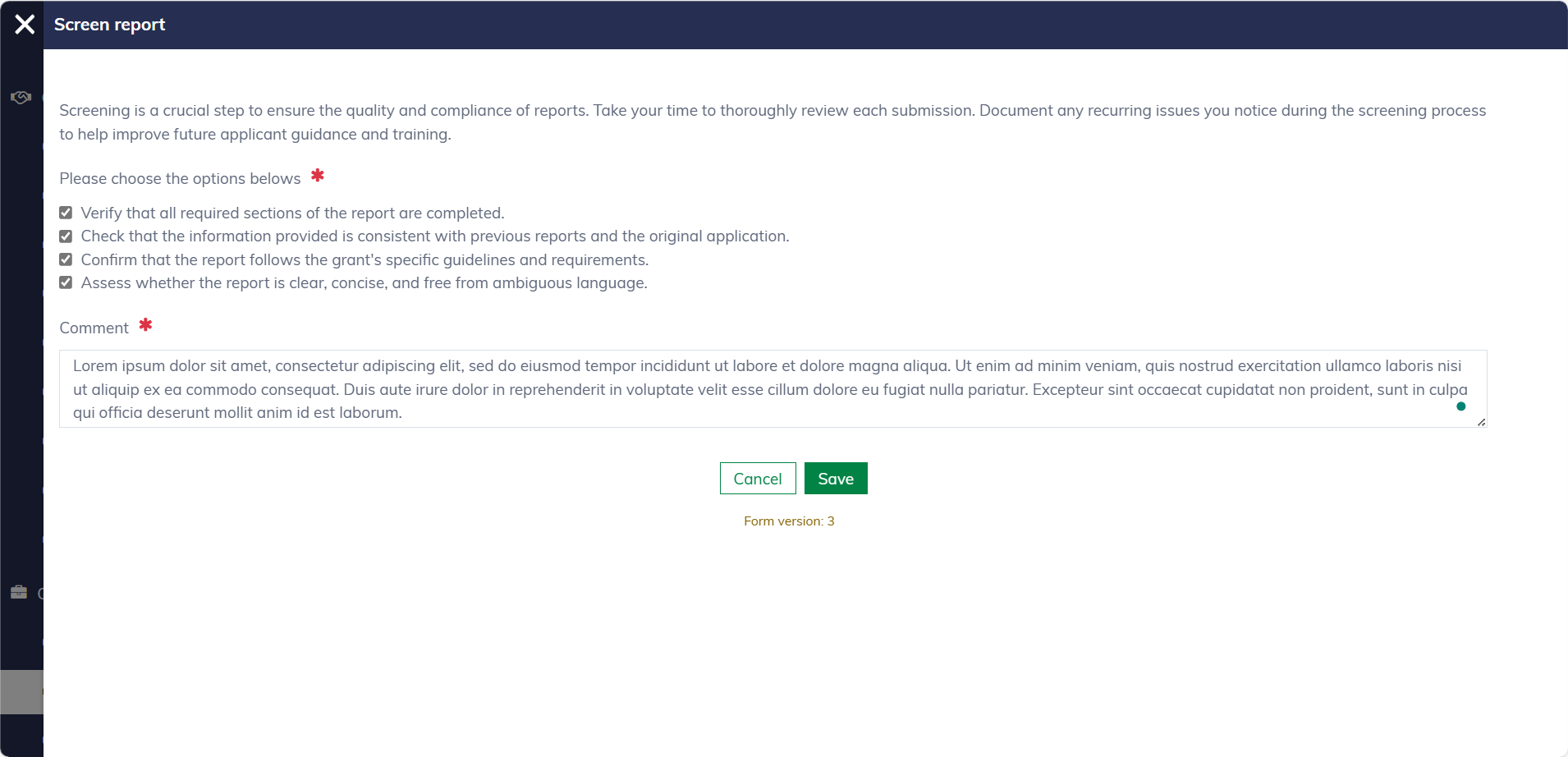
You can save a draft and return to edit it later. Once you submit the screening form, the report will be moved to the assessment stage.
Screening result
The screening result will appear in the report dialog under the "Screening" tab. The tab will show only when a result is available.
(Picture coming soon)