Document templates
Document templates govern how documents are produced in the system and can be configured differently for each pool. The grant management solution offers maximum flexibility, allowing you to create and customize document templates for all processes to ensure that all your specific business requirements are met.
Document template types
Each type of document template dictates its format and specifies applicable use cases. The full list of document template types can be found under "Document template management / Document template types".
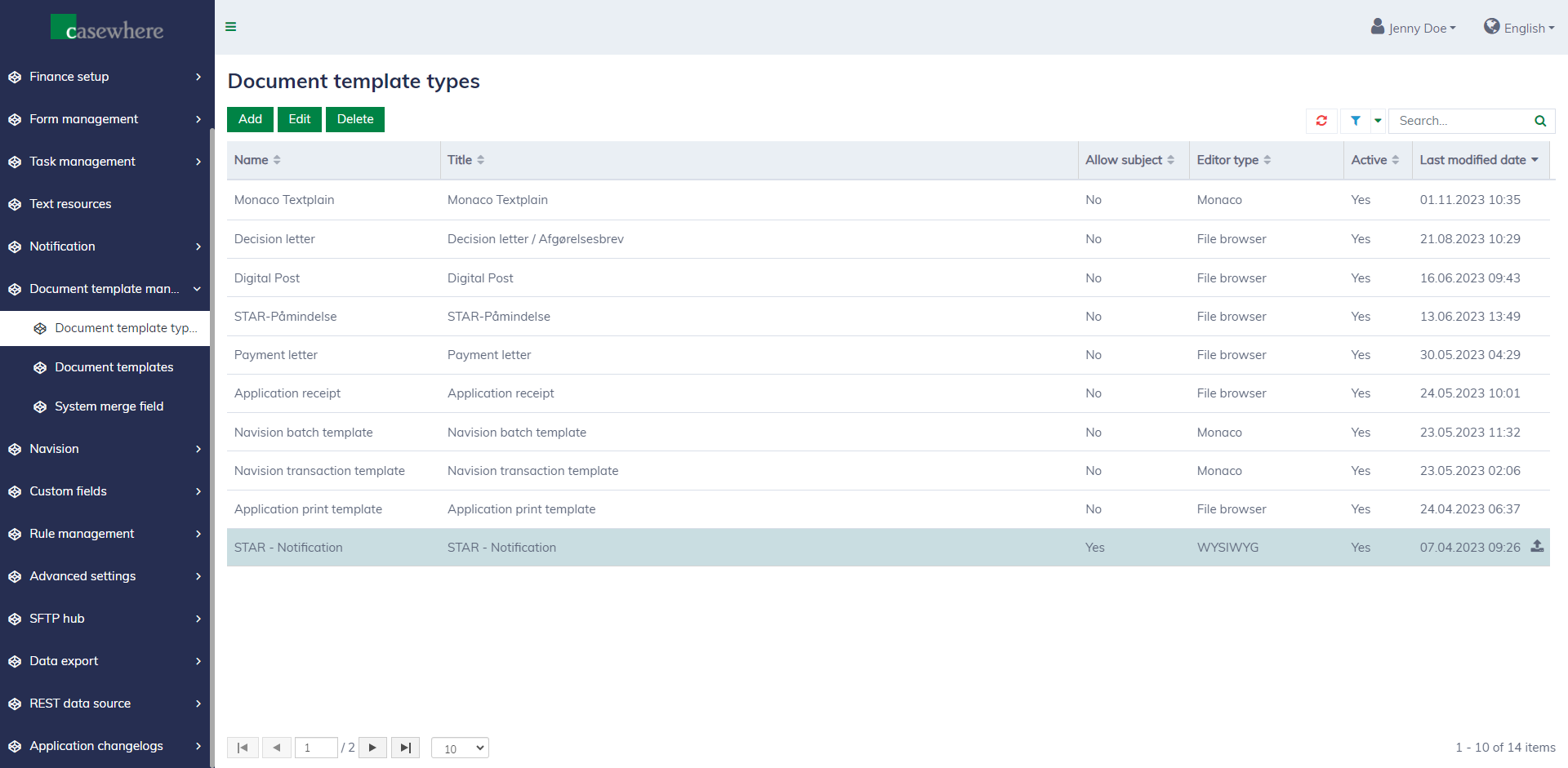
Below are typical document template types:
| Document template type | Format | Description |
|---|---|---|
| Application print template | DOCX | The printable template for grant applications. |
| Application receipt | DOCX | To generate receipt letters sent to applicants after they submit their applications. |
| Assessment memo | DOCX | To generate a memo containing a list of applications for assessment |
| Decision letter | DOCX | To generate refusal or commitment letters once the decisions are approved by the pool manager. |
| Payment letter | DOCX | To generate payment letters sent to applicants each time payouts are executed. |
| Reminder | HTML | To generate reminder emails. |
| Internal message | HTML | To generate the system-internal communication messages. |
| Notification | HTML | To generate the notification content. Notification can be sent via email, or SMS, depending on your configuration. |
| Navision batch template | XML | To generate batches sent to Navision. A batch consists of various transactions arranged in a specific order. |
| Navision transaction template | XML | To generate transactions to be sent to Navision in batches. |
Document templates
All document templates are centrally managed under "Document template management / Document templates".
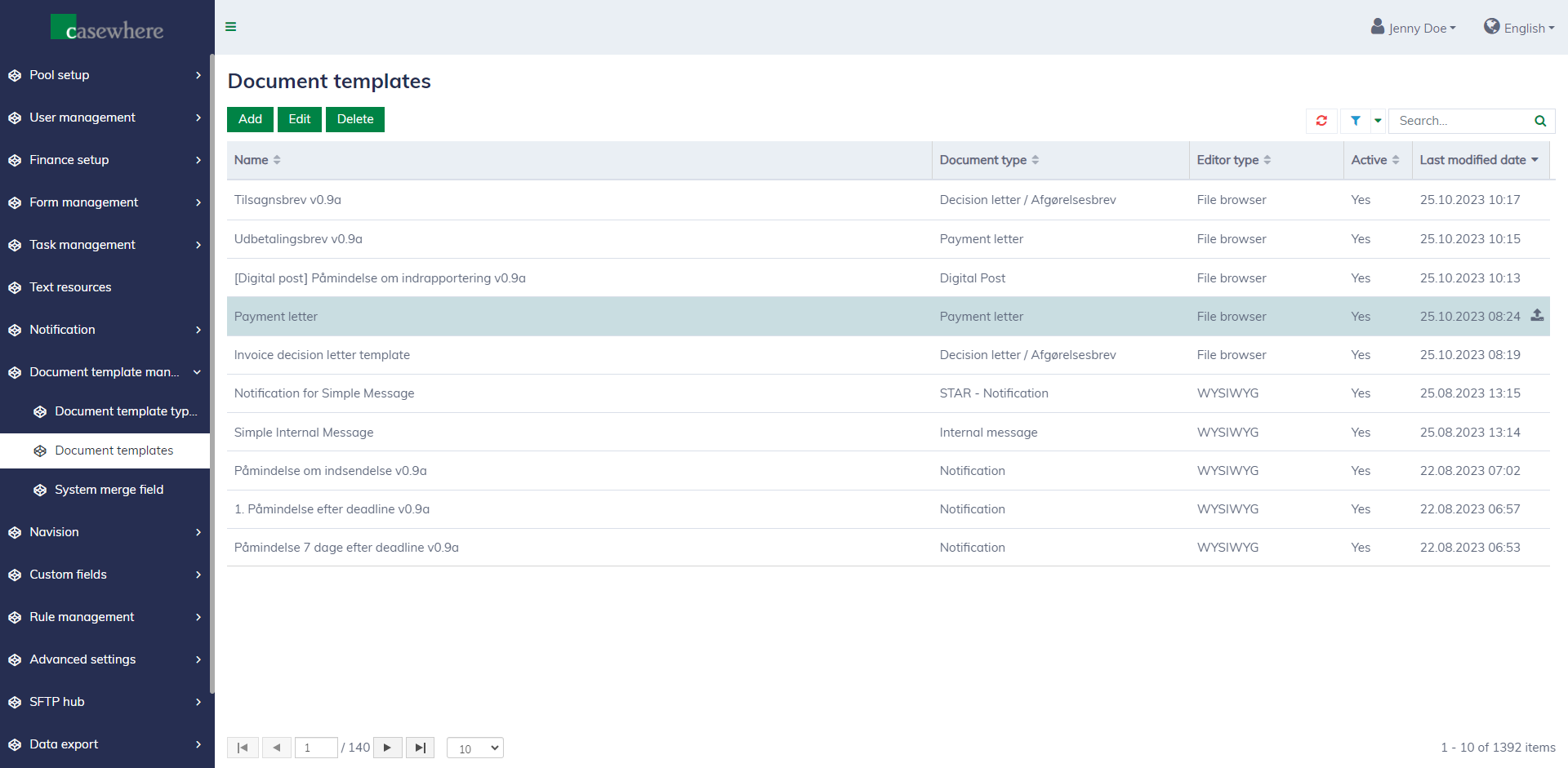
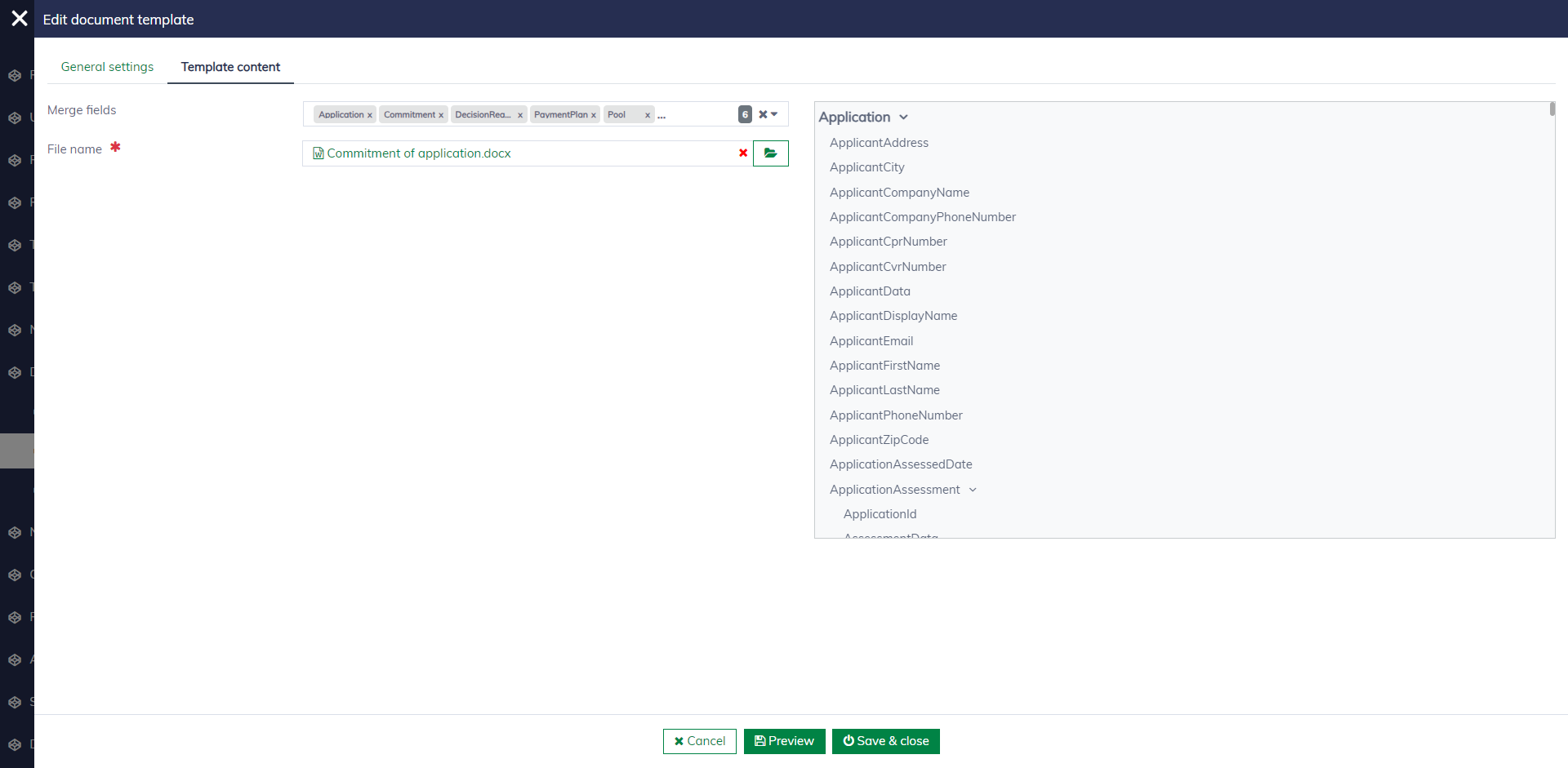
The grant management solution supports different types of template editors. Merge fields can be used in all editors to embed data into documents. The following demo shows that you can specify the merge fields while uploading a DOCX file for your letter template.
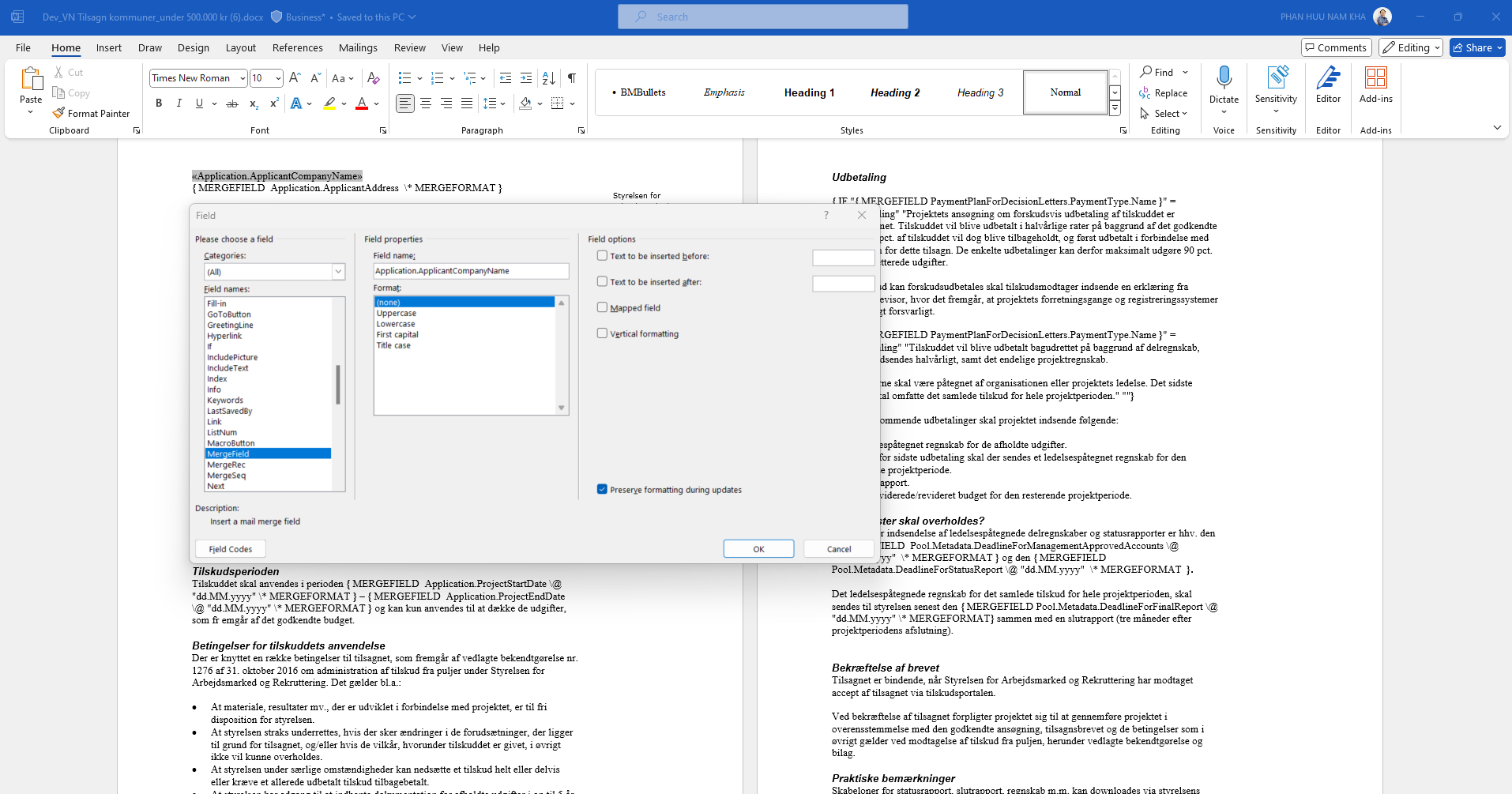
The syntax of merge fields in the Word editor looks as follows.
Using merge fields in a WYSIWYG editor is also straightforward. Simply click on the merge field item in the right sidebar to insert it at your desired position.
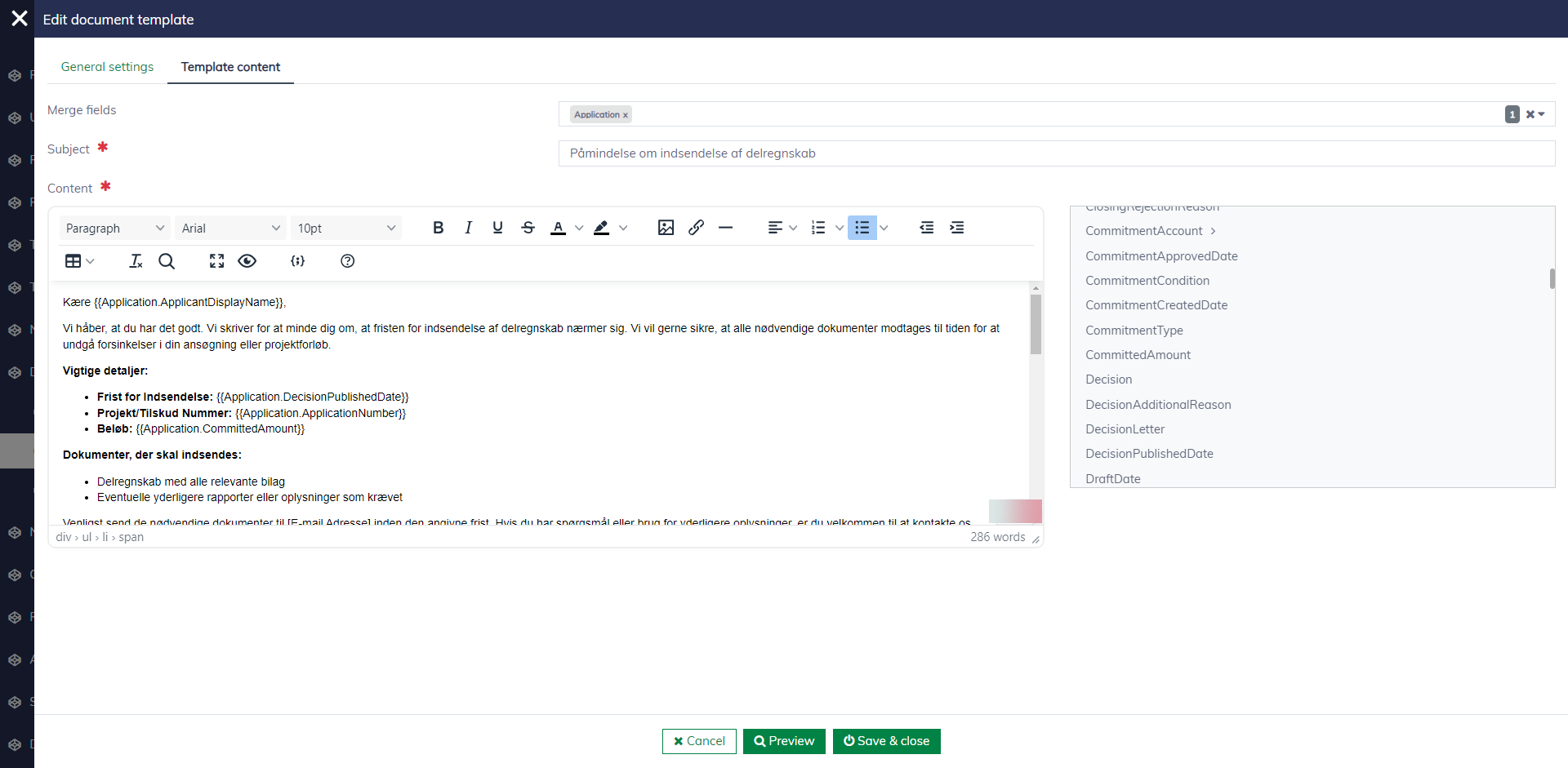
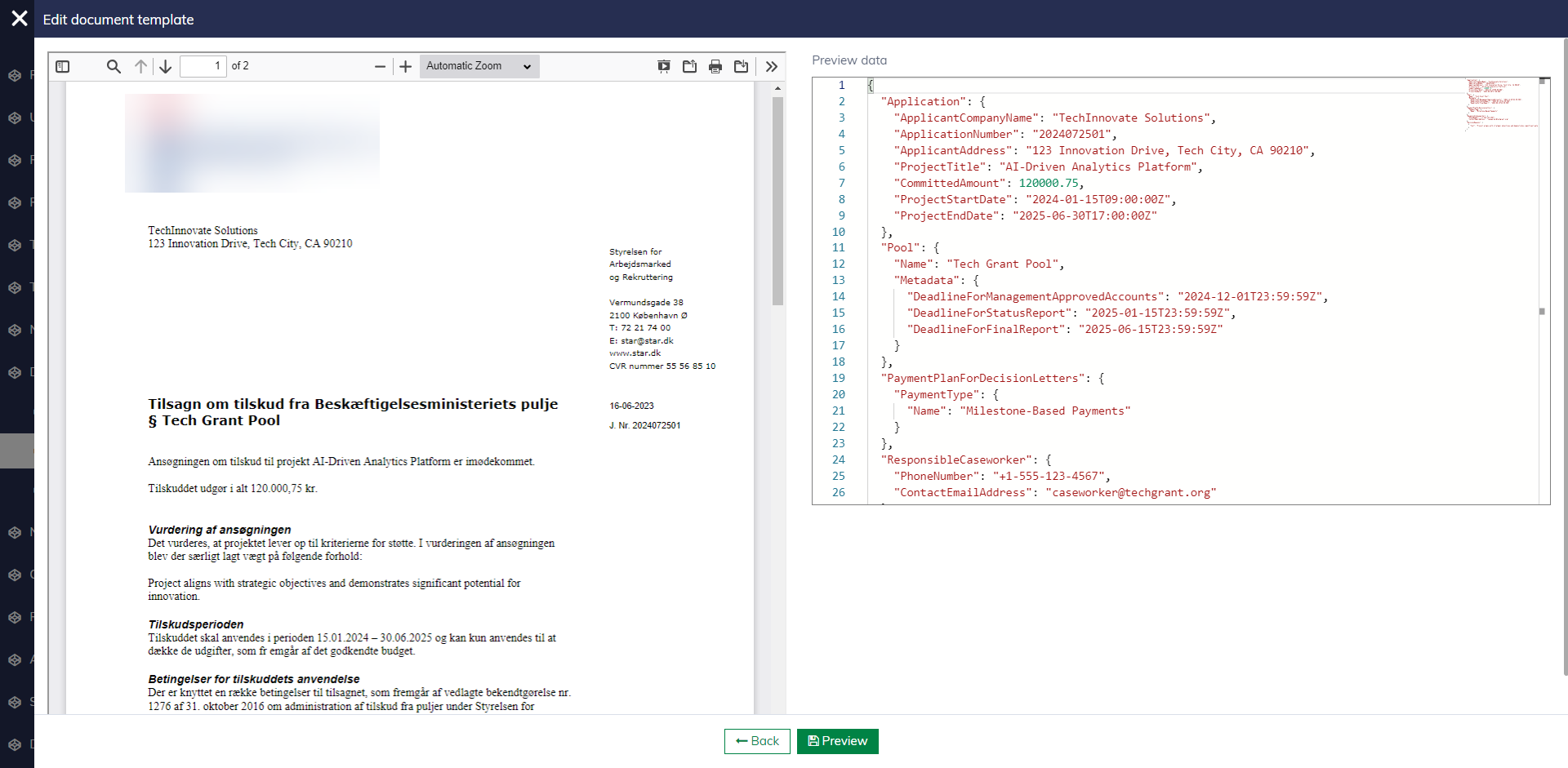
While editing a document template, you can preview it to ensure that the final documents meet your expectations.
System merge fields
All merge fields available can be found under "Document template management / System merge fields".
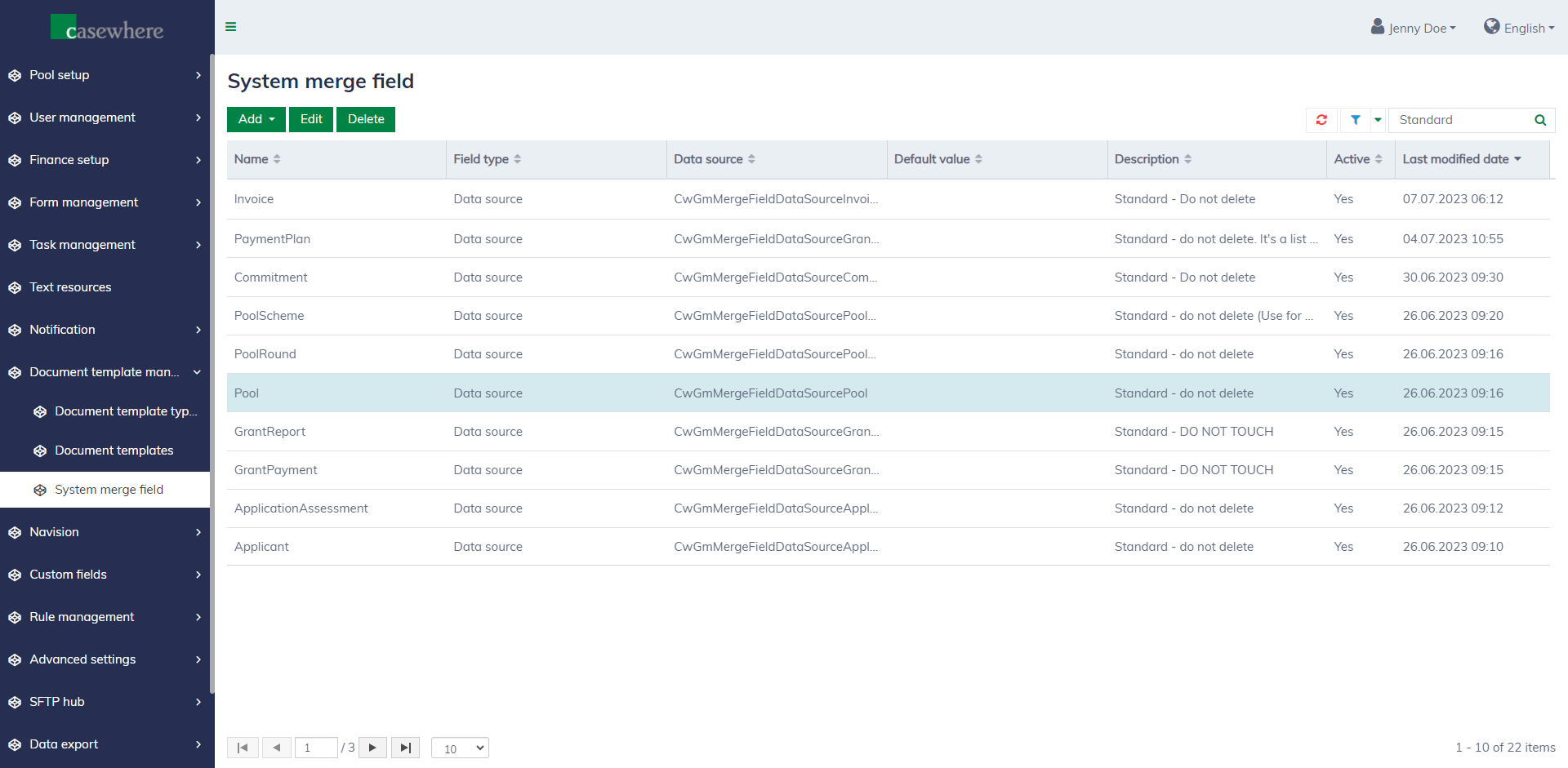
You can learn about the various merge fields associated with different data entities in the system.
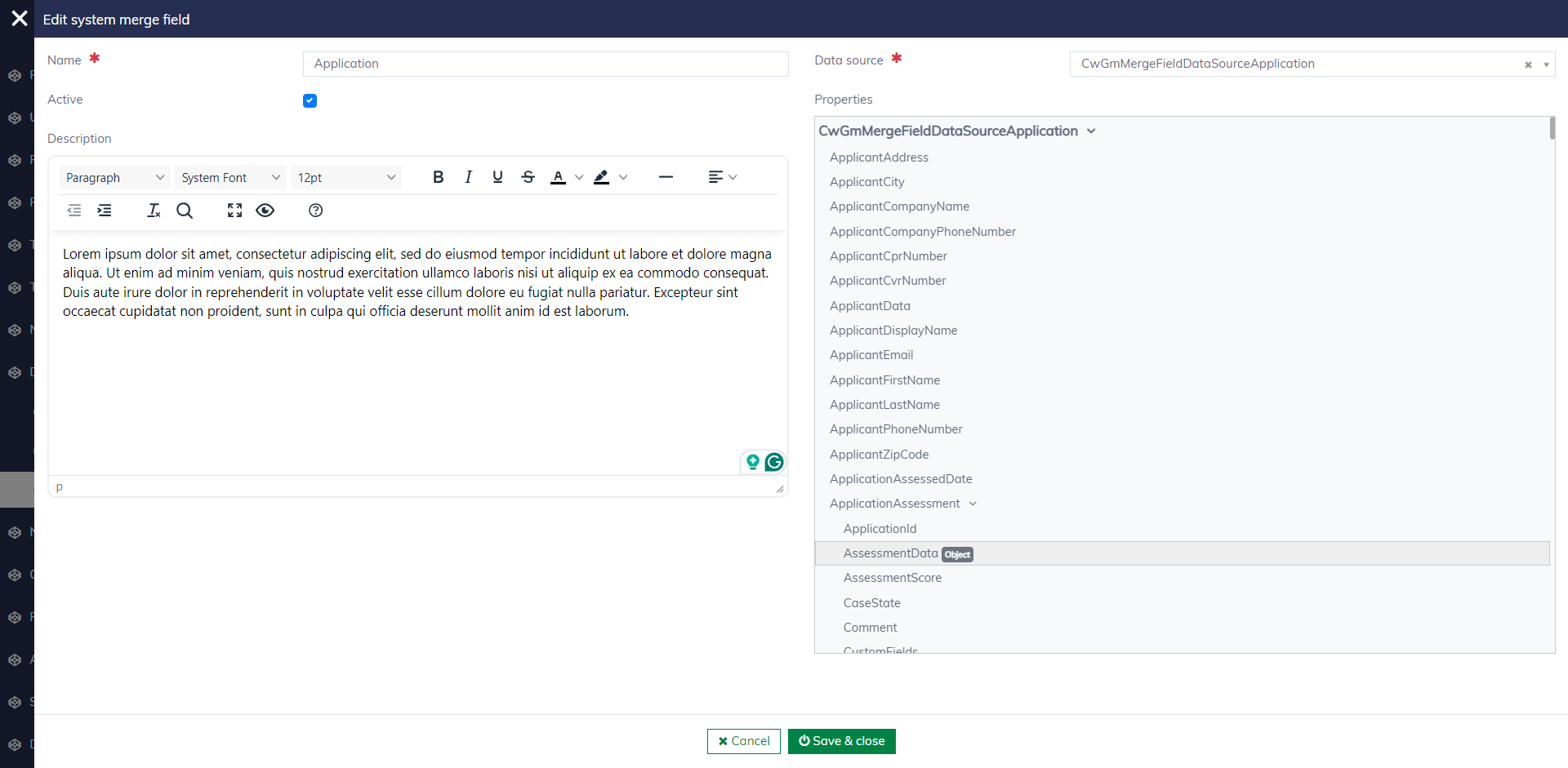
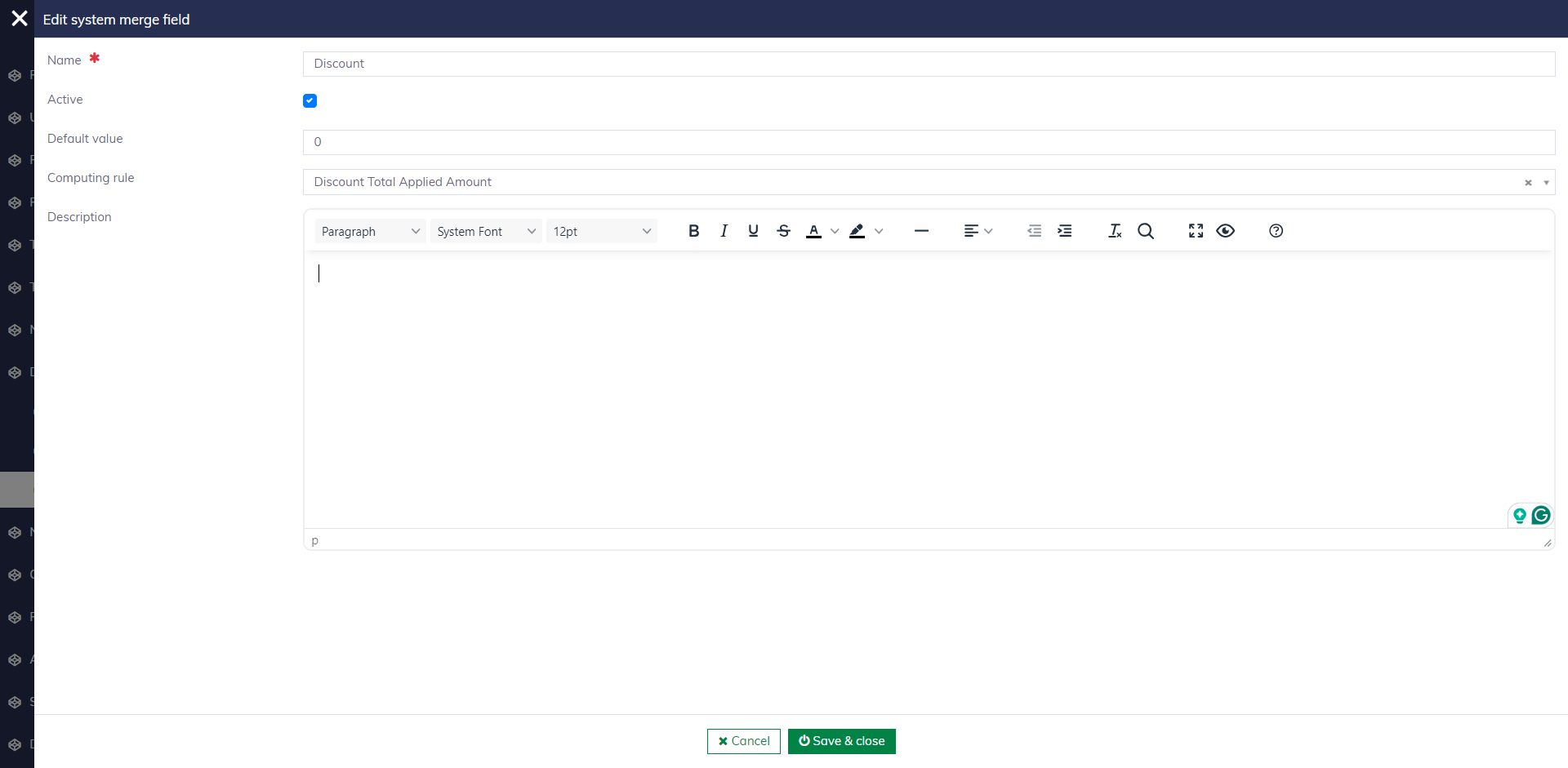
You can also define custom merge fields to meet specific needs. These custom merge fields can be linked to a computation rule.
Set up document templates for pools
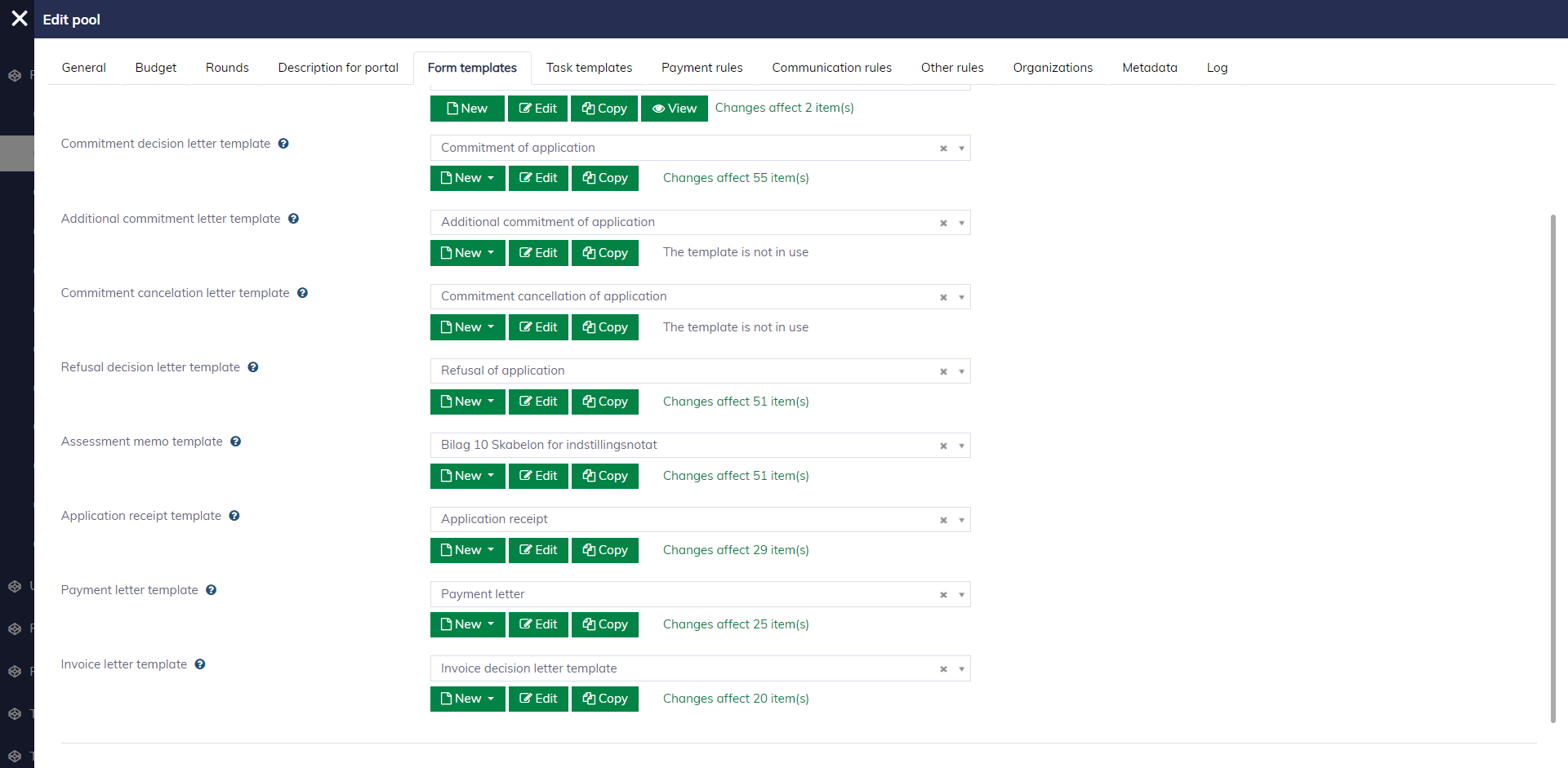
When editing a pool, navigate to the "Form templates" tab to set up templates. Here, you need to specify the form and letter templates for different business scenarios.
Learn more about communication rules here.