Task management
Tasks can be created and assigned to both external and internal users to streamline workflows and enhance productivity. The system is designed to automatically assign tasks based on predefined conditions. For instance, once a commitment is published, the system can automatically generate a reporting task for applicants. Additionally, caseworkers have the flexibility to manually create tasks, such as requesting the submission of missing documents from applicants. To ensure timely completion, task reminders are sent to assignees, keeping everyone on track and accountable.
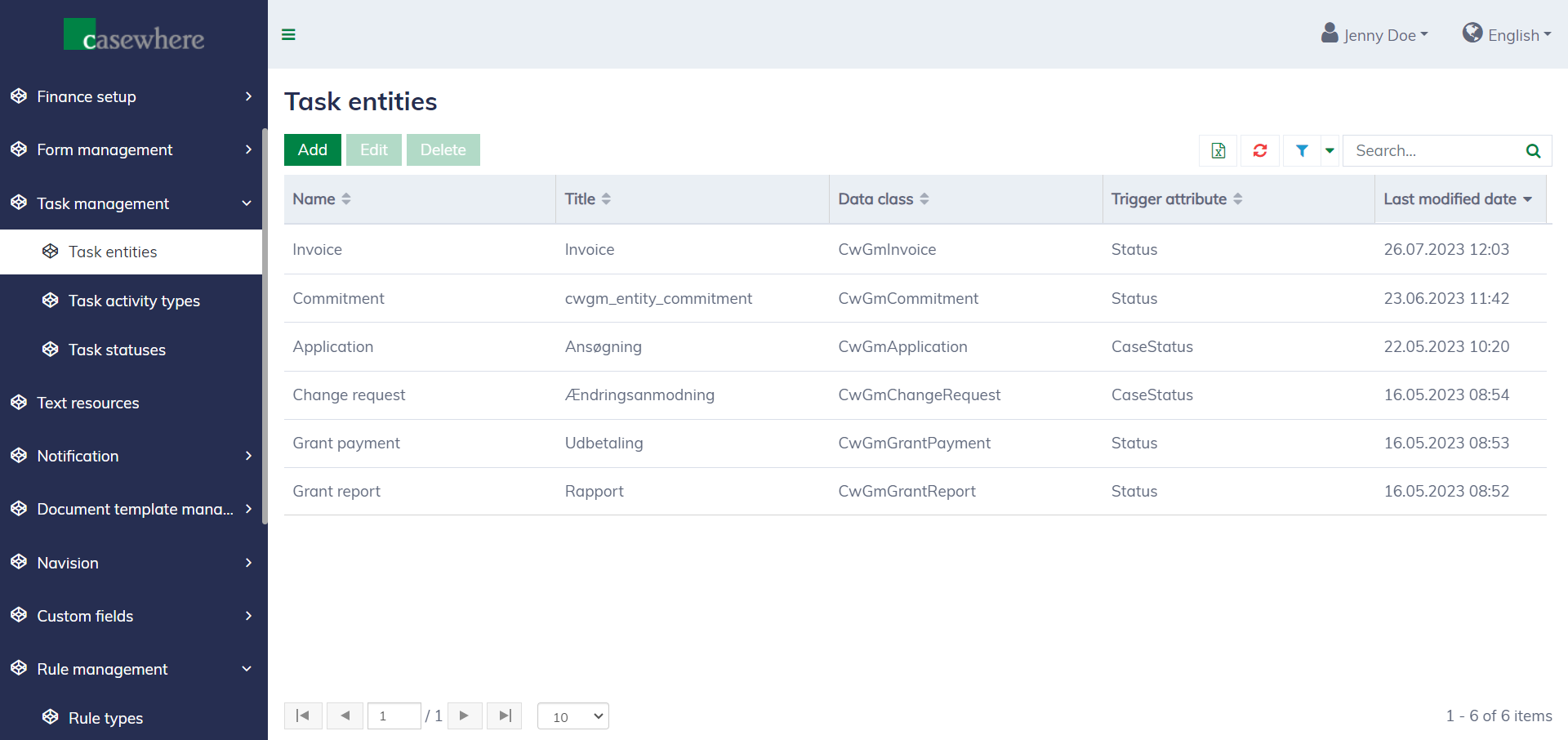
Task entities
In the system, every task must be associated with a primary data entity, which triggers the task creation. For example, the task "Assess application" must be related to the application data entity. The list of task entities can be found under "Task management / Task entities".
Task activity types
The task activity type defines the specific actions a task will perform. The complete list of task activity types can be found under "Task management / Task activity types".
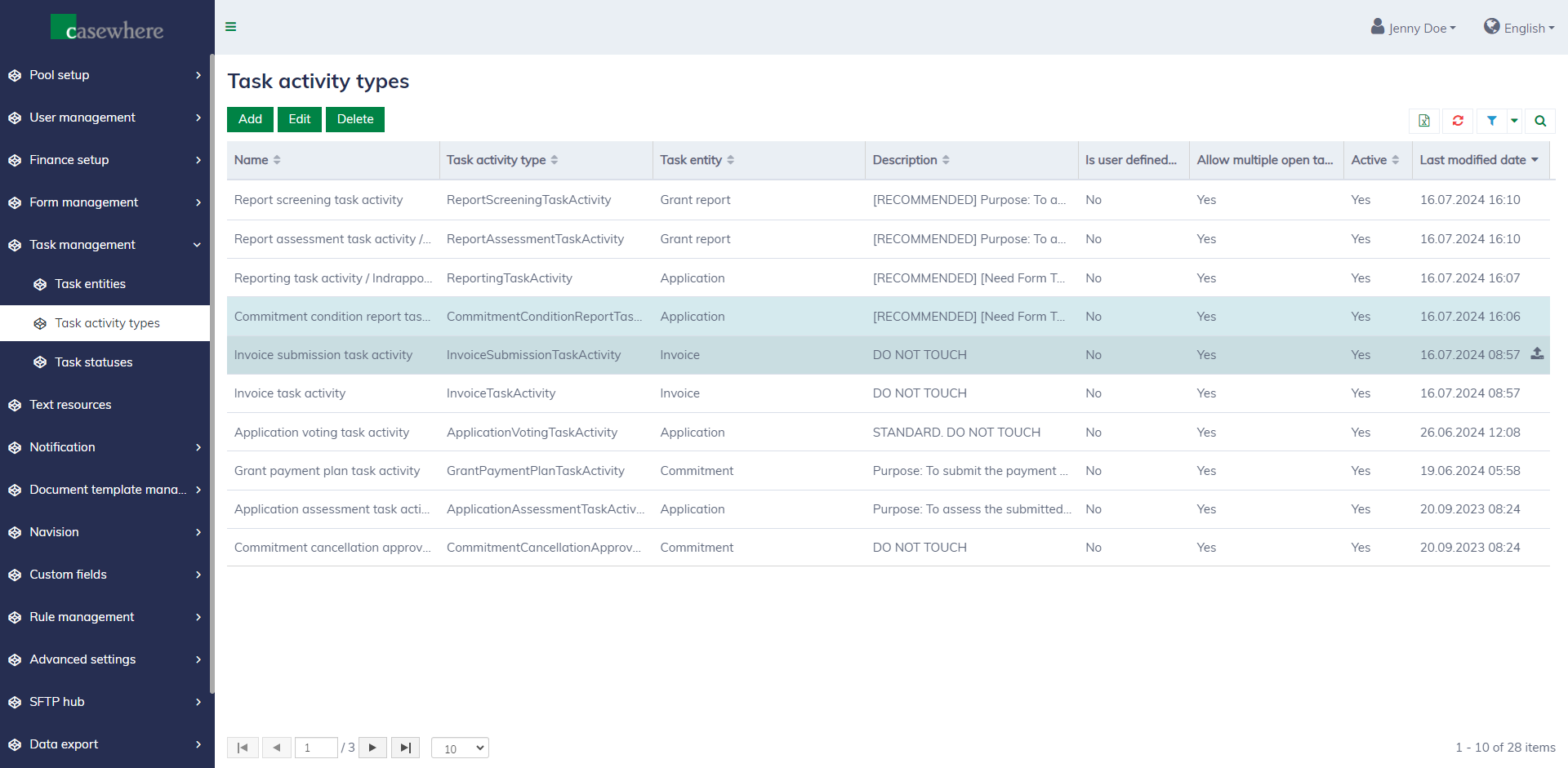
There 2 main types of task activity types:
System-defined: Tasks can be automatically created by the system, with their content predefined during pool setup. For example, a
ReportingTaskActivitywill need a report template, while anApplicationAssessmentTaskActivitywill require an assessment template. Caseworkers can also create tasks manually, but they cannot specify the task content.User-defined: Tasks can only be created manually by caseworkers, who must input the task content and specify what needs to be done to complete the task, such as completing a survey, uploading required files, or commenting on something.
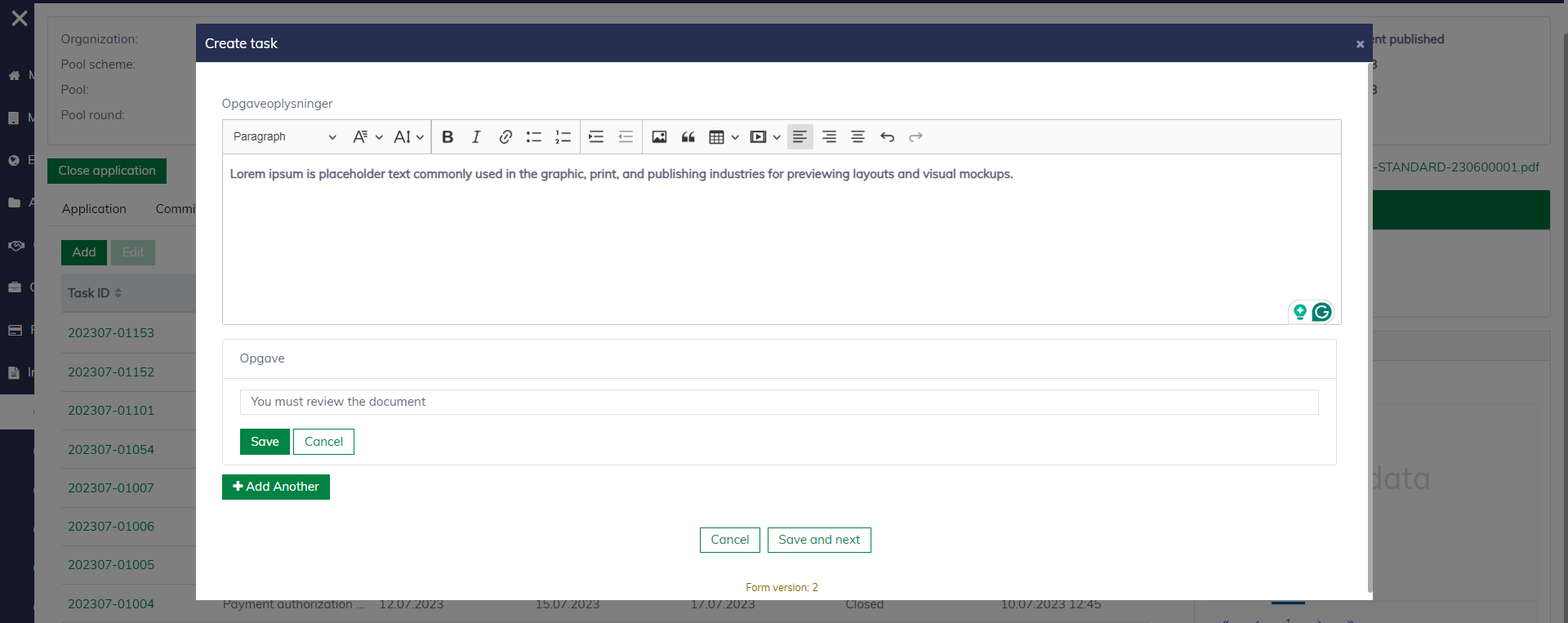
When a caseworker creates a task, he needs to select the desired task activity and the corresponding task template set up in the pool.
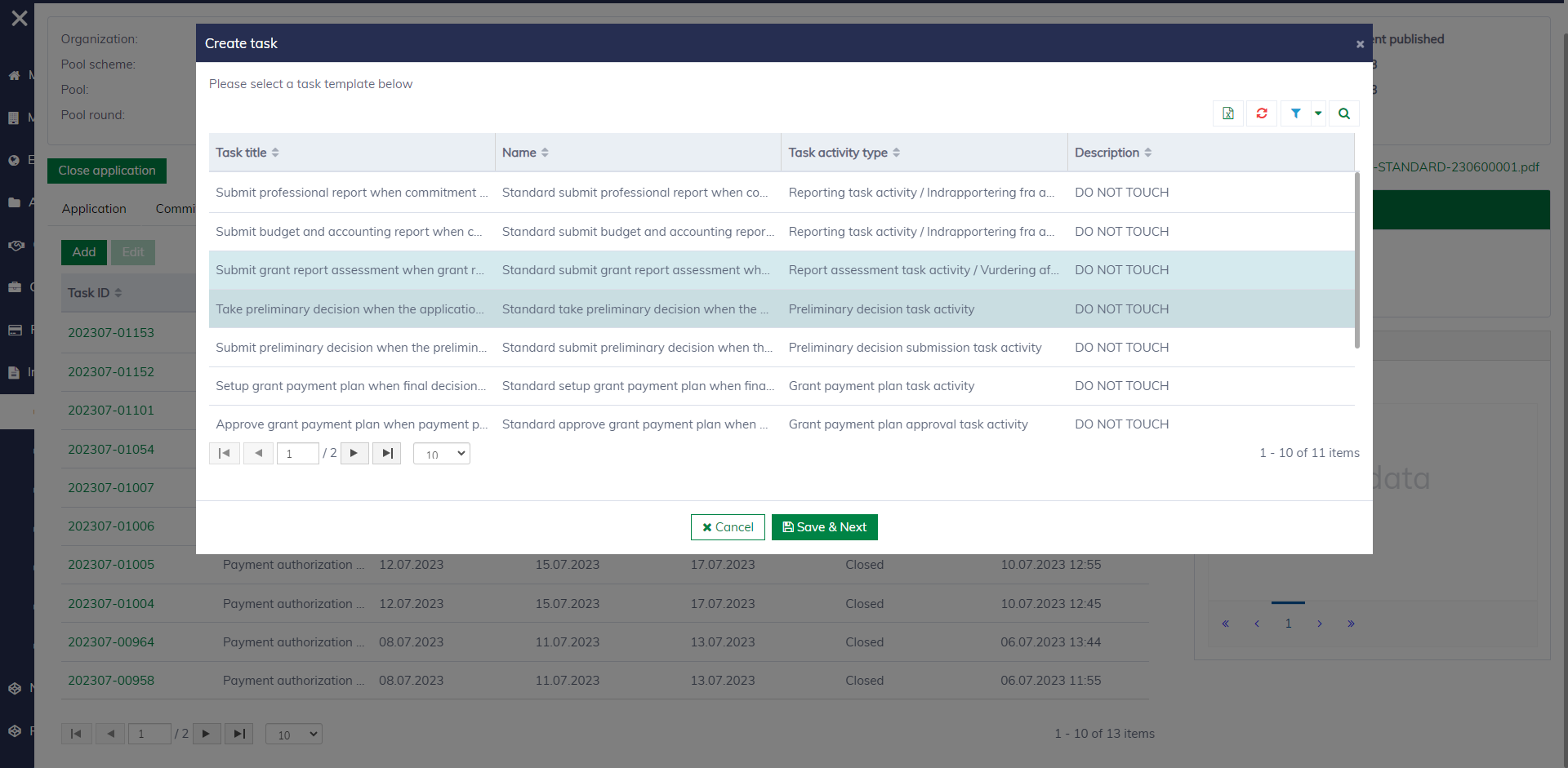
For custom tasks, caseworkers must provide the content so task assignees know what to do.
Task statuses
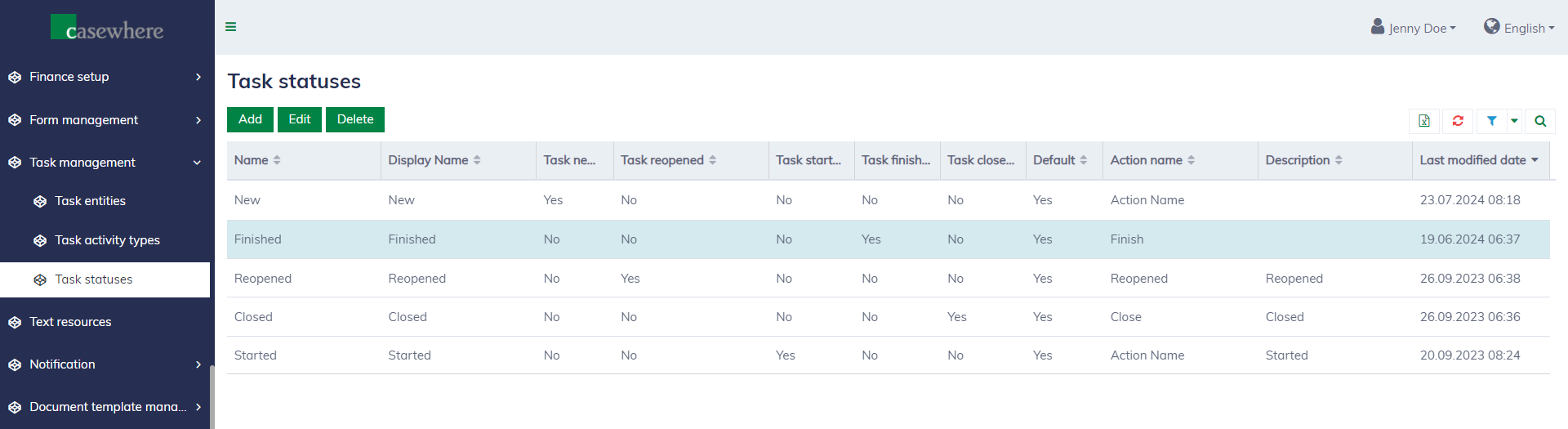
It's possible to customize the system task flow to meet your unique business requirements. Navigate to "Task management / Task statuses" to define your custom task statuses.
Editing a task status looks as follows.
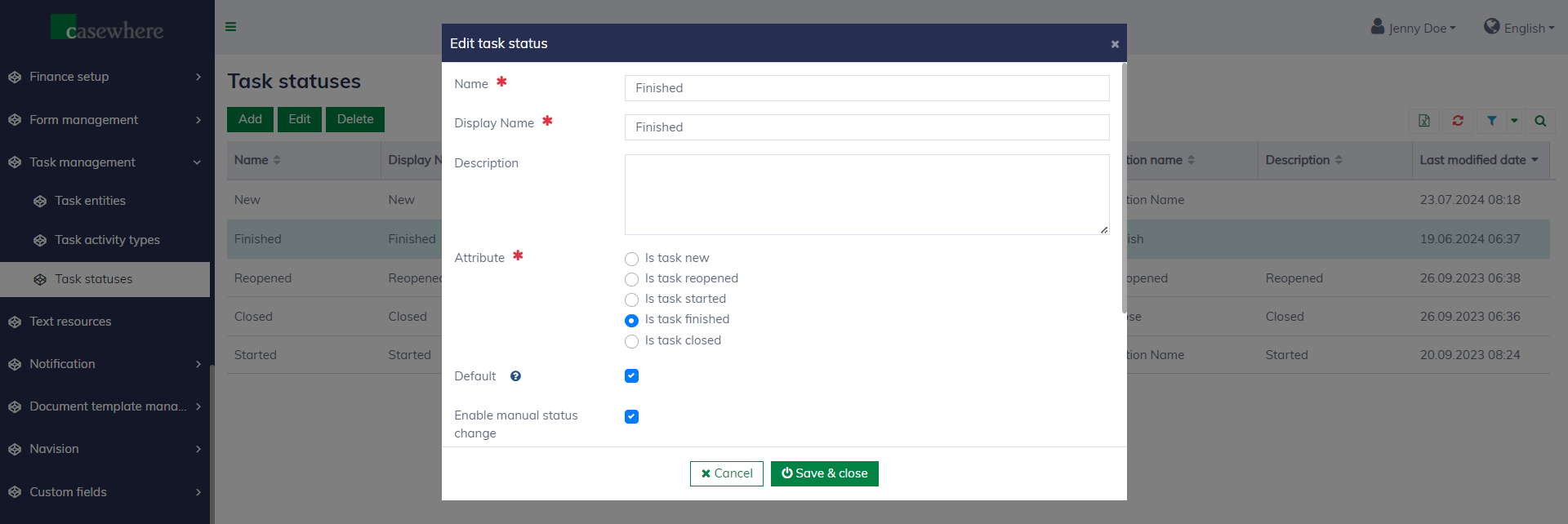
| Field name | Mandatory | Description |
|---|---|---|
| Name | Yes | Status unique name which can be referenced in rules or scripts. |
| Display name | Yes | Name displayed to end users. |
| Description | Yes | To explain more about the task status. |
| Attribute | Yes | To determine the task constraints and system behaviors. |
| Default | Yes | When the system automatically creates a task, it will set the task status to the corresponding default status. |
| Enable manual status change | No | To determine if end users can change the task status manually. |
| Action name | No | To determine the action to change the task status. |
| Required permissions | No | To determine permissions required to execute the change-status action. |
| Comment required | No | To determine if a comment is required when changing task status. |
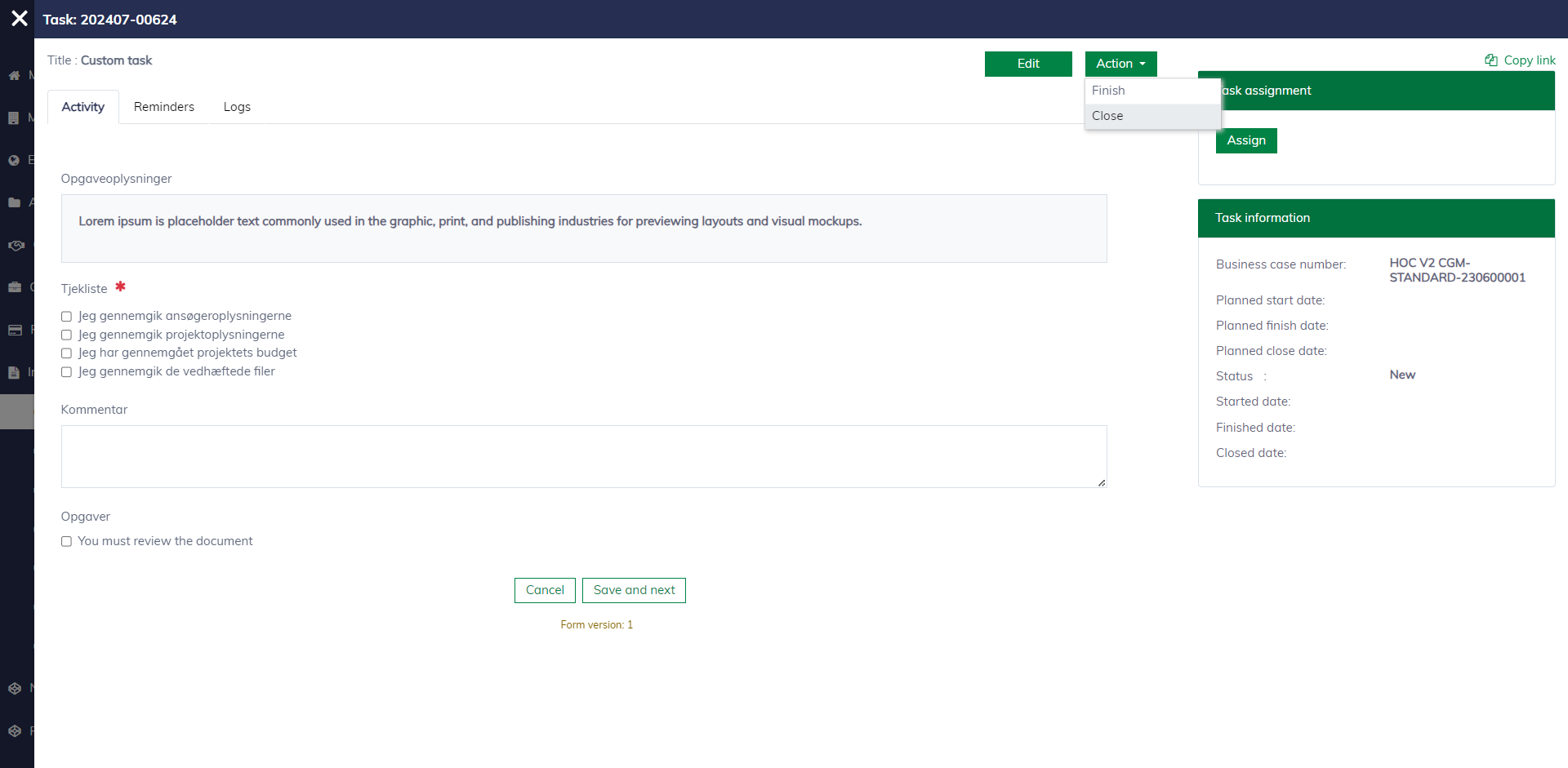
Here is how a task, its status, and corresponding actions appear to end users.
Set up task templates
Each pool might demand a different set of tasks depending on the business requirement. In the pool editor, you can navigate to the "Task templates" tab to set up task templates for your pool.
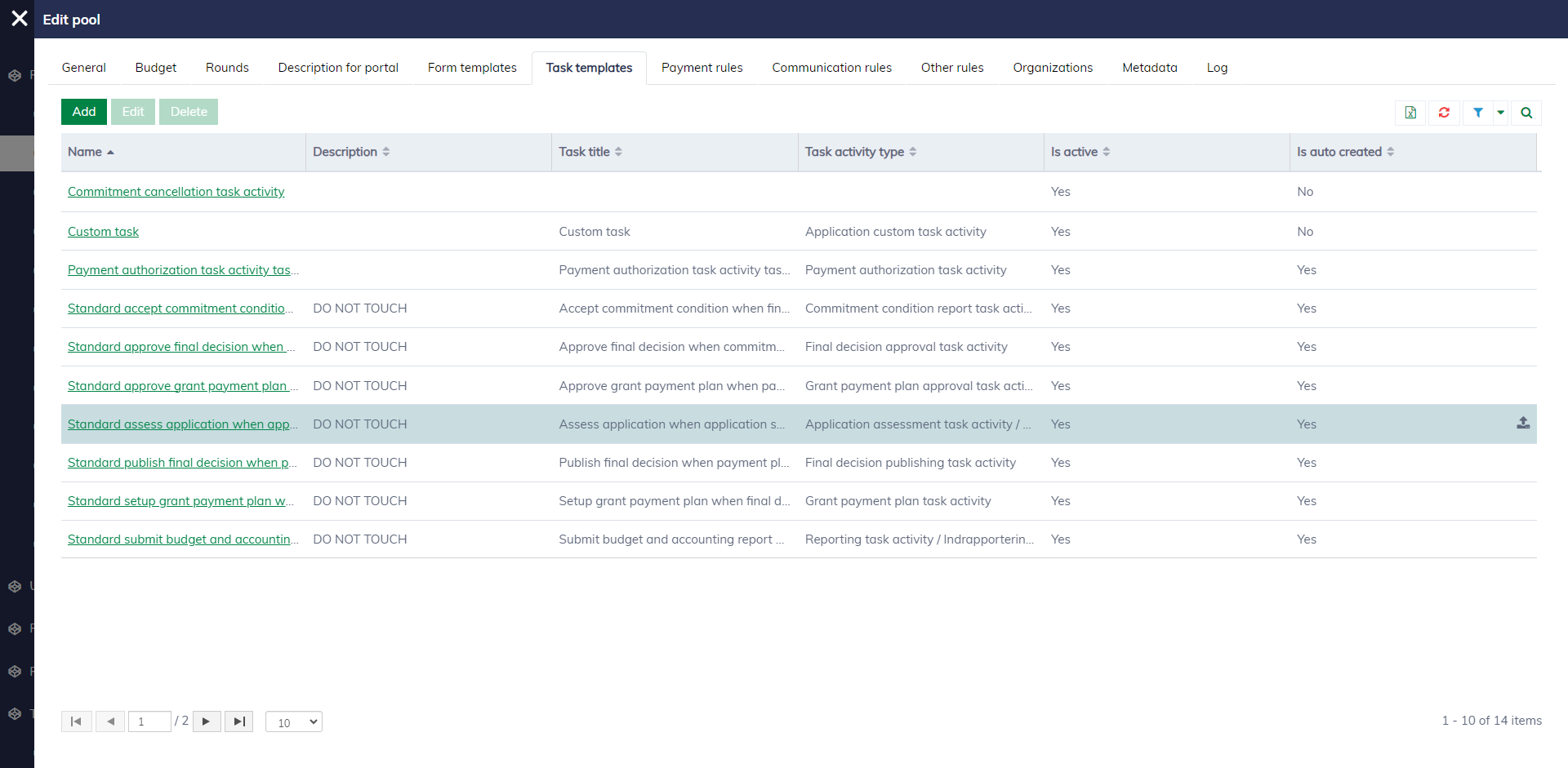
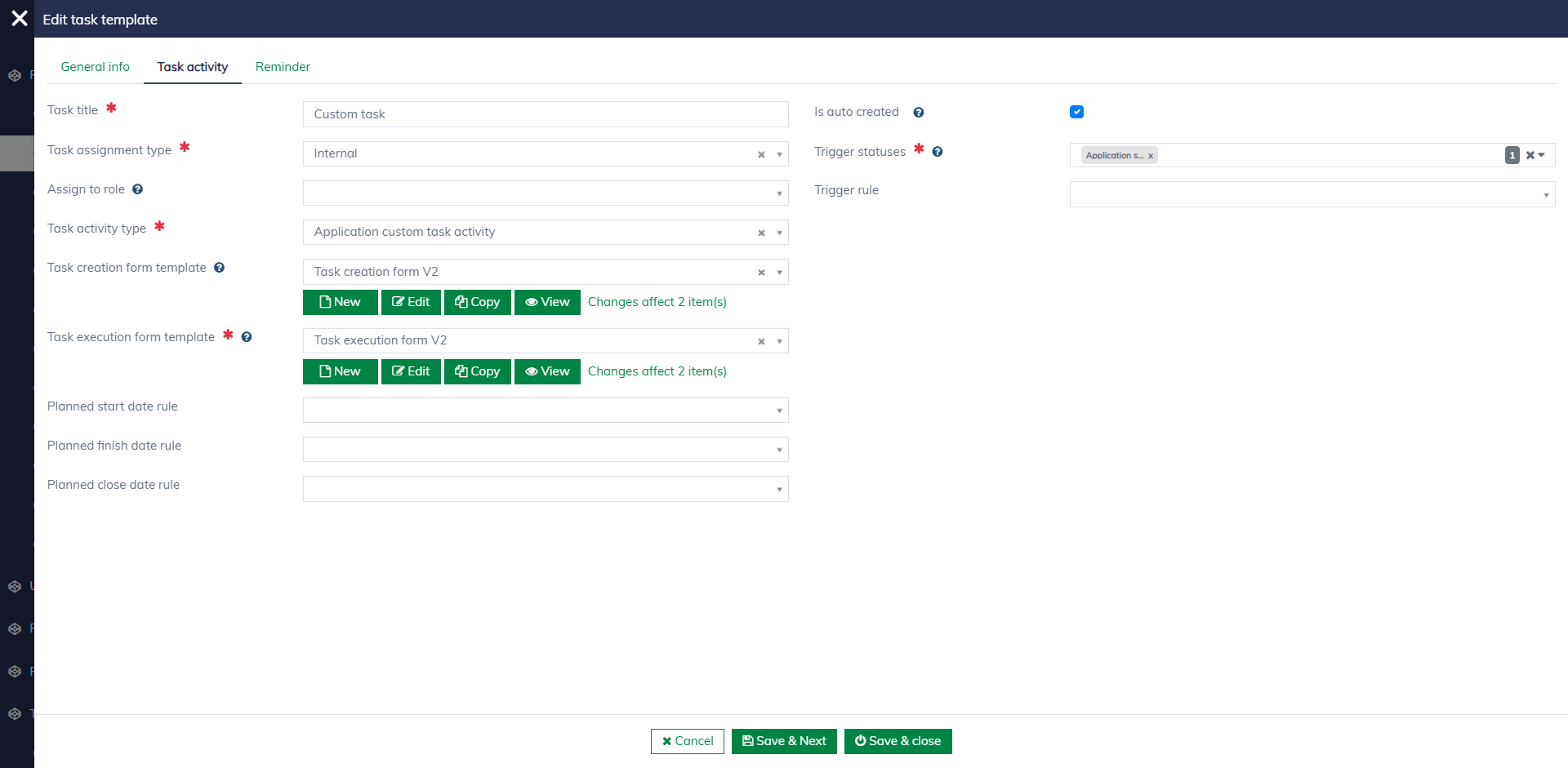
When creating a task template, you must first select the task activity type and then specify the required form templates and rules to determine the deadline and reminders, if applicable. You may also want to configure the conditions under which the system can automatically create a new task. Read here for more details.