Budget
This article will walk you through the steps to set up a budget. The process will be the same for all budgetable entities such as pool schemes, pools, and pool rounds.
Create new budget
Open an entity such as a pool scheme, pool, or pool round. Navigate to the tab "Budget". If no budget is set up, click "Set up new budget".
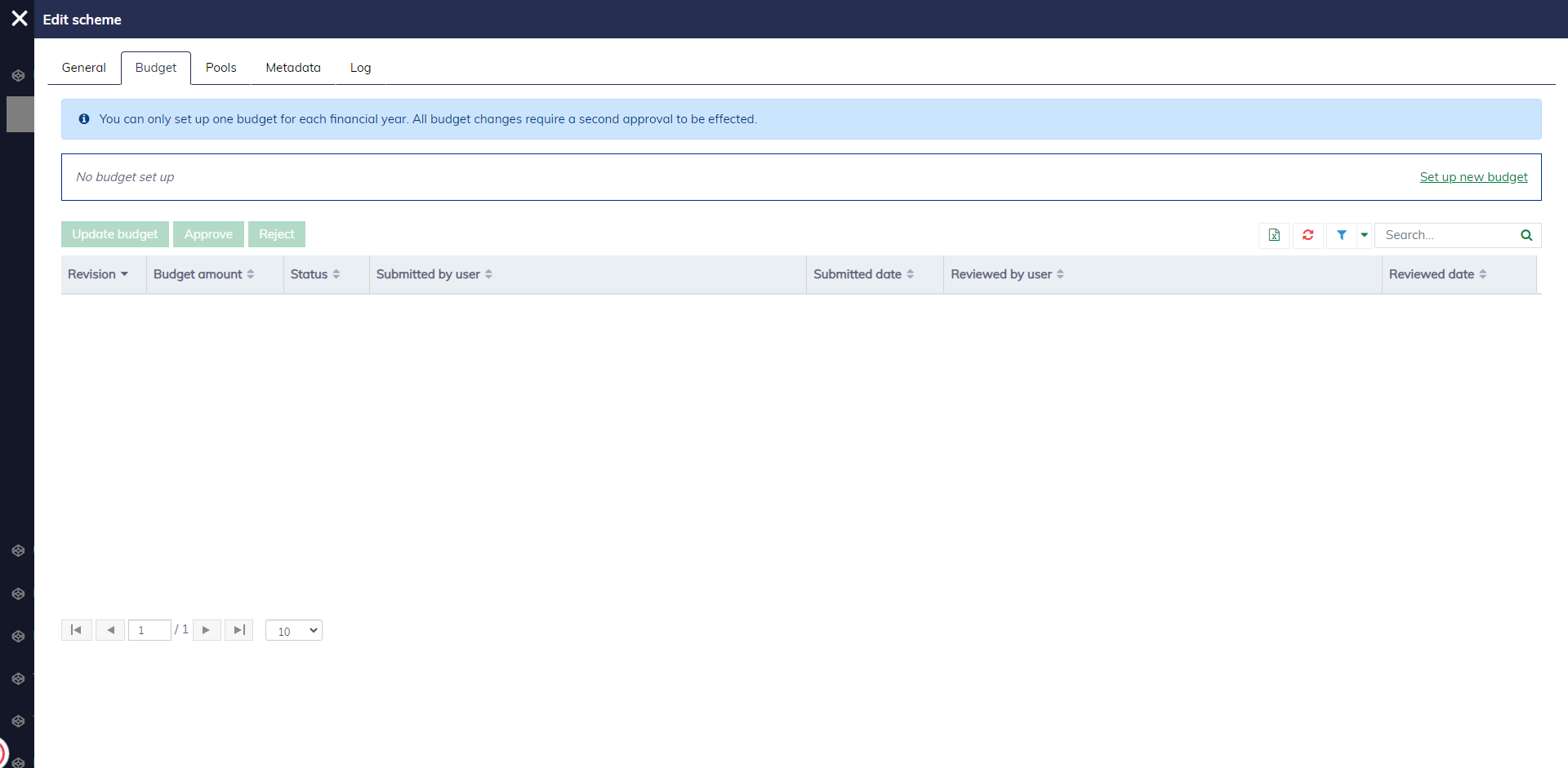
The budget editor will appear as follows.
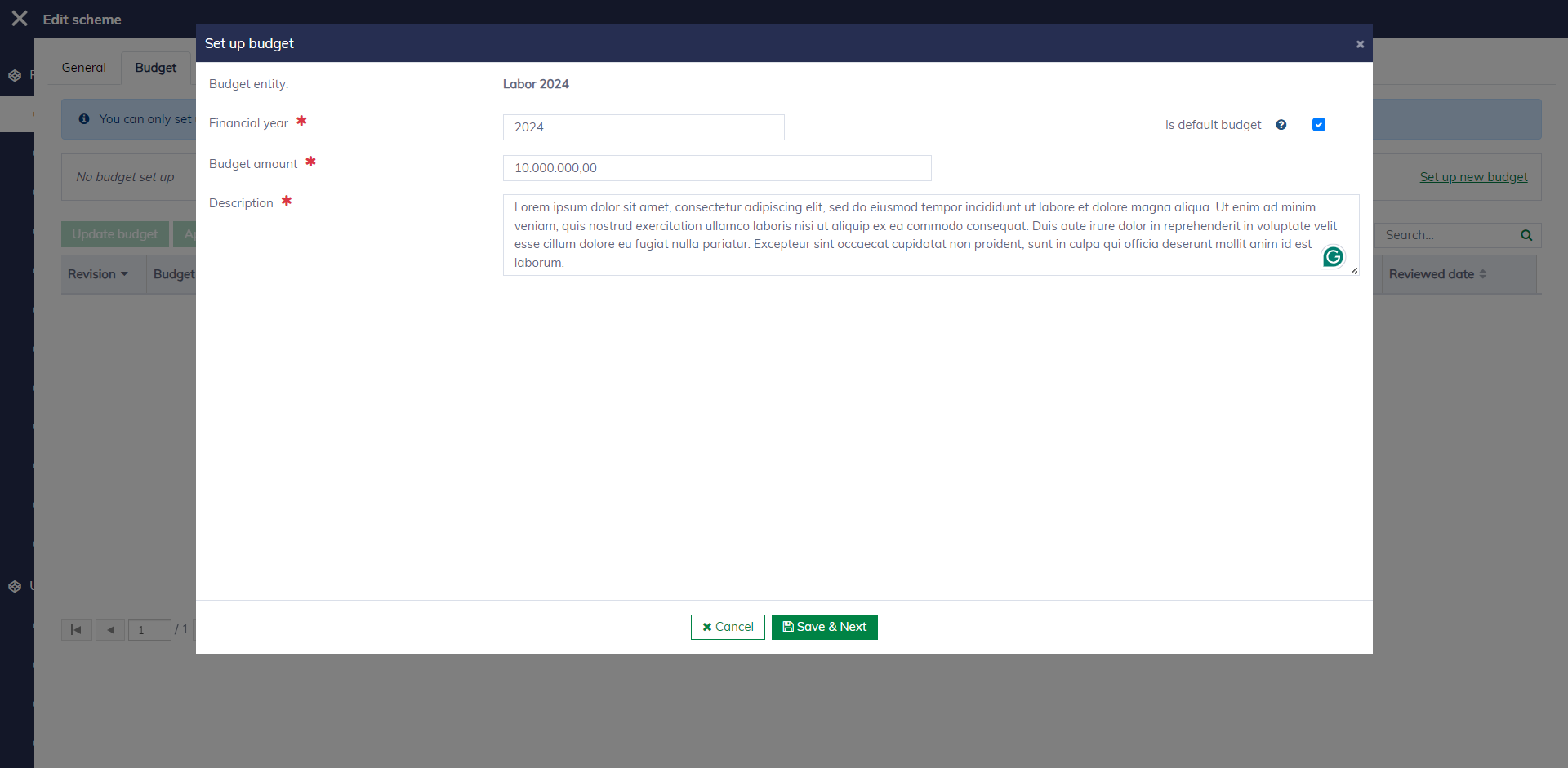
You must fill in the following fields to create a new budget:
| Field name | Mandatory | Description |
|---|---|---|
| Source budget | Yes | To display the available budget in the pool scheme. This field is read-only and determined by the pool scheme and the pool's financial year. |
| Budget amount | Yes | The budget amount must be greater than 0 and less than the available amount in the pool scheme. |
| Is default budget | Yes | A pool scheme or a pool can span multiple years and have multiple budgets. Setting "Is default budget" simply indicates that the budget is primarily used at the time being and will thus be more visible to end users. For pool rounds, which are usually scoped to one financial year, only the default budget can be allocated for applications, meaning the commitment amount will be validated against the default budget amount. |
| Description | Yes | A description is also required to explain the purpose of the budget. |
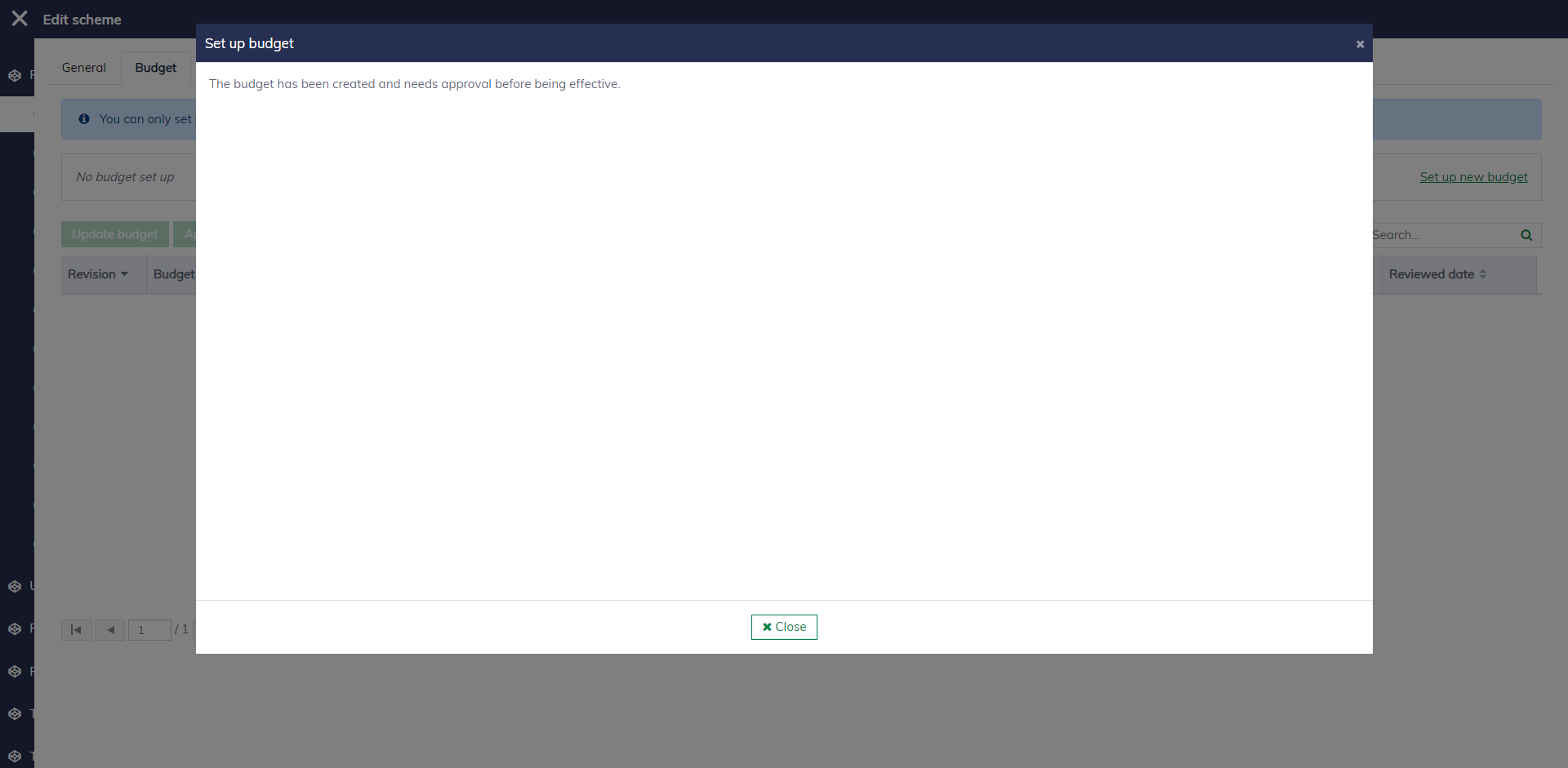
For the budget to be effective, another authorized caseworker must review and approve it. Learn more at "Approve budget".
Adjust budget
It's possible to adjust an existing budget. In the "Budget" tab, click the "Update budget", an editor will appear as follows:
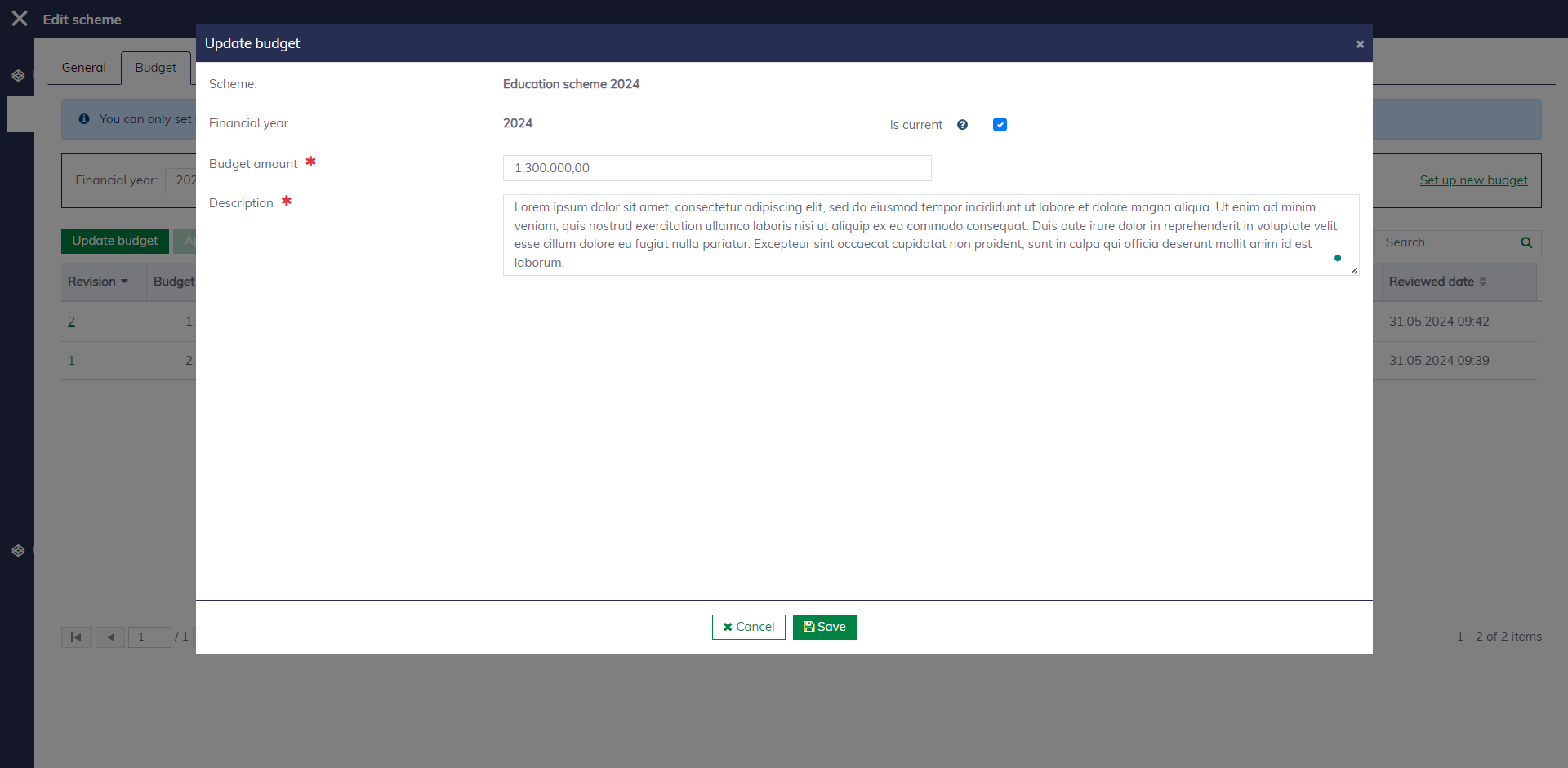
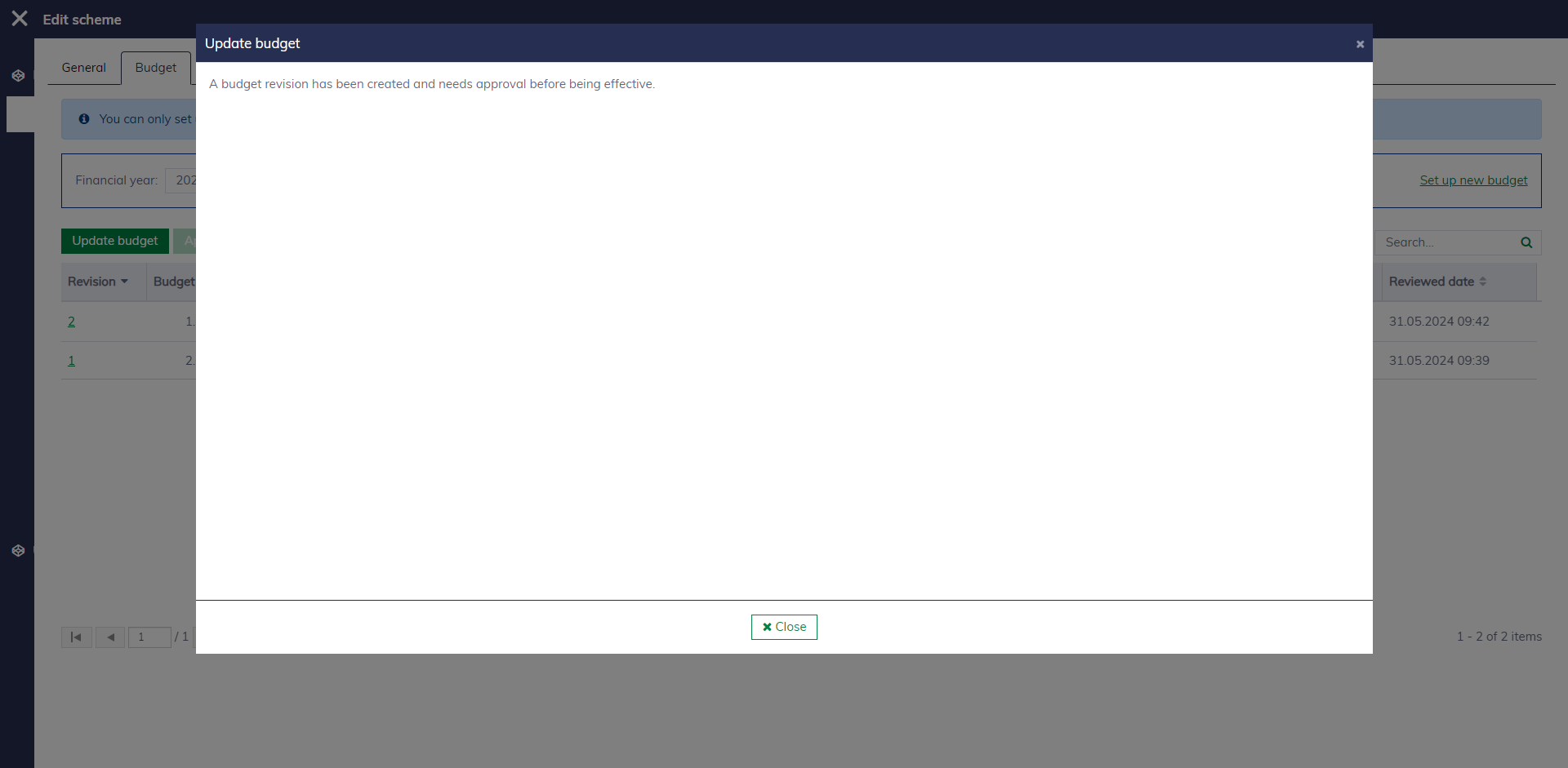
The change must be approved by another authorized person for it to be effective.
Approve budget
All pending-approval budgets will appear under the page "Pool setup / Pending budget revisions".
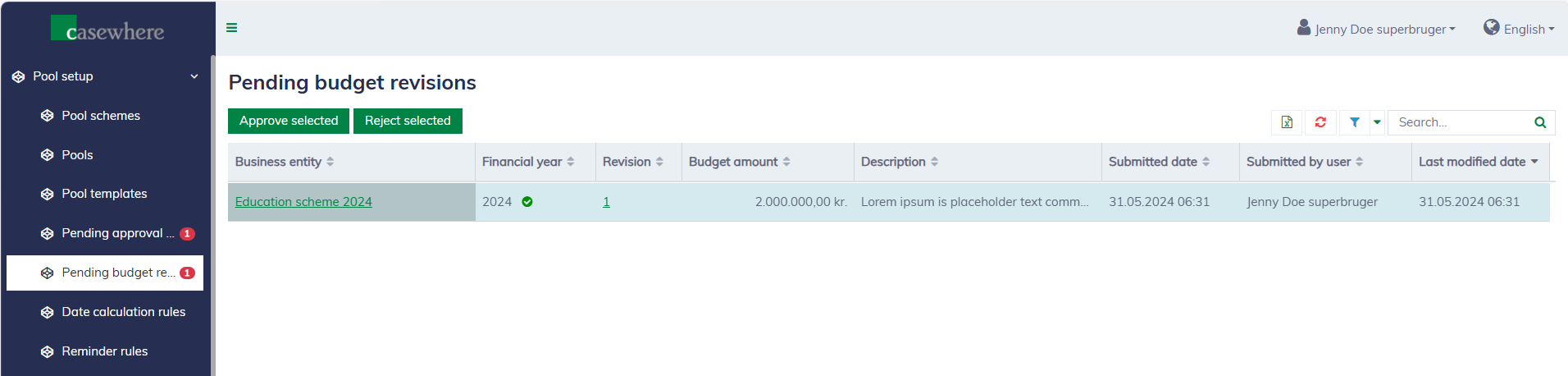
Here, you can select multiple revisions and approve or reject them at once.
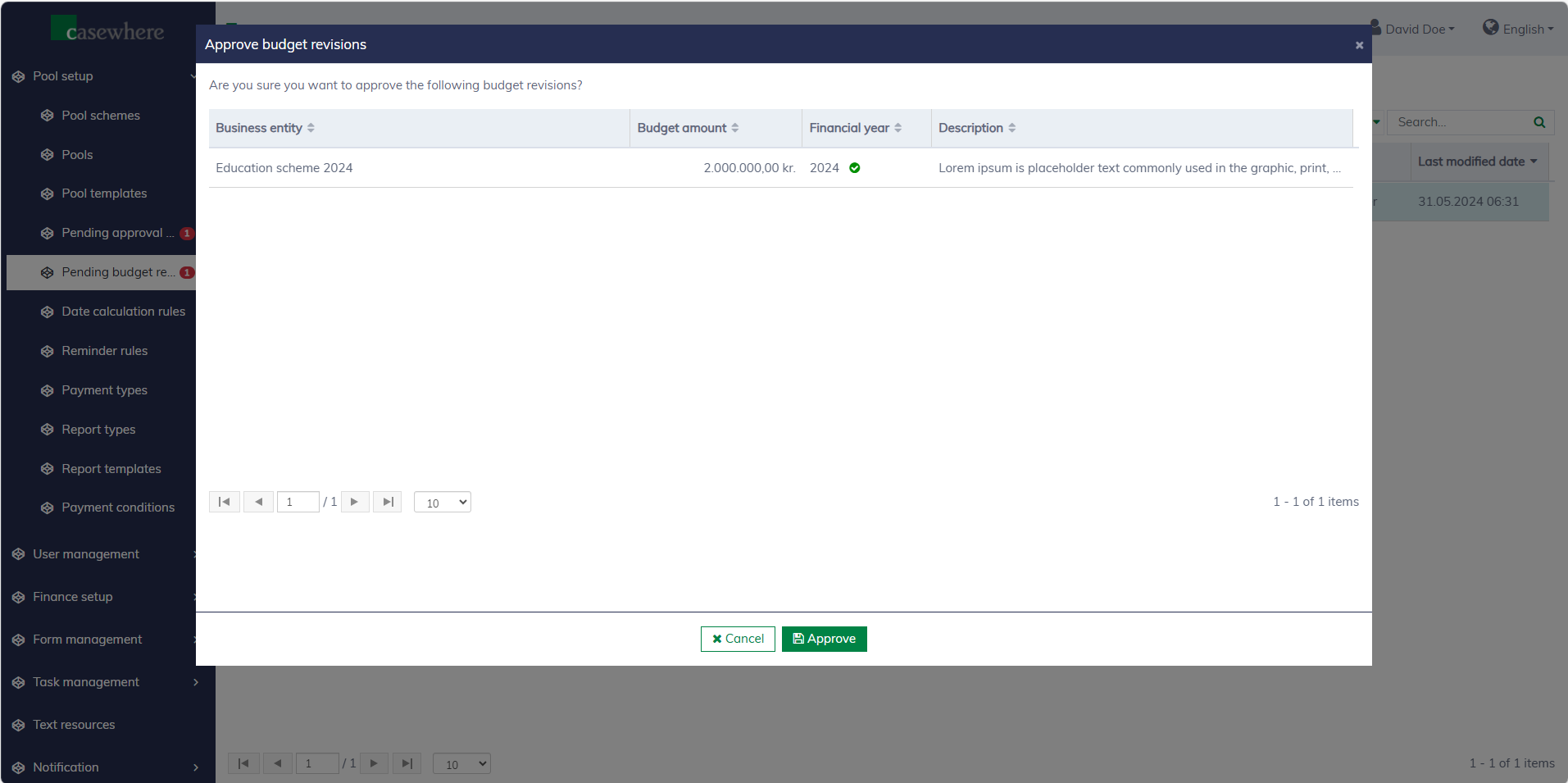
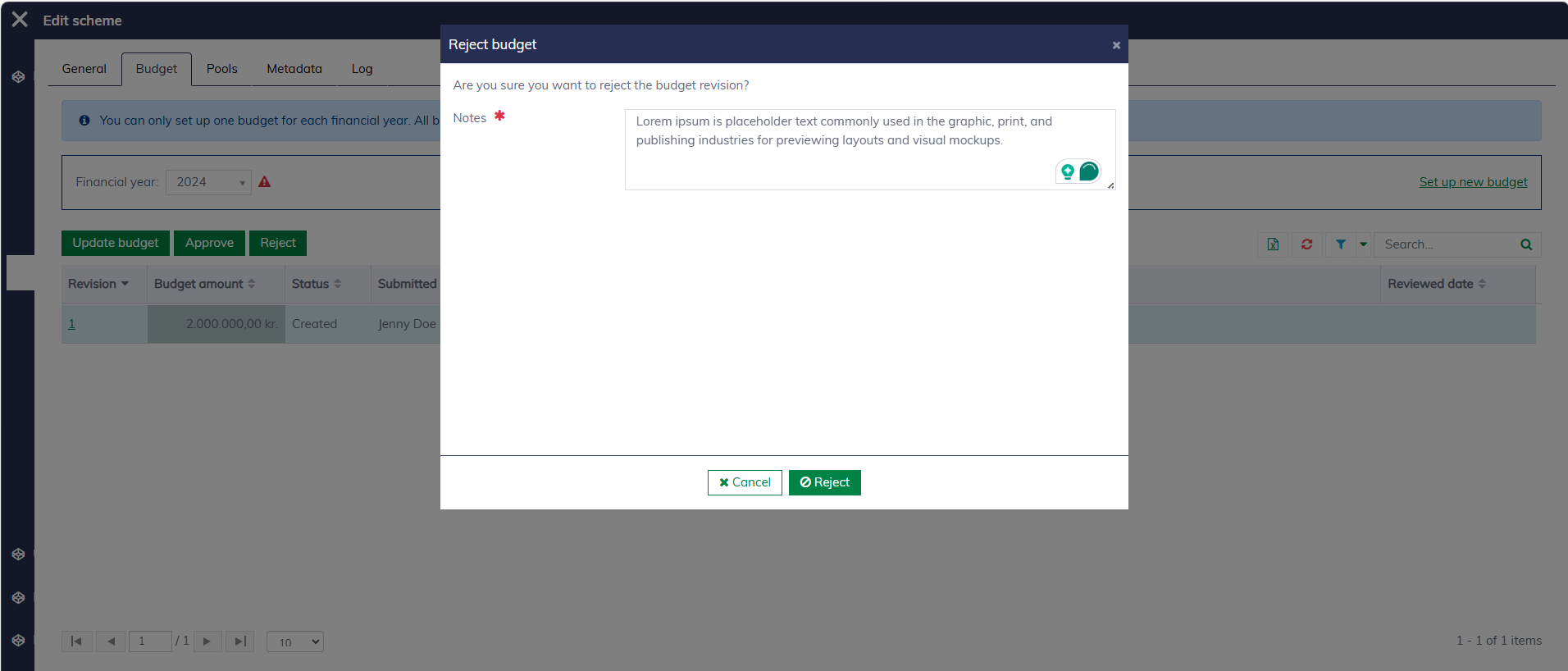
You can also review a budget revision in detail and either approve or reject it individually. A note is required when rejecting a budget.