Application management
The solution offers various ways for caseworkers to browse and manage applications.
Application lists
All application lists support standard functionalities such as filtering, searching, and sorting by status, dates, pools, rounds, and other relevant information.
As a caseworker, you can browse applications assigned to you on your personal page.
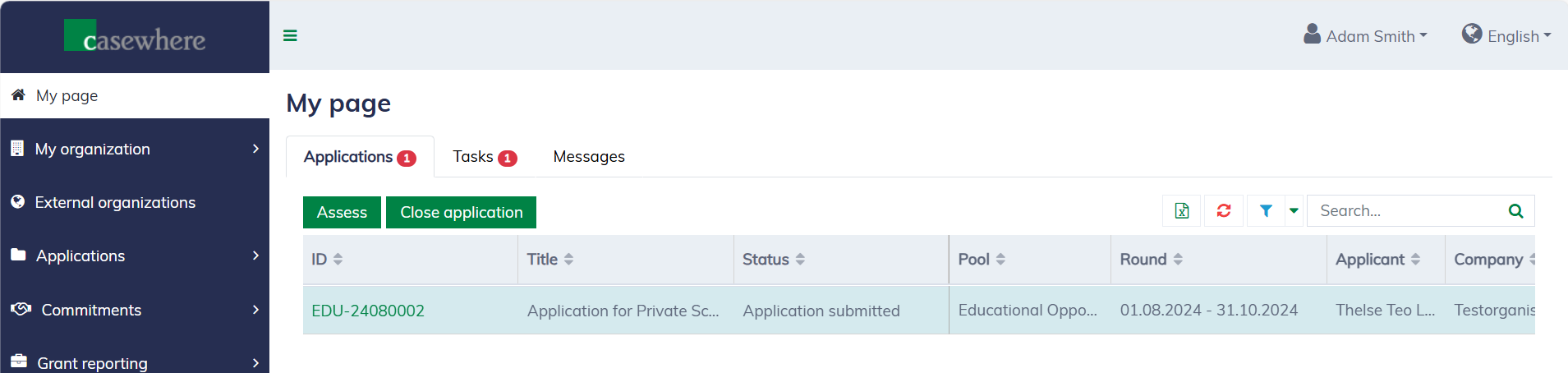
All applications in your organizations can be found under "Applications / All applications".
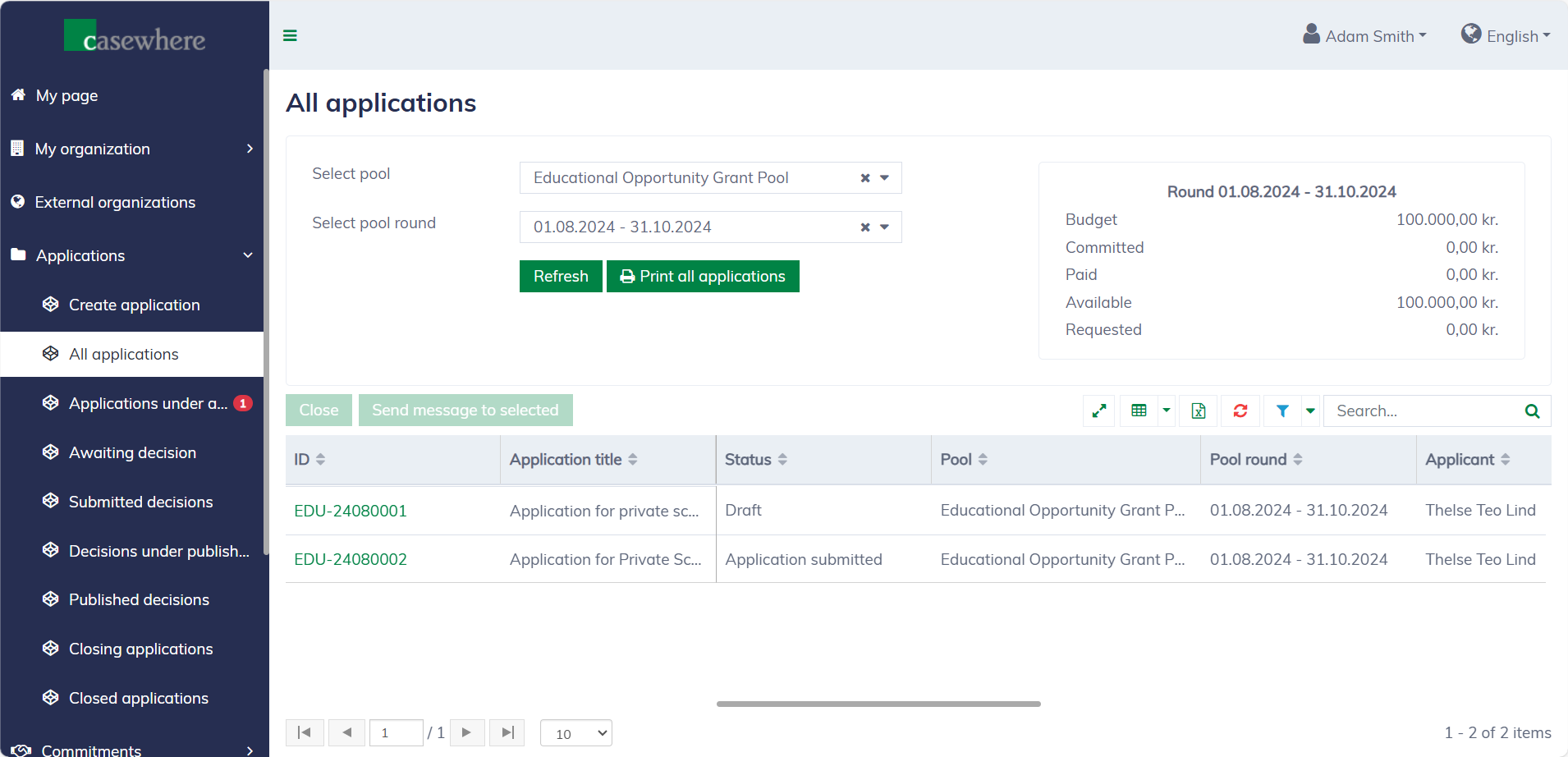
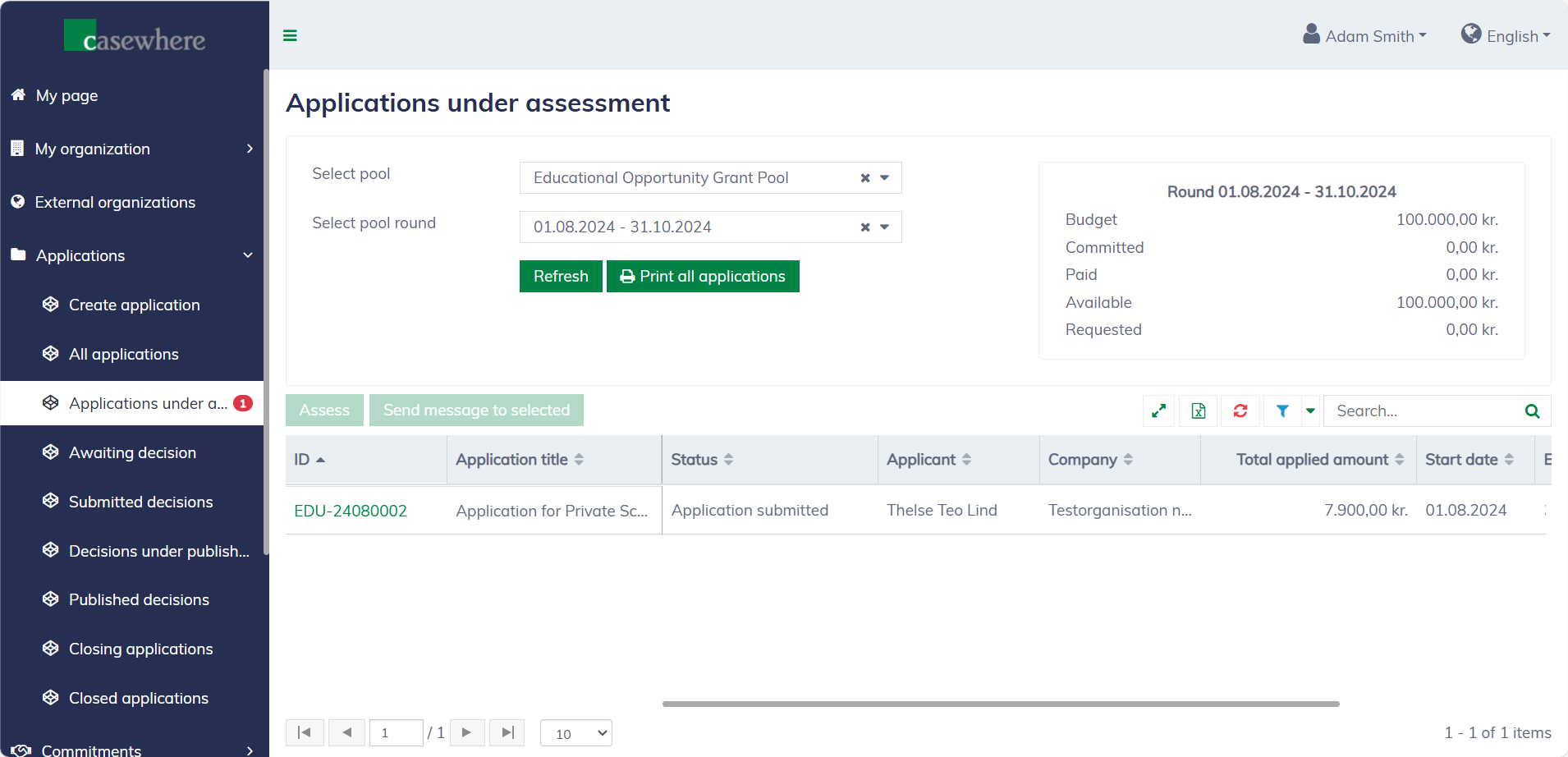
You can also browse applications at different stages of the application process, with a dedicated list provided for each stage.
Application dialog
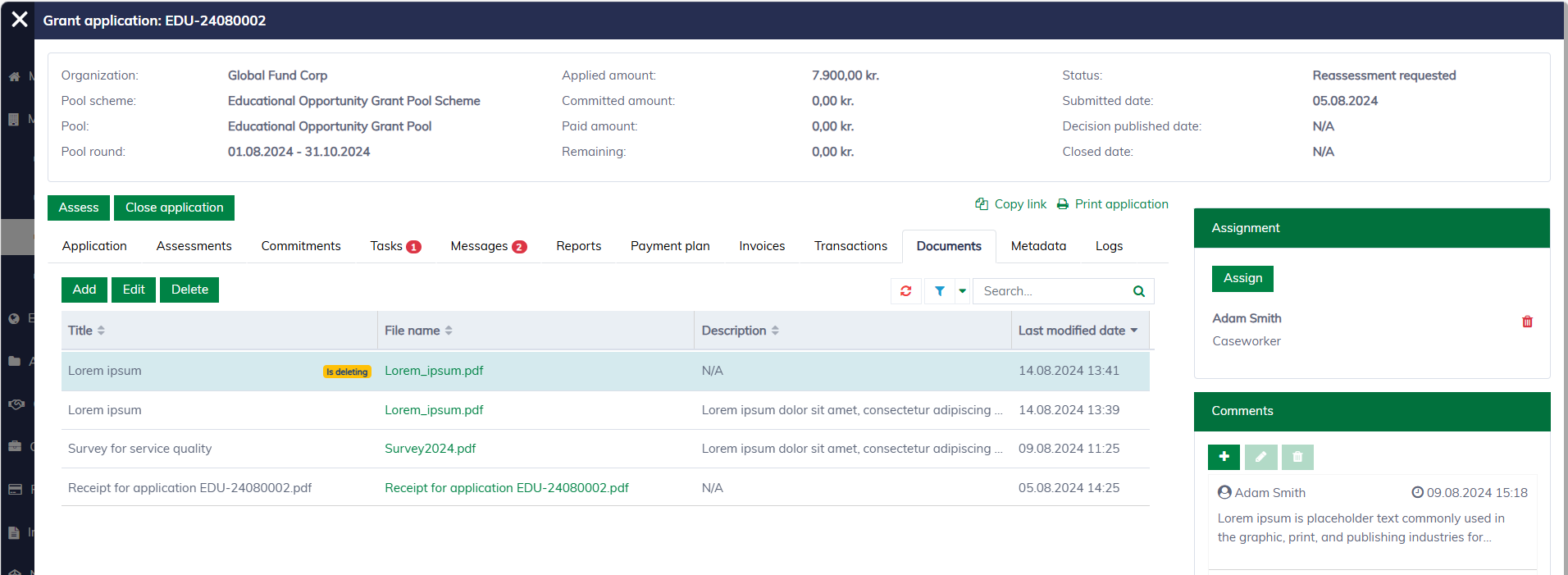
In any application list, you can click on the application ID to view the application details. The application dialog will appear as follows:
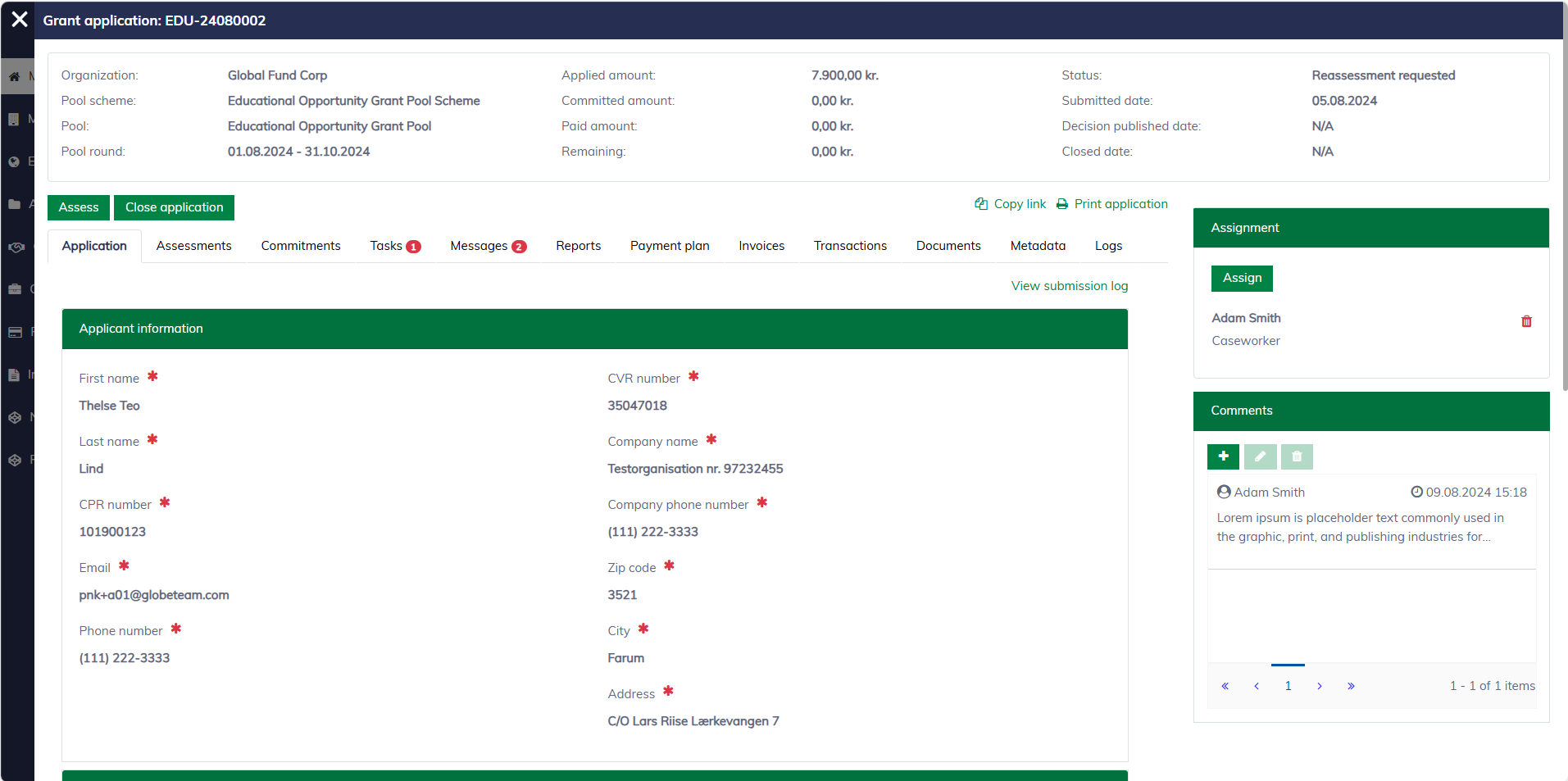
The application dialog organizes information into subareas, each has a separate tab:
- Application: The submitted data.
- Assessments: An application may undergo one or multiple assessments before reaching the decision stage in the application process.
- Commitments: A list of fund commitments associated with the application. An approved application must include a primary commitment and may also have additional commitments.
- Tasks: Each task represents work that needs to be completed to process the application, such as assessing the application, requesting additional information from applicants, and more. Learn more about task management here.
- Messages: A list of messages created for the application.
- Reports: A list of reports created by the applicant.
- Payment plan: An approved application must have an available payment plan. Here, you can monitor the status of payments, including when and how they are executed.
- Invoices: Invoices are needed when the applicant needs to repay the pool. Here, you can monitor the status of invoices, including when and how they are executed.
- Transactions: The system will record all changes related to finance as transactions, whether they are commitments, payments, or repayments.
- Documents: A list of all documents related to the application.
- Metadata: Additional information stored in the application for various purposes, such as categorization, tracking, and reporting.
- Log: All data changes and critical actions are tracked and logged here for historical purposes.
Functional buttons like "Assess" and "Close Application" appear based on the current status of the selected applications and your roles and permissions.
Document management
In the application dialog, navigate to the "Documents" tab to access the application's documents.
Adding or editing a document should be simple. The document editor appears as follows,
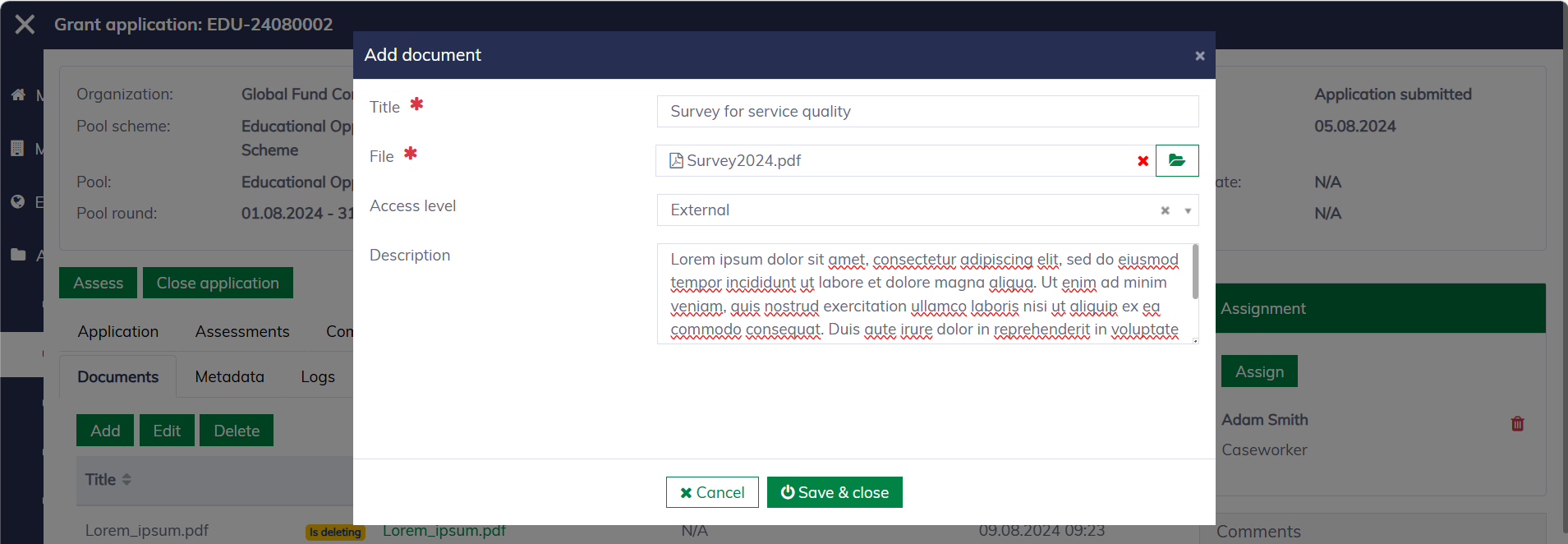
You must fill in the following fields:
| Field name | Mandatory | Description |
|---|---|---|
| Title | Yes | The title of the document should be descriptive, readable, and optimized for searching. |
| File | Yes | The attached file. |
| Access level | No | "External" means the document is accessible by external users, such as applicants and other project stakeholders. "Internal" documents are available only to caseworkers. |
| Description | No | To provide additional details about the document. |
Application assignments
The solution allows multiple caseworkers to be assigned to an application, which is helpful in determining responsibility. When the system automatically creates a task, it will assign caseworkers with the specified role as the default assignees.
In the "Assignment" section, click "Assign" and select the person to assign. All users in your organization will be available for selection.
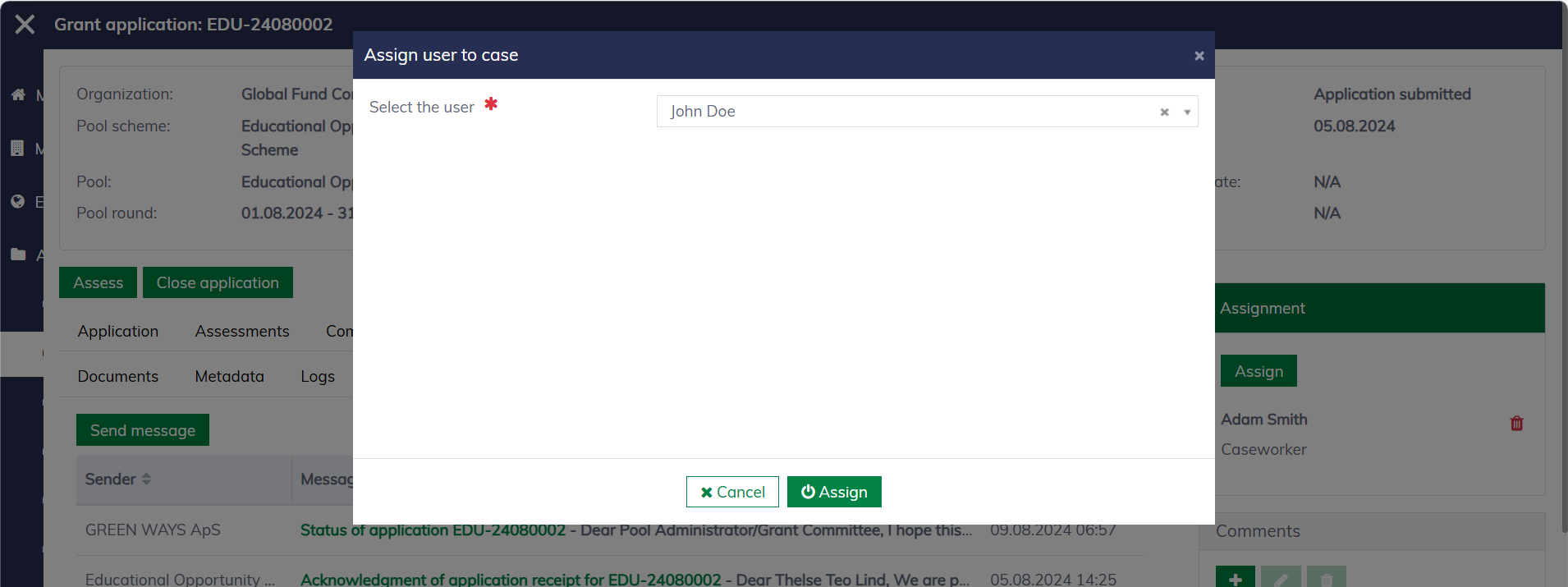
Please note that assignment is only available for "open" applications. You cannot add or modify application assignments once the application is closed.
Comments
Caseworkers can comment on applications in the pools they manage. In the "Comments" section, click "+" to add a comment.
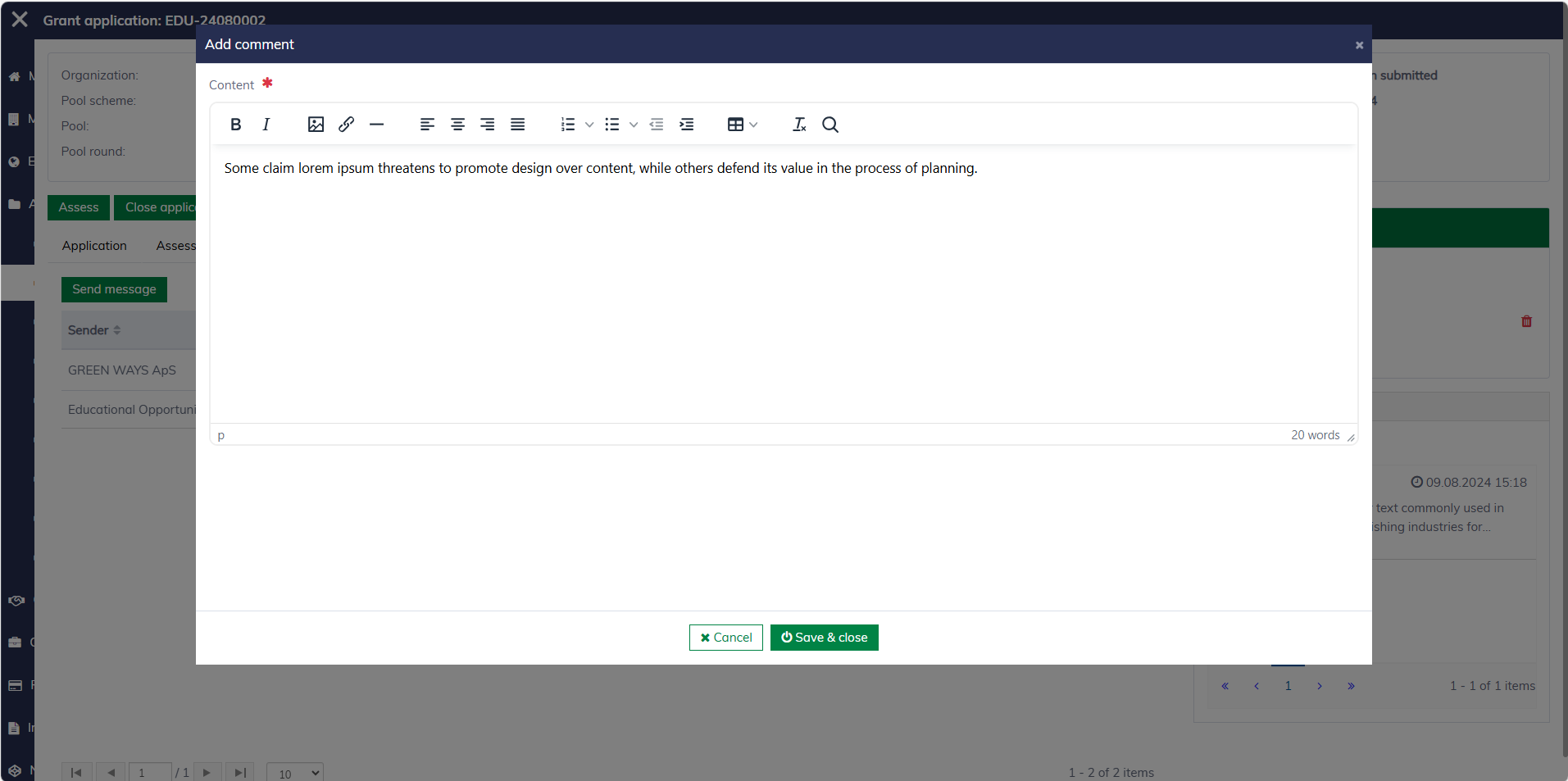
Please note that comments are only available for open applications. You cannot add or modify comments once the application is closed.