Pool schemes
A pool scheme reflects the main objectives of the budget. This top level represents the total amount available, which can be allocated to lower levels.
This article will walk you through the steps to set up a new pool scheme.
Create pool scheme
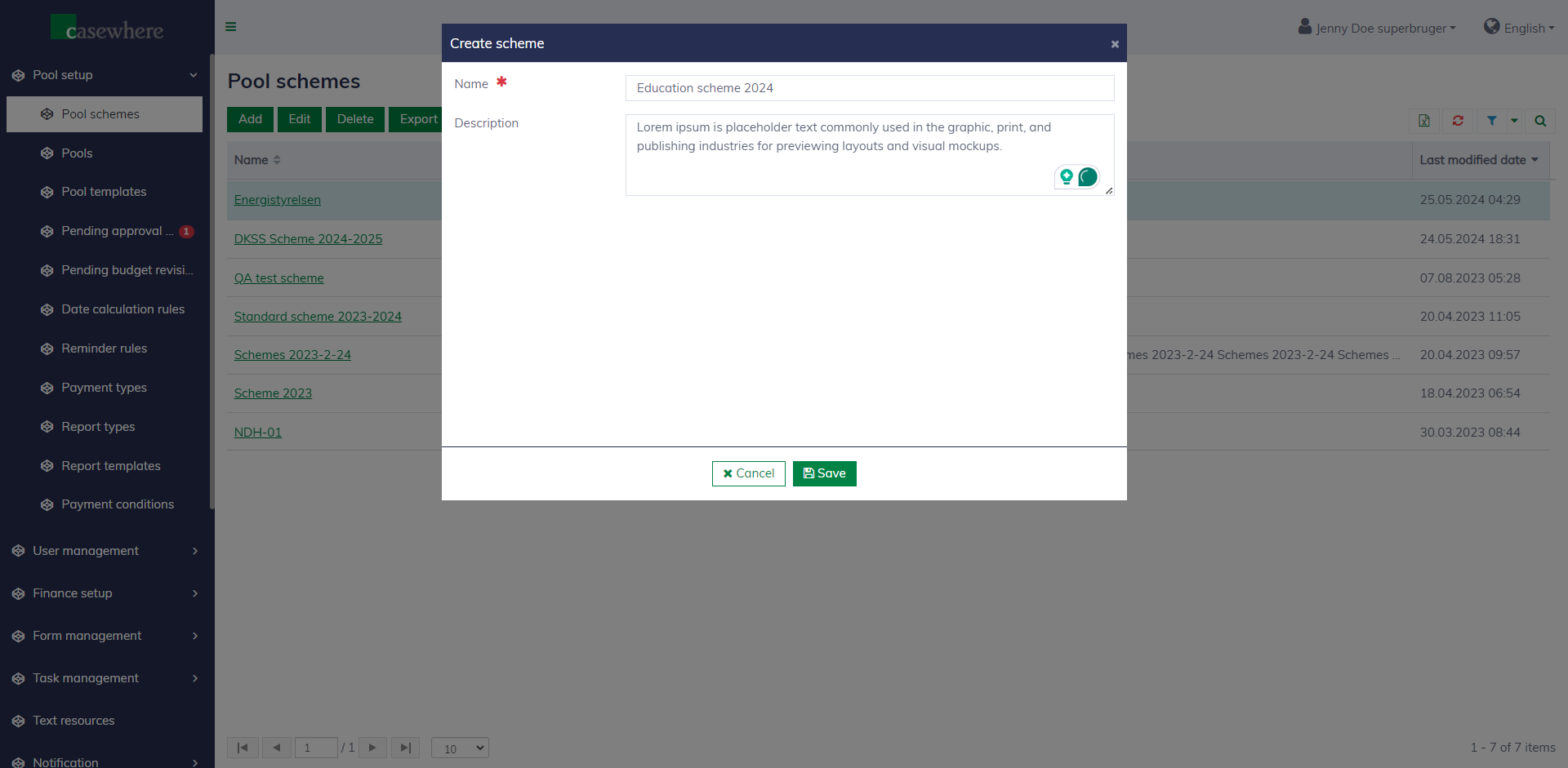
Navigate to the "Pool setup / Pool schemes" page, and click "Add" to create a new pool scheme. Fill in the following information and click "Save":
| Field name | Mandatory | Description |
|---|---|---|
| Name | Yes | The pool scheme name is required and should accurately represent the purpose of the scheme |
| Description | No | The description is to provide additional information |
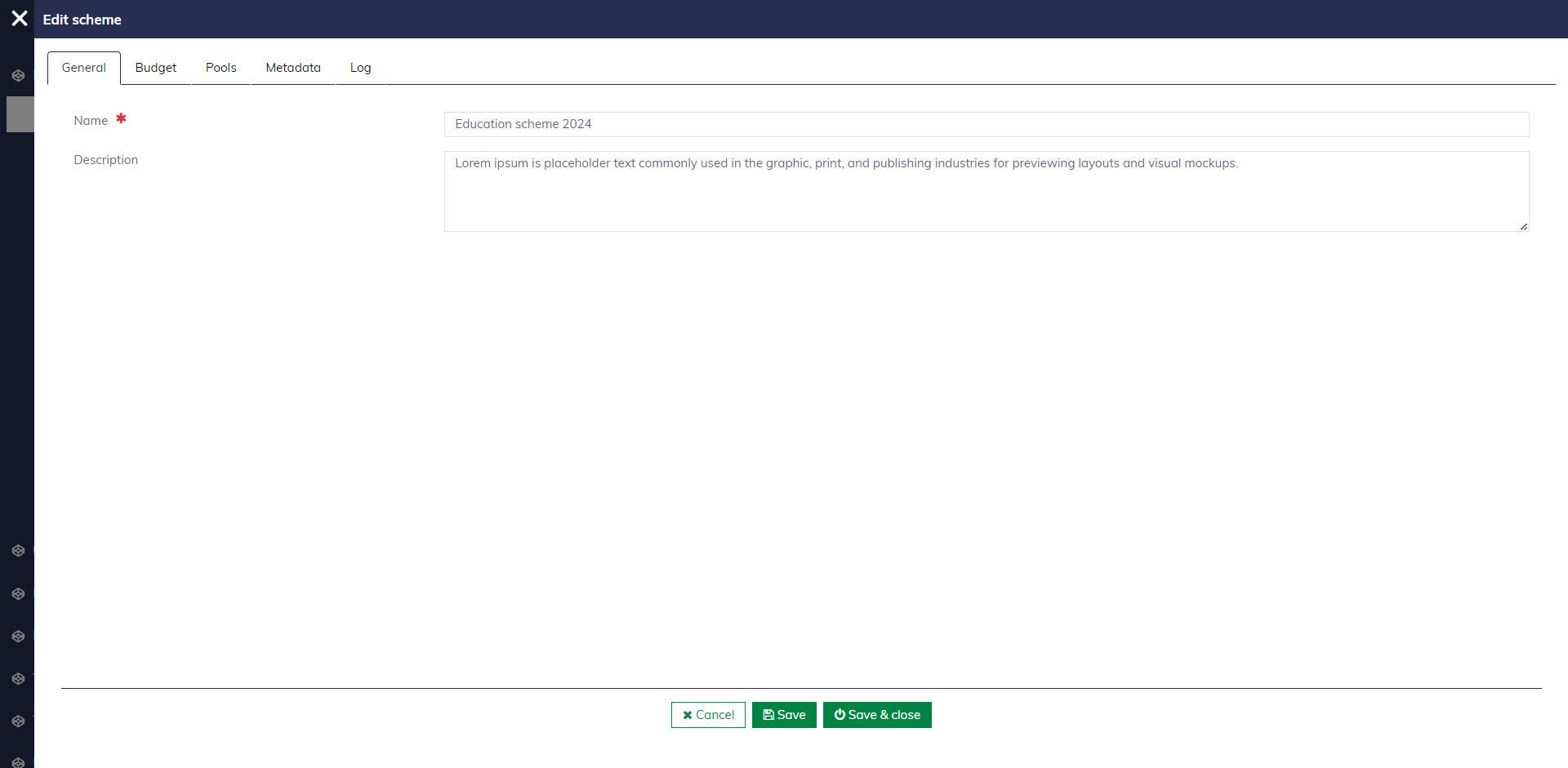
After clicking "Save", a new pool scheme is created and opened for further setup.
Set up budget
You can only set up one budget for each financial year. All budget changes require a second approval.
In the pool scheme editor, navigate to the "Budget" tab to start setting up a budget for the pool scheme.
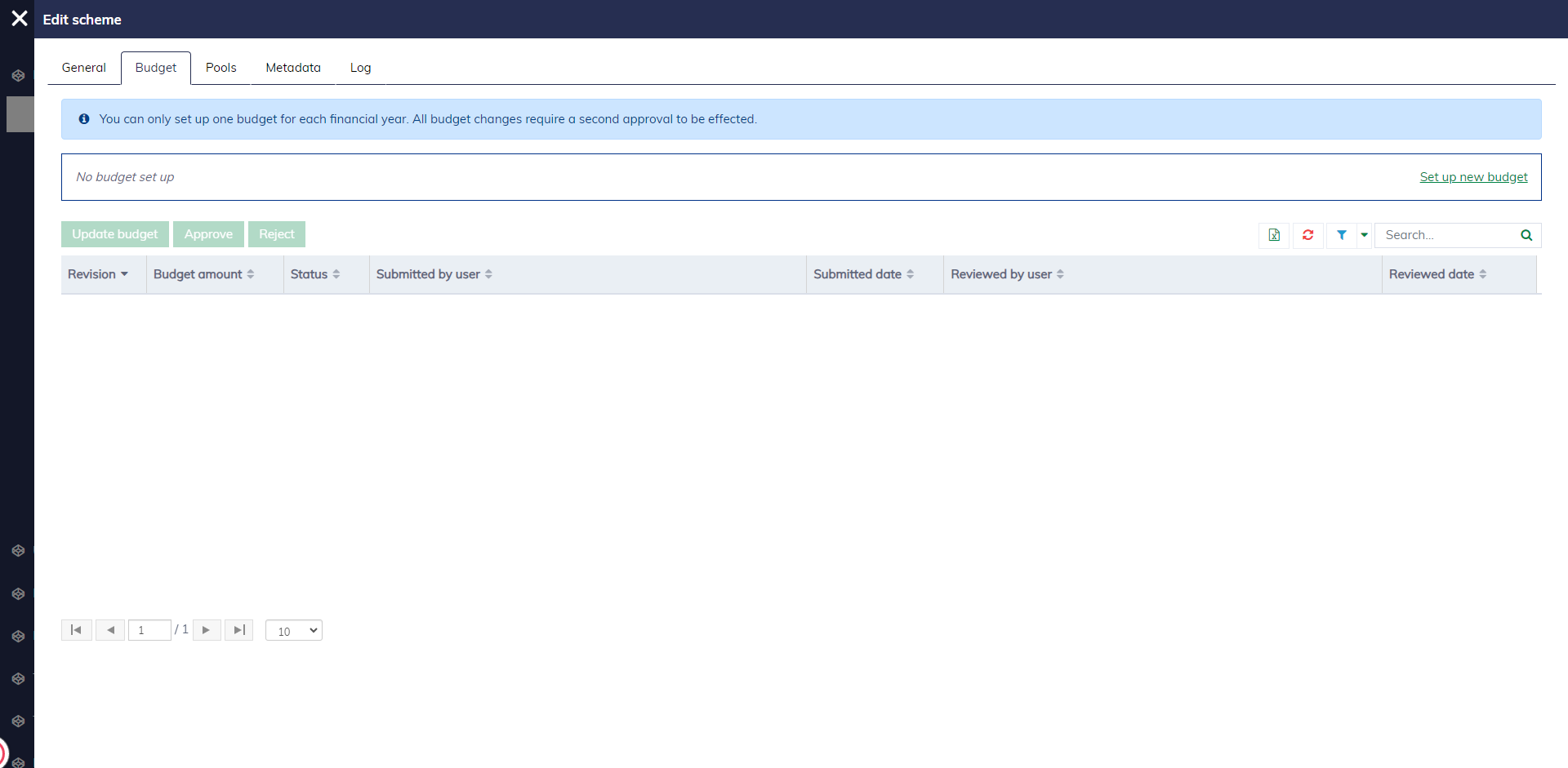
If no budget is set up, click "Set up new budget". The budget editor will appear as follows.
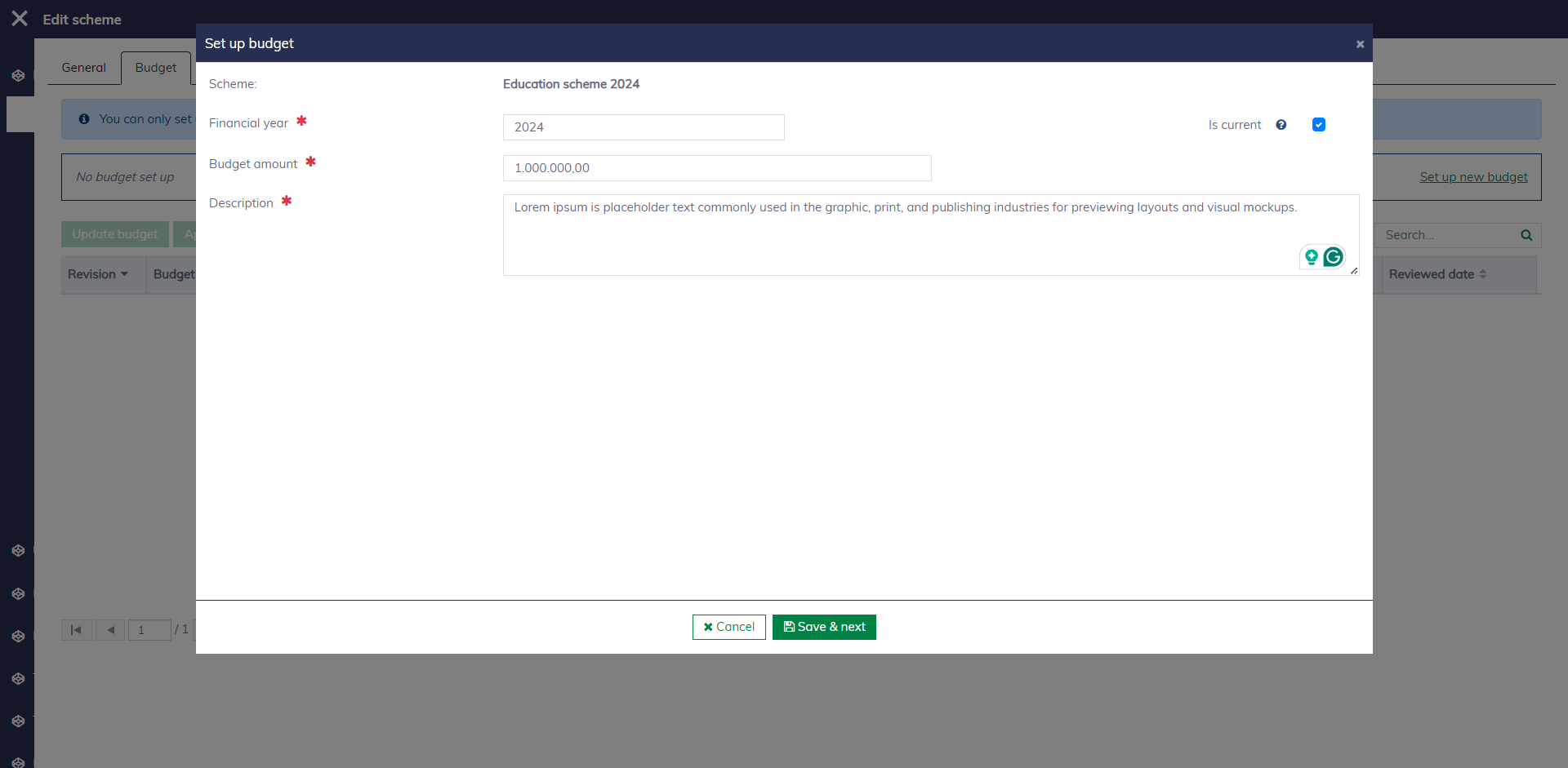
You must fill in the following fields to create a new budget:
| Field name | Mandatory | Description |
|---|---|---|
| Financial year | Yes | A valid year number in the format 'YYYY'. For example: 2024 |
| Budget amount | Yes | The budget amount must be greater than 0 |
| Is current | Yes | To determine if the budget is set up for the current financial year. Technically, you can set up multiple budgets, but there must be only one active |
| Description | Yes | A description is also required to explain the purpose of the budget |
Click "Save & next" to create the budget. The budget must be approved by another authorized person to be effective. Learn more at "Approve budget".
You can also modify an existing budget. To be effective, the change must be approved by another authorized person. Learn more at "Adjust budget".
Pools
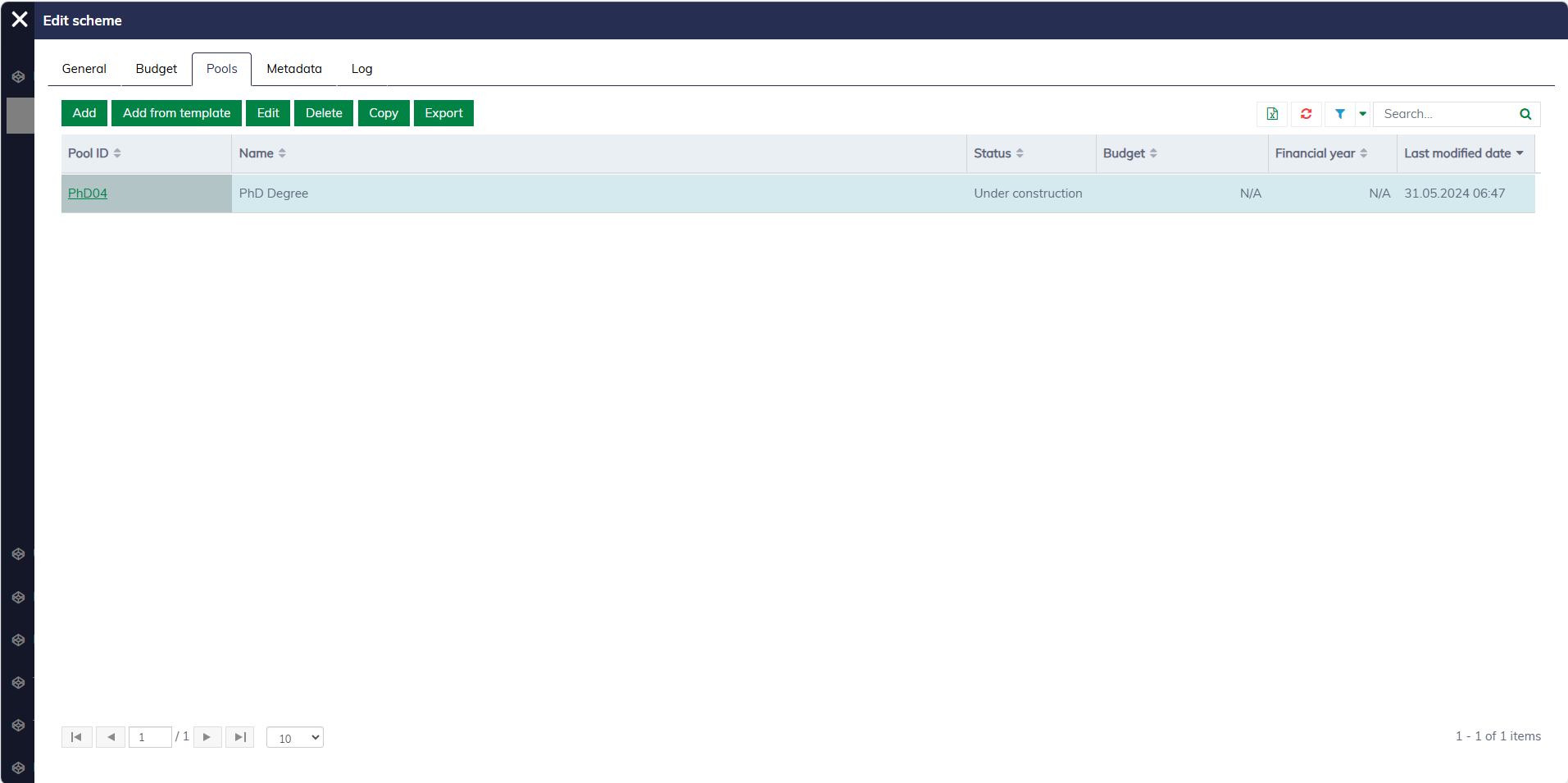
In the pool scheme editor, navigate to the "Pools" tab to manage pools for the pool scheme. You can learn more about pool management here.
Manage pool schemes
The "Pool schemes" list provides standard functionalities for managing pool schemes.
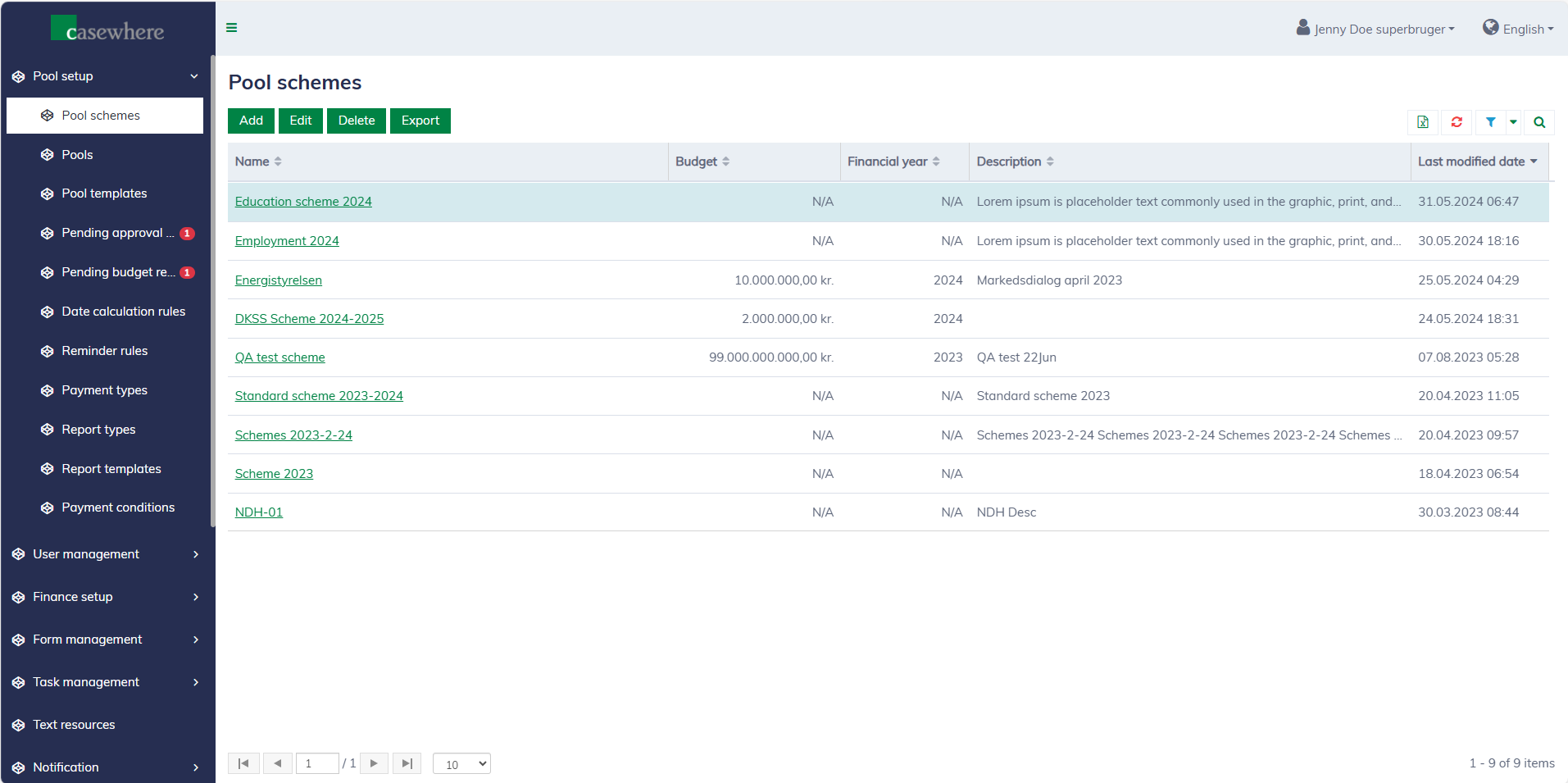
It's possible to edit the existing pool scheme, but all changes related to the budget will require approval from another authorized person.
You can only delete a pool scheme if it does not have any pools associated with it.
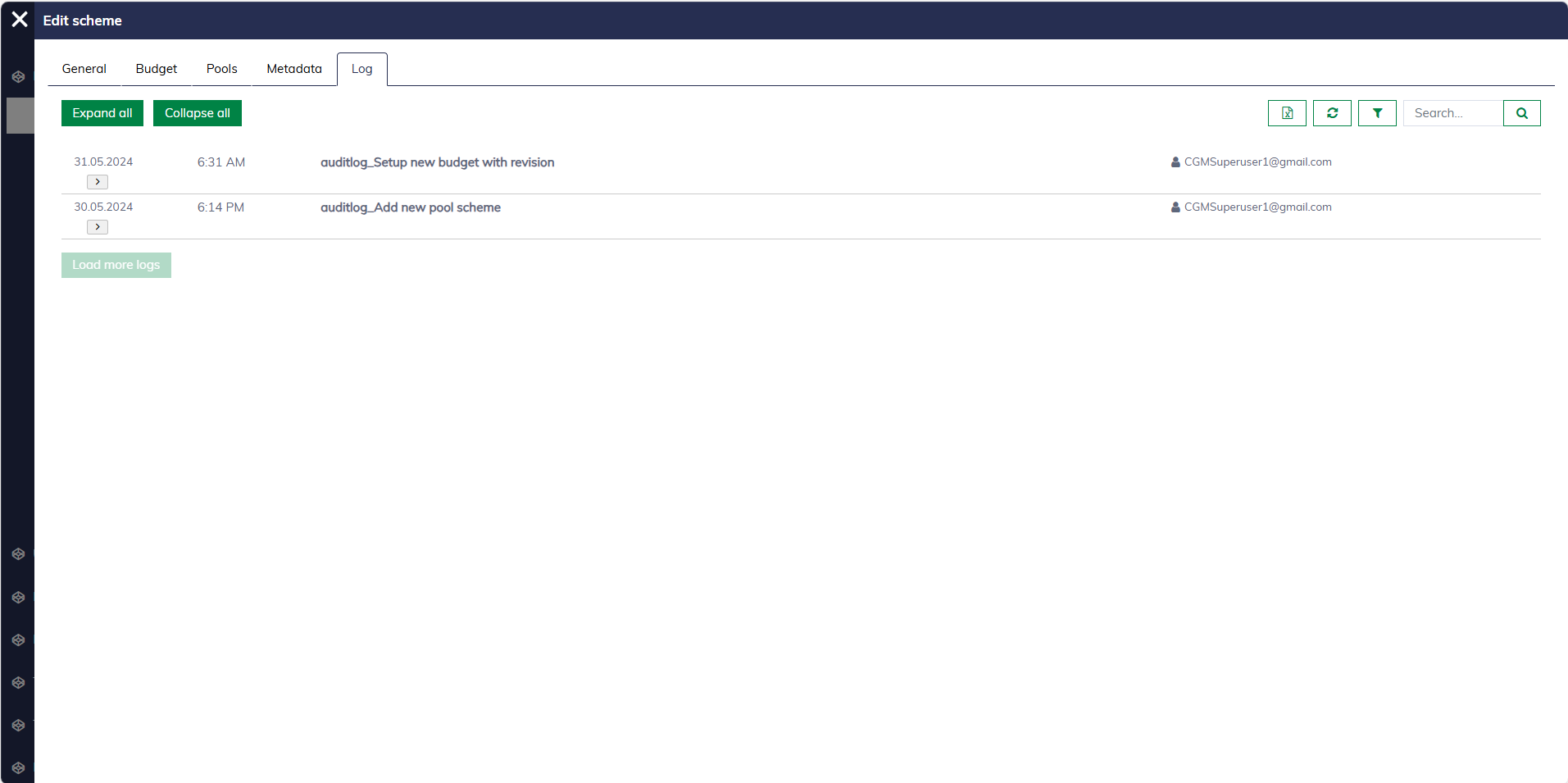
You can view the history of a pool scheme by opening the pool scheme and navigating to the "Log" tab.
Metadata
If your business requires more information at the pool scheme level, you can define custom fields for pool schemes. The custom fields will appear under the "Metadata" tab for user input. Learn more here.